Folder and Form-Template Restrictions
Folder and form-template restrictions let you control what users can add to a folder and who can create records from a form template. Use them to keep a folder for specific content, separate creation from moving and restoring, or limit a form to the teams that should use it.
Restrictions work alongside sharing permissions. A user must have the required access permissions and satisfy every applicable restriction. An Allow only rule does not grant access by itself. For access to existing resources, see Access Permission Levels and Sharing Files, Folders, and Other Resources.
Configure folder restrictions
You need Editor permission to the folder to configure its restrictions.
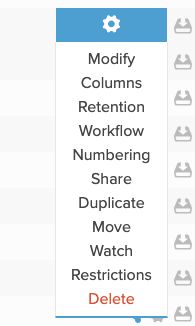
- Locate the folder and open its settings menu using the gear icon. Choose Restrictions.
- Under Rule inheritance, choose Use inherited rules to use the applicable parent-folder rules, or Set custom rules to replace them for this folder.
- In custom mode, click Add rule.
- Choose a Rule type: Allow only or Block.
- Select the Item type the rule covers.
- Select the Users and/or Groups the rule covers. Leave both fields empty to cover everyone with the required sharing permissions.
- Under Actions, select Create items, Move or restore items into this folder, or both.
- Enable Apply to subfolders if subfolders should inherit the rule. Add any other rules you need, then click Save changes.
Cancel leaves without saving your edits.
Choose item types and actions
A folder rule can cover All item types, Files, Links, Folders, All form records, or records from a specific available form template.
The action choices are independent. A rule for Create items does not also restrict moving or restoring existing items unless Move or restore items into this folder is selected. Check both action choices and Apply to subfolders before saving; a newly added rule currently selects all three by default.
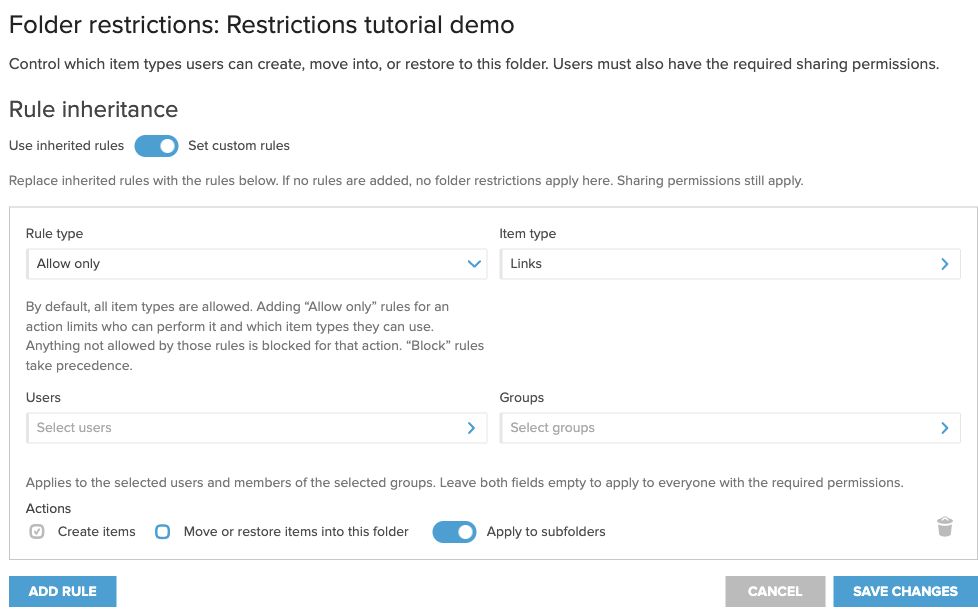
In the example above, everyone with the required permissions can create links. Other item types cannot be created in this folder because the creation rule allows only links. Moving and restoring are not restricted by this rule. Subfolders that use inherited rules receive the same creation restriction.
How Allow only and Block work
By default, all item types are allowed, subject to sharing permissions and other applicable restrictions.
- Allow only defines permitted combinations of users, item types and actions. Once an action has Allow only rules, anything not permitted by those rules is blocked for that action. Multiple Allow only rules can permit different combinations.
- Block prevents the selected users from performing the selected actions for the specified item types.
- Block takes precedence within the active folder rules. A matching Block rule prevents the action even if an Allow only rule would otherwise permit it.
Select users and groups
Selecting both users and groups includes either: a person can be selected individually or be a member of a selected group. Leaving both fields empty applies the rule to everyone with the required sharing permissions.
For an Allow only rule, choosing specific users or groups also limits who is included in that allowed combination. Other users need another matching Allow only rule to perform that action.
Inheritance and subfolders
- Use inherited rules applies rules passed down from a parent folder. Only rules marked Apply to subfolders are inherited.
- Set custom rules replaces inherited folder rules with this folder’s configuration. Custom rules do not simply add to the inherited rules.
- Custom mode with no rules means no folder restrictions apply at that folder. Sharing permissions and applicable form-template restrictions still apply.
- A subfolder using custom rules replaces its inherited folder rules with its own configuration.
Restrict who can create records from a form template
Form-template restrictions control who can create new records using a particular template. They are separate from the destination folder’s item and action rules.
- Open Form templates.
- Open the template’s settings menu and choose Restrictions.
- Choose the users and groups allowed to create records. Leave both allowed selections empty to include anyone with the required permissions.
- Choose any users and groups to block. A blocked user or group member cannot create records using this template, even if also included in an allowed selection.
- Save your changes.
Creating a form record must satisfy all three: the user’s sharing permissions, the destination folder’s restrictions and the form template’s restrictions. A template’s creation restrictions govern new records; moving or restoring an existing record is governed separately by the destination folder’s move/restore rules and the required permissions.
The template’s Restrictions page also lists folders whose rules explicitly select that template. Broader rules for All form records or All item types can still apply even when a folder is not listed.
For creating templates and records, see eForms (Form templates).
Example: files for Finance, purchase requests for Project Managers
Suppose a folder has three rules, each covering Create items:
- Allow only → Files for the Finance group.
- Allow only → Purchase Request for Project Managers, selecting that specific form template as the item type.
- Block → Files for one particular user.
Finance members can create files; Project Managers can create Purchase Request records. They still need the required sharing permissions, and Purchase Request creation must also satisfy the template’s restrictions. Other users and item types are blocked for creation unless another Allow only rule includes them. The individually blocked user cannot create files even if they belong to Finance.
These rules do not restrict moving or restoring unless that action is also selected.
If an item cannot be created, moved or restored
- Check the user’s sharing permissions first.
- Check whether the destination folder uses inherited or custom rules, and whether the relevant rule covers creation or moving/restoring.
- Look for a matching Block rule, then check whether an Allow only rule includes the user, item type and action.
- For a new form record, also check the template’s allowed and blocked users and groups.
These checks also apply through the API. Contents within a form record or ASiC container are managed with their container rather than checked individually against folder item restrictions. WebDesktop imports are exempt from these restriction checks.