Custom Workflow Methods
Custom workflow methods let administrators adapt Folderit’s standard workflow behaviour to match the terminology and decision process used by their organization.
For example, a standard Approval workflow can be presented as Management Review, Quality Check, Legal Review, or another internal process. The underlying approval behaviour remains the same, but the method name, action buttons, result labels, messages, colours, delegation rules, and file access can be customized.
Where custom methods are managed
Go to:
Admin tools → Workflows → Methods

This page contains:
- Base methods — Folderit’s standard workflow methods;
- Custom methods — methods created specifically for your organization.
Enabling or disabling standard methods
The available standard methods can be enabled or disabled for the entire account.
For example, if your organization does not use DocuSign or eID, you can disable those methods so they no longer appear to users when creating workflows.
Disabling a method removes it from the available workflow options for the organization. It does not replace or modify existing custom methods based on that method.
Click Save after changing the enabled methods.
Creating a custom workflow method
Click + Custom at the top of the Methods page.
1. Choose a base method
Select the Folderit method whose behaviour the new method should use.
Available base methods may include:
- Approval
- Acknowledgement
- DocuSign
- eSign
- eID
- Fill fields
The selected base method determines the available actions and how the workflow behaves.
For example:
- an Approval-based method can include approval, rejection, and clarification actions;
- an Acknowledgement-based method normally contains one acknowledgement action;
- an eSign-based method follows the electronic-signing process;
- a Fill fields-based method asks the recipient to complete or update fields in a form record.

2. Enter the default label
The Default label is the name users will see when selecting this method in a workflow.
Examples include:
- Management Review
- Legal Approval
- Quality Check
- Policy Confirmation
- Release Authorization
3. Configure delegation
Enable Allow delegation if recipients should be able to delegate their task to another user.
Disable it when the assigned recipient must complete the task personally.
4. Configure workflow file access
Choose what access the workflow recipient receives to the item.
Available options can include:
- No access
- Preview
- Viewer
- Editor
- Custom
Use this setting to control whether the workflow task itself grants access to view, download, or edit the file.
5. Customize workflow title texts
Click Customize title texts to change the messages shown for different workflow states.
These can include messages for:
- an active task;
- a delegated task;
- a clarification request;
- an accepted decision;
- a rejected decision.
Placeholders such as the requester’s or recipient’s name can be used where supported.
6. Customize the available actions
The actions depend on the selected base method.
For each available action, you can configure:
- whether the action is enabled;
- button colour;
- button label;
- result label;
- action order.
For example, an Approval-based method could use:
- Return for Changes instead of Reject;
- Request More Information instead of Request clarification;
- Accept instead of Approve.
The result labels can also be customized, such as:
- Returned for Changes
- Information Requested
- Accepted
7. Save the method
Click Save to create the custom method.
The method will then appear in the Custom methods list, where it can be enabled, disabled, or edited.
Where custom methods can be used
Once enabled, custom methods can be used throughout Folderit wherever workflow methods are available, including:
- manual workflows started from an item’s Workflow menu;
- folder-level workflow automation;
- visual workflow automations;
- workflow templates;
- custom multi-stage workflows.
This allows the same organization-specific terminology and behaviour to be used consistently across manual and automated processes.
Example: a custom approval method
An organization may create a method called Management Review based on Approval.
It could use:
- Return for Changes instead of Reject;
- Request More Information instead of Request clarification;
- Accept instead of Approve;
- custom title messages;
- Preview access to the file;
- delegation enabled.
Users would then select Management Review anywhere that method is made available, while Folderit continues to use the standard approval logic underneath.
Example: a custom method based on Fill fields
Fill fields asks a recipient to complete or update selected or all fields in an existing eForm record. You can use it as a base method when the task should have an organization-specific name, such as Complete incident details or Add finance information.
Follow the creation steps above, choosing Fill fields as the Base method. Enter the custom name in Workflow name, then configure Allow delegation and File access for participants for the process.
Use Customize workflow messages to adjust the text recipients see. Under Decision options, the completion action is Fill fields. Its default button label is Fill fields and its default result label is Filled fields. You can customize the colour and these labels, for example:
- Workflow name: Complete incident details
- Button label: Submit incident details
- Result label: Incident details completed
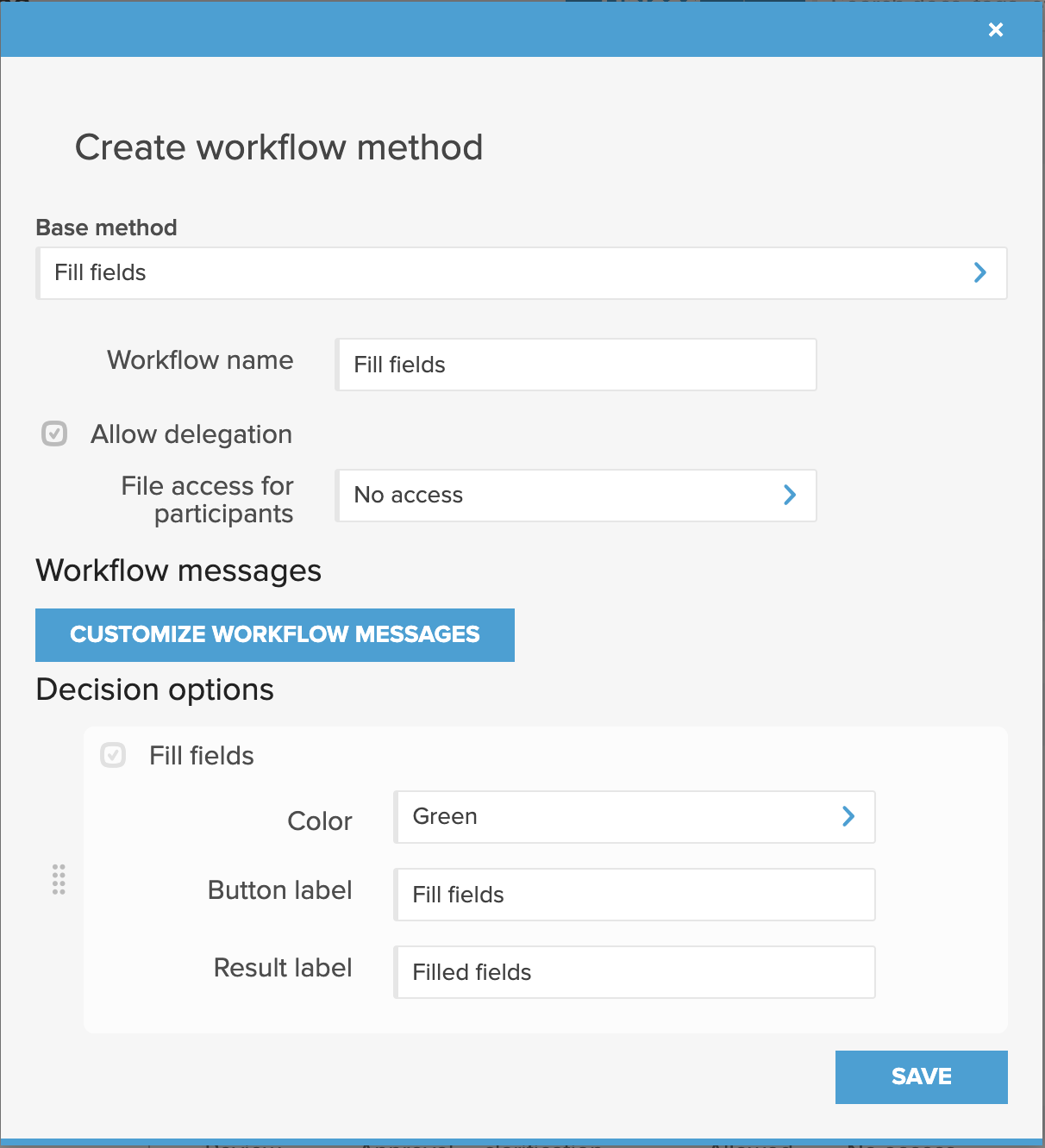
Click Save and ensure the custom method is enabled. It can then be selected for a recipient in a manual workflow, a workflow template, or a Request action step in the automation builder where the method is available for the form record.
The custom method retains the underlying field-completion behaviour. Configure the Visible field filter and Editable fields separately for each recipient in the workflow request. These selections determine which form fields the recipient can see and change; they are separate from the method’s participant file-access setting. See Fill Fields Workflows for field selection and recipient instructions.
NOTE: Custom workflow methods change how the workflow is presented and configured, but they remain based on the selected standard method.
The base method determines the underlying workflow behaviour. Customization allows the organization to change the terminology, available actions, access, and presentation without creating an entirely new workflow engine.