Fill Fields Workflows
Fill fields is a Folderit workflow method that asks a recipient to complete or update some or all fields in an existing eForm record. Like Approval or Acknowledgement, it can be used on its own or as part of a larger workflow.
For example, an employee can submit an incident report, a supervisor can fill in the follow-up details, and a manager can approve the completed record. Each recipient can be shown the information they need and given permission to edit the fields assigned to them.
Start a Fill fields workflow on a form record
- Open the form record you want someone to complete or update.
- Open its Workflow menu and set up a workflow.
- Add the recipient and select Fill fields as their workflow method.
- Add an optional Note explaining what they need to enter, and set Due by if needed.
- Choose which fields the recipient can see and which they can edit, as described below.
- Add any other recipients or stages, check the workflow settings, and start the workflow.
Choose Parallel for recipients who should receive their tasks at the same time, Serial for recipients who should act in sequence, or Custom to arrange a process into stages. If an approval depends on completed form data, place the Fill fields task before that approval.
Choose visible and editable fields
Field visibility and editing are configured separately for each recipient. This lets you show supporting information while limiting which values the recipient can change.
Visible field filter
Use Visible field filter together with Fields to filter to control which form fields appear in the recipient’s task:
- Only include selected fields — show the fields selected in Fields to filter.
- Exclude selected fields — hide the fields selected in Fields to filter.
Editable fields
Under Editable fields, select the fields the recipient should be able to complete or update. Make sure those fields are also included in the recipient’s visible fields. A field can be visible for reference without being editable.
To request completion of all form fields, include all relevant fields in the visible selection and select all editable fields. To request only part of the form, select the fields that person is responsible for.
In the example below, Requester and Department are visible, but only Department is editable. The recipient can therefore see who made the request while updating the department.
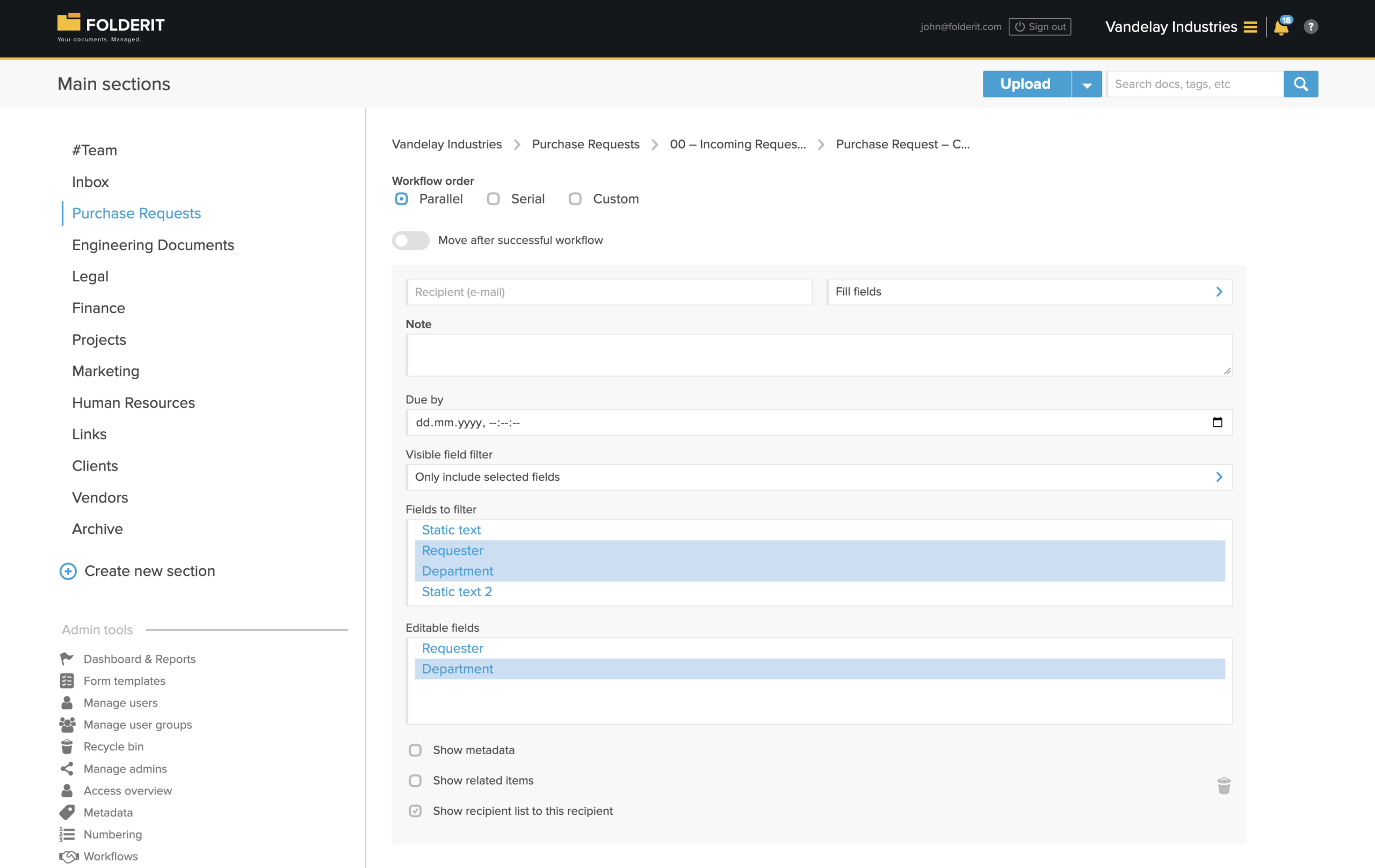
The recipient settings also include Show metadata, Show related items, and Show recipient list to this recipient. Enable the information needed for the task.
Complete a Fill fields request
- Open the workflow request.
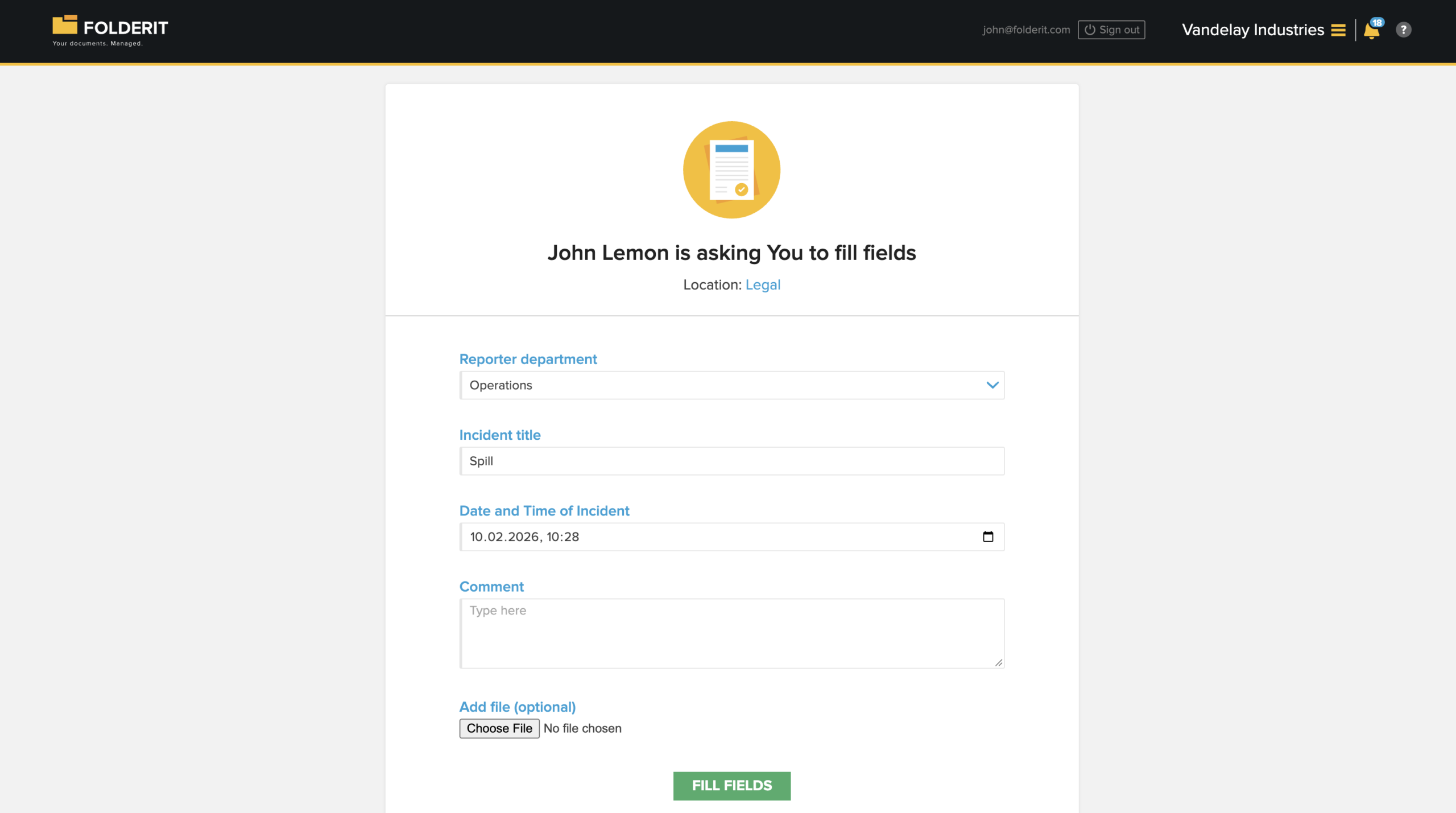
- Read the requester’s instructions and review the information shown.
- Enter or update the assigned form fields.
- Add a comment or an optional file if needed and available in the request.
- Click Fill fields to submit the task.
The submitted values update the form record. The workflow then proceeds according to its configured order and completion rules. If delegation is enabled for the method, the recipient can delegate the task.
Use Fill fields in workflow templates
For a recurring process, create a workflow template under Admin tools → Workflows → Templates.
Include Fill fields in the template’s methods and select the relevant form template under Available for. Add the recipients and configure their methods and field settings.
A custom workflow can combine field completion with other methods. For example:
- Fill fields: a supervisor completes the missing incident details.
- Approval: a manager reviews and approves the completed record.
- Acknowledgement: the responsible employee confirms that they have read the outcome.
Use Fill fields in the automation builder
The Workflow Designer can request field completion as part of an automated process.
- Open or create a workflow automation under Admin tools → Workflows.
- Configure the starting point and conditions for the relevant form records.
- Add a Request action step.
- Add an email recipient, Folderit user, or group, and choose Fill fields in the recipient’s method dropdown.
- Expand the recipient row to configure the available recipient settings.
- Set the request timing, execution order and completion requirement, then connect the step to the next part of the automation.
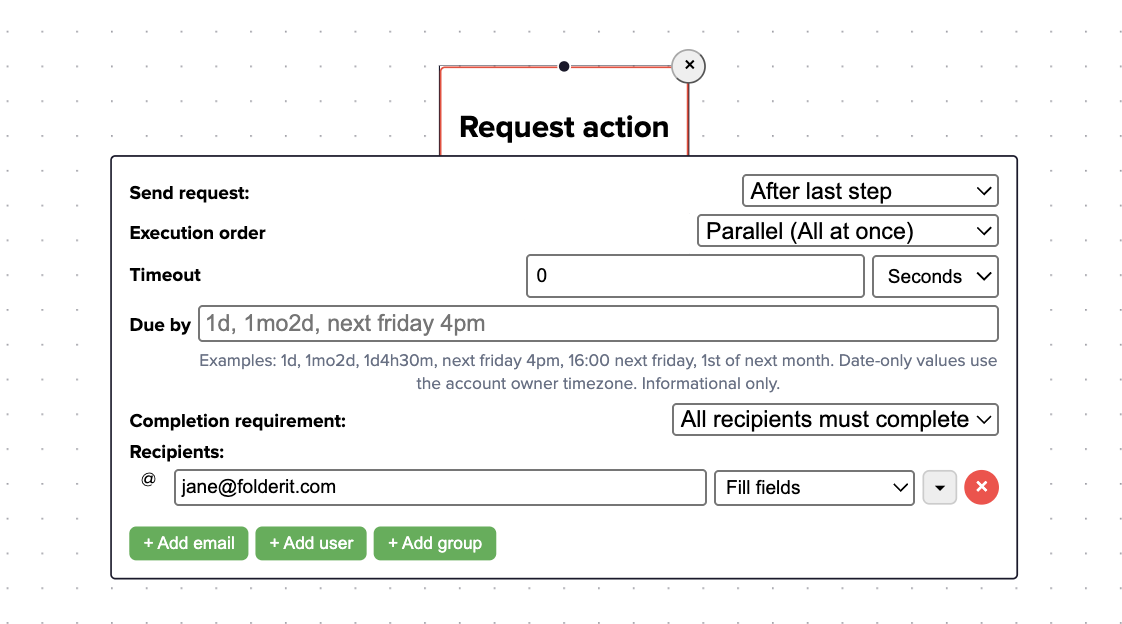
Due by provides an informational deadline. The separate Timeout setting controls how long the automation waits before taking its timeout route; a value of 0 means no timeout is configured.
You can also use a Run workflow step to start a saved workflow template that includes Fill fields. For setup details and workflow outcomes, see Workflow Designer.
Custom methods based on Fill fields
You can use Fill fields as the base for a custom method, such as “Complete incident details”. For setup instructions and an example, see Custom Workflow Methods.
Check the recipient experience
Before using a recurring workflow, send a test request on a sample form record. Confirm that the intended fields are visible, only the assigned fields are editable, and submitting the request allows the workflow to continue as intended.
If Fill fields is unavailable, check that you are working with a form record and that the method is enabled under Admin tools → Workflows → Methods. If a recipient cannot change a field, review both its visibility and its selection under Editable fields.