Workflow Designer
Folderit’s workflow automation builder lets you create processes that run automatically when something happens in Folderit or manually when a user starts them.
An automation can check conditions, wait for an event, pause for a set period, move an item, start another saved automation, or send approval, signing, field-completion, and other tasks to recipients.
You build the process visually by adding steps to a canvas and connecting them with lines. This makes it possible to create both simple automations and more advanced processes with separate paths for successful, failed, and timed-out actions.
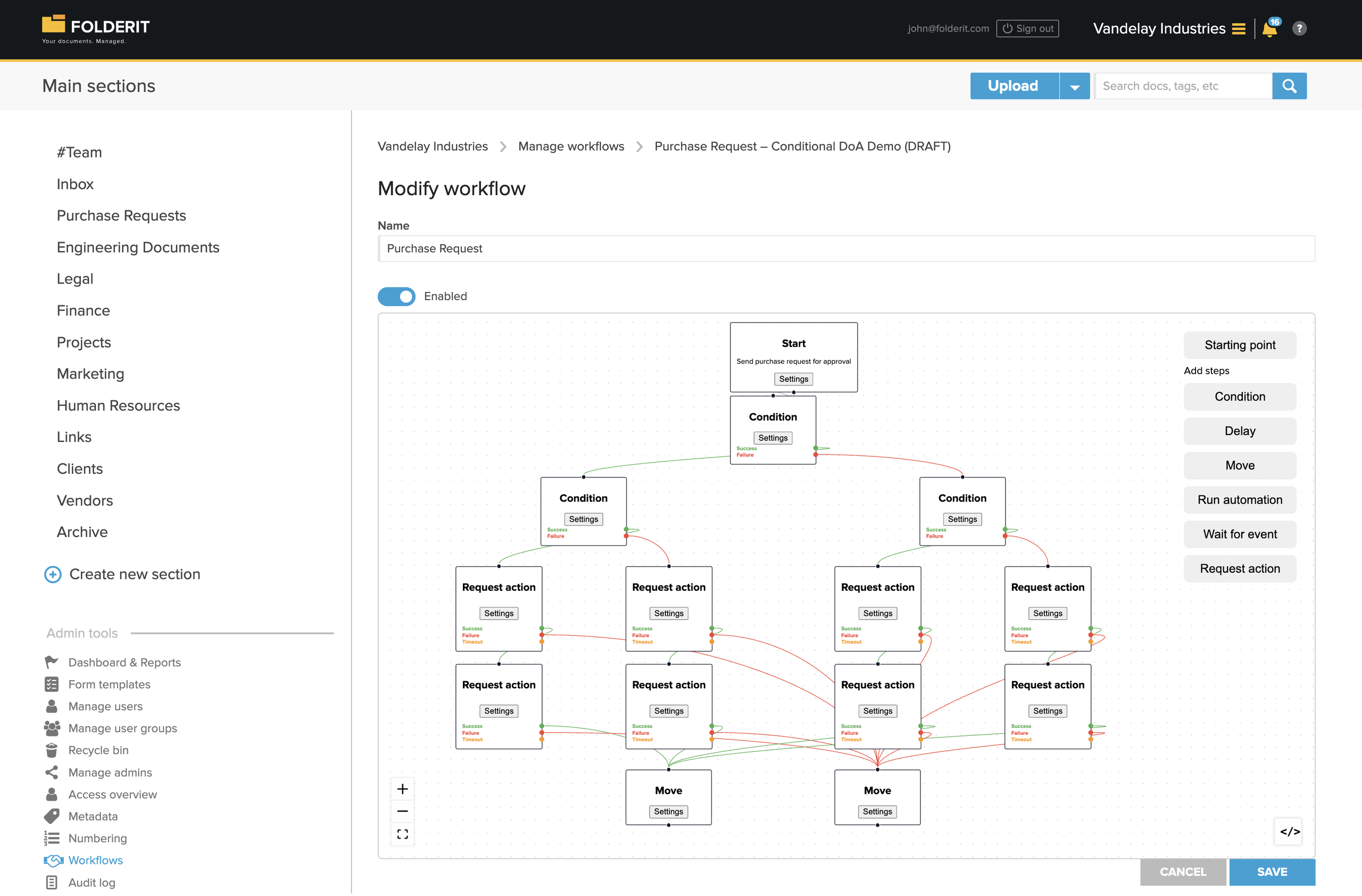
Open the workflow automation builder
Open Admin tools → Workflows, then create a new workflow automation.
At the top of the page, configure:
- Name: The internal name used to identify the automation.
- Enabled: Determines whether the automation is available to run.
You can disable an automation without deleting its configuration.
The large dotted area is the automation canvas. The available steps are shown on the right side.
Automation settings
Open the canvas-level Settings button to configure activation and version-update options. These settings apply to the automation; each step also has its own Settings button.
Enroll existing matching items
Select Enroll existing matching items when activated to include existing items when the automation is activated. Enrollment uses the Item created trigger and its matching conditions. Other event triggers are ignored for this enrollment, and existing runs are not started again.
Review the item type, location and metadata conditions before activation so that the intended existing items qualify. Leave this option off when existing items should not be enrolled on activation.
Update compatible pending runs
Select Update compatible pending runs when a new version becomes active if compatible pending runs should move to the newly active version.
A pending run moves only when its current waiting step has the same key and type in the new version. Other pending runs stay on their original version. Completed runs never move. Enabling this option therefore does not move every run to the latest version.
Workflow tags
The automation settings also contain a Workflow tags section showing assigned tags and controls for creating a tag. Workflow tags apply to the workflow across every version. Manage these in the automation editor; the document and folder tags described in Managing Tags in Folderit are a separate feature.
How the automation builder works
Every automation begins with at least one Starting point. The starting point determines how and when the automation begins.
After adding steps to the canvas, connect them by drawing lines between their connection points. Each line determines which step runs next.
Some steps have one continuation point. Other steps can produce several outcomes:
- Success
- Failure
- Timeout
Each outcome can be connected to a different next step. For example, an approved document can be moved to an Approved folder, while a rejected document can be moved to a Rejected folder.
Add and configure a starting point
Click Starting point on the right side of the builder.
A starting point can begin the automation automatically when an event occurs, manually when a user selects it, or both.
Starting point name
The Starting point name is optional. When a name is entered, it becomes available as a manual command in the item’s Workflow menu.
For example, entering Move in 1 day creates a Move in 1 day option under Workflow automations in the item detail view.
Selecting that option starts the automation manually for the current item.
Events
Events start the automation automatically when something happens in Folderit.
Available events include:
- File signee added
- File signee deleted
- File version added
- File version deleted
- File version restored
- Folder language changed
- Folder metadata updated
- Item created
- Item date changed
- Item deleted
- Item description changed
- Item due date changed
- Item metadata added
- Item metadata deleted
- Item metadata value changed
- Item moved
- Item name changed
- Item note changed
- Item number changed
- Item restored
- Link address changed
- Link embedded changed
- Relation added
- Relation deleted
- Request responded
- Share added
- Share deleted
- Share updated
- Tag added
- Tag deleted
A starting point can contain more than one event.
Starting point conditions
Conditions limit when the selected event is allowed to start the automation.
For example, you can start an automation only when:
- the item is a file;
- the item is created in a particular folder;
- the item name contains a particular word;
- a metadata field contains a particular value;
- the required workflow requests have been completed.
Available condition types include:
- Item type
- Item name
- Location
- Item metadata
- Requests completed
- Conditional
Choose the right location scope
A folder and the records inside it are different items. In a starting point’s Location condition, select the folder and choose its Folder scope:
- This folder and all subfolders — the default selection.
- This folder only — restrict the location to the selected folder.
- This folder and a limited number of subfolder levels — limit how far the scope extends below the selected folder.
Choose the scope that includes the records you want to process.
For example, a purchase request saved directly in Purchase Requests → Incoming is a child of Incoming. A request saved in Incoming → Department A is one level further down. Decide whether both locations should qualify, then test a new record in each. Also test a record outside the selected location to confirm that it is excluded.
If a record does not start the automation, check the location scope before removing other conditions. Keep the scope as narrow as your process requires.
Use form records and their fields
A submitted form record can drive an automation. Select the specific form type, such as Purchase Request, in the Item type condition. Use Item metadata conditions to check its fields, such as Project status, Budget status and Estimated total cost.
Make the fields that control routing mandatory on the form. For an amount-based process, use a numeric field and validate the currency separately. Add starting-point checks for required values so incomplete records cannot accidentally take a fallback branch.
Choose the event that matches how the record becomes ready: creation for a complete new submission, or a relevant metadata event when required information is added later. After saving the automation, create a fresh test submission or perform the configured change. To enroll matching records that already exist when activating the automation, use Enroll existing matching items when activated. Simply opening an existing record does not produce an Item created event.
Multiple starting points
One automation can contain several starting points. This allows the same automation to begin in different ways.
For example, an automation could start:
- automatically when an item is created;
- manually from the item’s Workflow menu;
- automatically when metadata changes.
Different starting points can also connect to the same later step.
Add steps to the automation
The following steps are available:
- Condition
- Delay
- Move
- Run automation
- Send reminder
- Wait for event
- Request action
Click a step in the right-hand menu to add it to the canvas. Click Settings inside a step to configure it.
Condition step
By default, the Condition step checks information about the item and selects one of two paths:
- Success when the condition is true;
- Failure when the condition is false.
This is useful when the next action should depend on the item’s type, name, location, metadata, or previous workflow results.
Wait until a condition is true
Open the Condition step’s settings and select Wait until condition is true when the process should wait for the condition instead of choosing an immediate true or false branch.
With this option selected, the step shows a single continuation instead of separate Success and Failure outputs. Connect that continuation to the next step. Use the normal branching mode when a false condition should immediately lead to a different action.
Available condition types
- Item type
- Item name
- Location
- Item metadata
- Requests completed
- Conditional
Combine conditions with And or Or
A Conditional group allows several conditions to be combined.
- Choose And when every condition in the group must be true.
- Choose Or when at least one condition in the group must be true.
Conditional groups can be nested inside other conditional groups. This makes it possible to create more advanced rules.
The Condition step’s Match conditions selector also includes a Not option.
For example, the item must be a PDF, and either the Department must be Finance or the Document category must be Invoice.
When Wait until condition is true is off, connect the green Success output and red Failure output to the steps that should run for each result.
Understand the false branch
For a Condition step in normal branching mode, the red Failure output means that the condition is false. It does not mean that an approver rejected the request or that the automation encountered an error.
For example, set an Or group containing Budget status equals Budgeted and Project status equals Project. With both fields completed, the routes are:
| Project status | Budget status | Condition output |
|---|---|---|
| Project | Budgeted | Success |
| Project | Non-budgeted | Success |
| Non-project | Budgeted | Success |
| Non-project | Non-budgeted | Failure |
The false branch means neither Budgeted nor Project. It is not equivalent to “Non-budgeted OR Non-project”, which would also include the two mixed cases.
Compare amounts and include the boundary
To separate requests above EUR 50,000 from requests at or below it, first require a valid positive amount and Currency equal to EUR. Then configure Estimated total cost greater than 50000. Connect Success to the high-value route and Failure to the lower-value route.
| Estimated total cost (EUR) | Expected route |
|---|---|
| 49,999.99 | Failure: at or below 50,000 |
| 50,000.00 | Failure: at or below 50,000 |
| 50,000.01 | Success: above 50,000 |
Decide explicitly where an amount equal to the limit belongs. A numeric comparison does not convert currencies, and missing or invalid amounts should be handled before this decision.
Compare dates using relative values
For a date-based Item metadata condition, choose the date field and comparison operator, then select Absolute or Relative as the value type. Absolute lets you enter a fixed comparison value. Relative exposes date-offset controls.
To configure an offset from the current time:
- Choose Relative to current time.
- Enter a whole number in Amount.
- Choose a unit: Seconds, Minutes, Hours, Days, Weeks, Months or Years.
- Choose Before now or After now.
- Use Add offset if the comparison needs another offset. Every offset requires a whole-number amount.
The relative-value controls also offer Relative to field date as a base. A relative date comparison defines a condition; use Wait until condition is true when the Condition step should wait instead of immediately choosing a branch.
Delay step
The Delay step pauses the automation for a defined period.
Enter a number and select a time unit:
- Seconds
- Minutes
- Hours
- Days
- Weeks
For example, you can delay the next step by 30 minutes, one day, or two weeks.
When the delay has passed, the automation continues to the next connected step.
A Delay step can be used to:
- move a file one day after upload;
- wait before sending a follow-up request;
- allow time for users to update metadata;
- postpone an archival or retention-related action.
Move step
The Move step moves the item being processed to another Folderit location.
Open the step settings and select the destination folder.
Typical uses include:
- moving an approved document to an Approved folder;
- moving a rejected document to a Rejected folder;
- moving completed records to an Archive folder;
- moving newly created items after a waiting period.
The Move step has a continuation point, allowing another step to run after the move if required.
Run automation step
The Run automation step starts another saved automation. Open the step’s Settings and select it from the Automation dropdown.
This lets you reuse a saved automation as part of a larger process.
Choose the saved automation you want to run, then connect the result paths to the next steps.
You can also configure a timeout. The Run automation step has three possible outcomes:
- Success
- Failure
- Timeout
Connect each outcome to the appropriate next step. For example:
- Success → Move to Approved
- Failure → Move to Rejected
- Timeout → Move to Follow-up
Wait for event step
The Wait for event step pauses the automation until a selected event occurs.
It supports the same event types and condition types available in a starting point.
For example, an automation can wait until:
- a new file version is added;
- metadata is changed;
- a tag is added;
- the item is moved;
- a request is responded to.
Add conditions
Conditions can be added so the automation continues only when the event matches specific requirements.
For example, the automation could wait until an item’s metadata changes and its Status field is set to Ready.
Timeout
A timeout can be configured using seconds, minutes, hours, days, or weeks.
If the expected event does not occur within the allowed time, the automation can continue through the step’s Timeout path.
Request action step
The Request action step sends workflow tasks to one or more recipients.
Recipients can be:
- external email addresses;
- Folderit users;
- Folderit user groups.
Each recipient can be assigned a workflow method. Built-in methods include:
Any custom workflow methods created and named for your account are also available in the same dropdown. This means you can assign your own custom task type to an email recipient, Folderit user, or user group in the same way as a standard approval or acknowledgement task.
Select the required method from the dropdown in the recipient row. The recipient row can also be expanded to display additional settings.
Recipient-specific settings
Depending on the selected workflow method, the recipient settings can include:
- a note or message;
- show metadata;
- show data fields;
- show related entities;
- show recipients.
These options determine what information the recipient can see while completing the task. For a form-based request, enable show data fields so the approver can review the submitted answers. Enable show related entities when linked supporting records are needed. Check the actual recipient view with a test request.
Send request
Choose when the request should be sent:
- After last step: The request starts after the preceding step has finished.
- In parallel to last step: The request starts in parallel with the preceding step.
Keep request timing separate from the Execution order setting below, which controls the recipients within the request. For a process where a second approval depends on the first, use the explicit Success connection shown in the two-stage example.
Execution order
Choose how requests are sent to recipients:
- Parallel (All at once): All recipients receive their requests at the same time.
- Serial (One after another): Recipients are contacted in sequence, subject to the request’s completion and failure rules.
Timeout
The timeout controls how long the Request action step waits before following its Timeout path.
A value of 0 means that no timeout has been configured.
Due by
The Due By field provides an informational workflow deadline for recipients. It is separate from the document’s Due Date metadata field; the document field does not set the task or workflow deadline.
Example values include:
1d1mo2d1d4h30mnext Friday 4pm16:00 next Friday1st of next month
Date-only values use the account owner’s time zone.
The workflow’s Due By deadline is informational. The separate timeout setting determines when the automation follows its Timeout route.
Completion requirement
The completion requirement determines how many recipients must complete the request before the step succeeds.
Available options are:
- All recipients must complete
- Specific number
- Percentage
For example, you can require:
- all five recipients to complete the request;
- any two recipients to complete the request;
- at least 60% of recipients to complete the request.
Configure completion together with the failure threshold. For an Approval request, distinguish an approval from a rejection when testing the result; receiving a response does not by itself establish that the request succeeded.
Failure threshold
Enable Failure threshold when the step should fail after a defined number or percentage of rejections.
Available reject rules are:
- Reject count
- Reject percentage
For example:
- A reject count of 1 causes the step to fail as soon as one recipient rejects.
- A reject percentage of 50 causes the step to fail when half of the recipients reject.
The failure threshold works together with the completion requirement. For example, a request can succeed when two people approve but fail immediately when one person rejects.
The Request action step provides separate Success, Failure, and Timeout outputs. Connect each outcome to the appropriate next step.
For a simple approval in which any rejection must stop the request, set Reject count to 1 explicitly. Test both acceptance and rejection. If using groups or percentage thresholds, test with the intended group membership and check which tasks remain outstanding when the step reaches an outcome.
Connect automation steps
Every step has connection points. To create the process:
- Start from the output point of one step.
- Draw a line to the input point of the next step.
- Repeat until the required automation path is complete.
For steps with several outcomes, use the appropriate coloured output:
- green for Success;
- red for Failure;
- orange for Timeout.
Separate branches can be created for different outcomes. Multiple starting points can also connect to the same later step.
Example: move an item one day after it is created
A simple automation can contain:
- Starting point
Event: Item created
Optional manual start name: Move in 1 day - Delay
Duration: 1 day - Move
Destination: Archive
The automation starts automatically whenever a matching item is created.
Because the starting point also has a name, users can start the same process manually from the item’s Workflow menu.
Example: approval with separate result paths
An approval automation can contain:
- Starting point: Item created
- Request action: Approval
- Success → Move to Approved
- Failure → Move to Rejected
- Timeout → Move to Awaiting response
The Request action can require all recipients, a specific number of recipients, or a percentage of recipients to complete the task.
A failure threshold can also be added so the request fails after a defined number or percentage of rejections.
Example: a form with two approval stages
This example sends a Purchase Request to a manager and then to a finance approver. Create Incoming, Approved, Rejected and Follow-up folders, a Purchase Request form with a numeric Estimated total cost field and a Currency field, and choose two test recipients.
- Starting point: choose Item created. Add conditions for the Purchase Request form type, the Incoming location with a scope that includes its records, Estimated total cost greater than 0, and Currency equal to EUR.
- First Request action: add the manager with the Approval method. Show the form’s data fields. Require the recipient to complete the request and set Reject count to 1.
- Connect the first result: Success → the second Request action; Failure → Move to Rejected.
- Second Request action: add the finance approver with the Approval method, show data fields, and use the same completion and rejection settings.
- Connect the final result: second Success → Move to Approved; second Failure → Move to Rejected.
- Handle delays: if you configure a timeout on either request, connect its Timeout output to Move to Follow-up.
- Save, enable and submit a fresh test form. Confirm that only the manager receives the first task. Approve as the manager and confirm that the finance task starts. Complete the second approval and check the Approved destination.
Use separate fresh submissions to test rejection at each stage and any configured timeout. The first rejection should route directly to Rejected without sending the second approval. Give each stage a clear recipient note so you can identify it in the task view.
Two separate Request action steps make each stage’s result paths and timeout settings explicit. A single Request action with serial recipients is useful when the recipients belong to one approval stage with shared outcome settings.
To add conditional routing, insert the Budgeted/Project condition and the amount condition before the first approval. Connect each branch to its required approvers. Keep the two-stage success and rejection pattern on every branch.
Example: assign a custom workflow method
If your account has a custom workflow method called Legal verification, it can be assigned in the Request action step in the same way as Approval or Acknowledgement.
- Add a Request action step.
- Add an email recipient, Folderit user, or user group.
- Open the workflow method dropdown in the recipient row.
- Select Legal verification.
- Configure the note, visible information, completion requirement, and result paths.
The recipient then receives the custom Legal verification task instead of one of the standard workflow methods.
Example: run another saved automation
If you have a saved automation named Contract approval, you can select it in a Run automation step and combine it with other steps:
- Starting point: Metadata value changed
- Condition: Status equals Ready
- Run automation: Contract approval
- Success → Move to Approved contracts
- Failure → Move to Rejected contracts
- Timeout → Move to Follow-up
This allows the saved Contract approval automation to become part of a broader process.
Save and validate the automation
Folderit checks the automation before it can be saved. Passing this validation confirms that the configuration can be saved; it does not prove that the starting conditions match your records or that every business outcome is correct.
A step is highlighted in red when it is:
- not connected correctly;
- missing required settings;
- otherwise invalid.
The Save button remains disabled until all validation errors have been corrected.
If the automation cannot be saved, check all red steps and confirm that:
- every required step is connected;
- a destination has been selected for each Move step;
- all required conditions are complete;
- Request action recipients and workflow methods are configured;
- the required automation has been selected in each Run automation step;
- required result paths are connected.
Enable or disable an automation
Use the Enabled switch at the top of the page.
When enabled, the automation can respond to configured events and can be available for manual use.
Disable the automation when you want to prevent new starts while retaining its configuration.
Disabling an automation can be useful when:
- testing or changing its configuration;
- temporarily preventing new starts;
- replacing an older automation without deleting it.
Treat existing tasks and in-progress runs separately when changing an automation. Check their status before replacing or disabling the configuration; do not use the Enabled switch as confirmation that an already-issued request has been cancelled.
Start an automation manually
When a starting point has a name, it appears in the item detail view.
Open the supported item and select:
Workflow → Workflow automations → Starting point name
The automation begins from the selected named starting point.
Only the starting point name is shown to the end user. It does not have to be the same as the internal automation name.
Use clear manual action names such as:
- Send for contract approval
- Move to archive in 30 days
- Start employee onboarding
- Request document review
- Begin invoice processing
Troubleshoot an automation that does not start
- Confirm that it is saved and enabled. Resolve validation errors and save your latest settings.
- Check the event. Creating a record, moving an existing record and editing a field are different actions. Perform the action selected in the starting point. If you intended to enroll existing items on activation, check the enrollment setting and the conditions on the Item created trigger; existing runs are not restarted.
- Check the location and scope. Verify the actual parent folder of the test record and whether the configured depth includes it.
- Check the item type. A form record must match the intended form type; a file-only condition will not match it.
- Check every routing field. Verify required values, dropdown choices, numeric amounts and currency. Check the Match conditions setting, including And, Or or Not.
- Inspect the record’s workflow/task information and history. Establish whether no request was created, a different branch was selected, or the automation is waiting at an approval, delay, event or waiting Condition step. Check the intended recipient’s task view as well as email.
- Retest with a fresh record. Test a matching record and a record that should be excluded. If you also configured a named manual starting point, test manual startup separately from automatic startup.
Test before using the automation
Use clearly labelled demo records and tell the recipients that they are tests. For a conditional approval process, include:
- every combination of the fields that choose a branch, including mixed combinations;
- an amount below, exactly at and above each limit;
- missing or invalid routing values;
- approval and rejection at every approval stage;
- each configured timeout, including the status of any outstanding tasks;
- a record inside the intended folder, one in a subfolder if relevant, and one outside the scope.
Check the actual task note or stage and final destination, especially when several branches use the same approvers. A correct first task is only the first part of an end-to-end test.
When an external integration is needed
Workflow Designer can route a request using its fields and approval outcomes. A shared budget that decreases across multiple requests requires an external budget ledger or integration; an amount condition only compares the current request with a limit.
For example, a separate application connected through the Folderit API could check and reserve budget, record the result on the request, and release it into approval. Such a solution needs its own handling for concurrent requests, rejections, cancellations and amount changes. Validate the integration and its trigger behavior before relying on it for budget control.
Tips for building reliable automations
Use clear names for both the automation and its manual starting points. A name such as Invoice approval and archive is easier to understand than Automation 1.
Begin with a simple path and test it before adding more conditions and branches.
Use separate Success, Failure, and Timeout routes whenever each result requires a different response.
Apply starting-point conditions carefully. Without suitable conditions, an event such as Item created may start the automation for more items than intended.
When using Request action, check both the completion requirement and the failure threshold. Together, they determine when the step succeeds or fails.
Use timeouts when a process should not wait indefinitely.
Before enabling an automation for regular use, test it with a non-critical item and confirm that every branch produces the expected result.