Connect Folderit to n8n
Connect Folderit to other business applications with the Folderit integration for n8n. Use it to create folders, upload and retrieve documents, search records, update metadata, work with file versions, and start configured Folderit workflows. Folderit can also provide tools for an n8n AI Agent.
Folderit is a verified community integration, available on n8n Cloud and compatible self-hosted n8n instances. n8n Cloud runs the automation for you, so you do not need to host n8n yourself. The standard-cloud setup below works with the verified 0.4.0 integration. Version 0.5.0 is also published on npm, adding public dedicated-deployment connections, exact-version downloads and PDF previews. As checked on 28 October 2026, n8n Cloud still offers 0.4.0 while n8n reviews the 0.5.0 update. Use the version shown in your instance.
New to n8n? A workflow is a sequence of connected steps. Each step is a node: a trigger starts the workflow, and action nodes read or change data in connected applications. Folderit supplies a regular action node and a separate Folderit Trigger node.
Useful links: Folderit package · n8n Cloud dashboard · Workflow examples · Folderit API credentials
Jump to requirements, installation, your Folderit connection, your first workflow, workflow examples, AI tools, or troubleshooting.
Before you start
- A Folderit account with API access. API access is available with the Tailor plan; see Folderit API access.
- A Folderit API Client ID and its matching Client Secret, with permission to use the intended account, folders, and files.
- An n8n Cloud account or access to your organisation’s self-hosted n8n instance. An instance owner or administrator must install the integration; other members can use it once installed.
- Accounts and connections for any other applications in your workflow. AI workflows also need a compatible chat model and its connection. Separate service subscriptions or usage charges may apply.
Use a dedicated test folder and a small, non-sensitive file for your first test. You do not need a GitHub or npm account to use Folderit on n8n Cloud.
1. Add Folderit to n8n
On n8n Cloud
- Sign in through the n8n Cloud dashboard and open your n8n instance.
- Create or open a workflow. On its canvas, select the + button to open the nodes panel.
- Search for Folderit. If it is not already installed, look under More from the community.
- Select Folderit and choose Install. The package name is
n8n-nodes-folderit. Installation requires the instance owner or an administrator. - Add a Folderit action to your workflow. Choose the regular Folderit node for document operations, or Folderit Trigger when Folderit activity should start the workflow.
If Folderit does not appear, ask the instance owner to enable Verified community nodes under Instance settings in the Cloud console. A restart may also be needed after enabling the feature. See n8n’s verified-node installation guide.
On a self-hosted n8n instance
Use the verified-node search above if your instance supports it. Alternatively, an owner or administrator can open Settings → Community Nodes → Install inside the n8n web application and enter n8n-nodes-folderit. Follow the installation prompts, then return to the workflow canvas and search for Folderit. See n8n’s self-hosted installation instructions. Your organisation’s instance settings may restrict community packages.
2. Create your Folderit connection
- Sign in to Folderit as the primary user and open the API credentials page. Generate or retrieve your Client ID and Client Secret. Ask your Folderit administrator if you do not have access.
- In your n8n workflow, open a Folderit node. At the top of its parameters, find the credential selector and choose Create new credential for Folderit OAuth2 API.
- Give the credential a recognisable name. Enter the Client ID and the matching Client Secret, then save. n8n handles the token exchange; leave the integration’s authentication defaults unchanged.
- Back in the Folderit node, choose the account in Account Name or ID. Its dropdown retrieves the accounts available to that API client.
- Test actual data access using the first workflow below. Saving a credential alone does not prove that it can access the intended Folderit account.
The Client ID is an API identifier, rather than your email address. Store the secret only in n8n’s credential store. Use the same saved credential on each Folderit node that should share this connection.
Operations use the connected API client’s permissions. A person chatting with an AI agent does not automatically receive a separate Folderit identity. Choose the account and permitted scope deliberately when sharing workflows.
Optional: dedicated or custom-domain Folderit connections in 0.5.0
This setup requires connector 0.5.0 and a compatible self-hosted n8n instance while the Cloud update is under review. Existing standard-cloud OAuth2 connections keep working. A dedicated deployment needs its own API address and matching client credentials, supplied by your Folderit administrator.
- Open a Folderit node. In Credential, choose Create new credential. In the dialog, choose Setup credential → Folderit Connection (Cloud or Custom Deployment). The credential type must read Folderit Connection API. Some n8n versions show the same choice as Connection Type in the node.
- Enter the deployment’s API or Documentation URL, its matching Client ID and Client Secret, and the independent Browser or Sign-in URL used for document links. Standard Folderit uses
https://api.folderit.comandhttps://my.folderit.com. Ask the administrator for a dedicated deployment’s exact addresses. - If the API client can access several accounts, enter the intended Account UID in the credential. Leave it blank only for a client with exactly one accessible account.
- Save and close the credential dialog. In the Folderit node, select Resource → Connection and Operation → Get, leave the node’s Account UID blank and select Execute step. This first read verifies the actual deployment and account. An initial credential test may request this verification step; after it succeeds, the credential test can read the account independently.
- Select that same saved credential in every Folderit node that belongs to this connection. Create a separate credential for another deployment or account. Test an existing harmless document before enabling writes.
These connections require a public HTTPS API address. Private-network or on-premises routing needs a separately supported network design. See the deployment connection and upgrade guide.
3. Test your connection by listing files
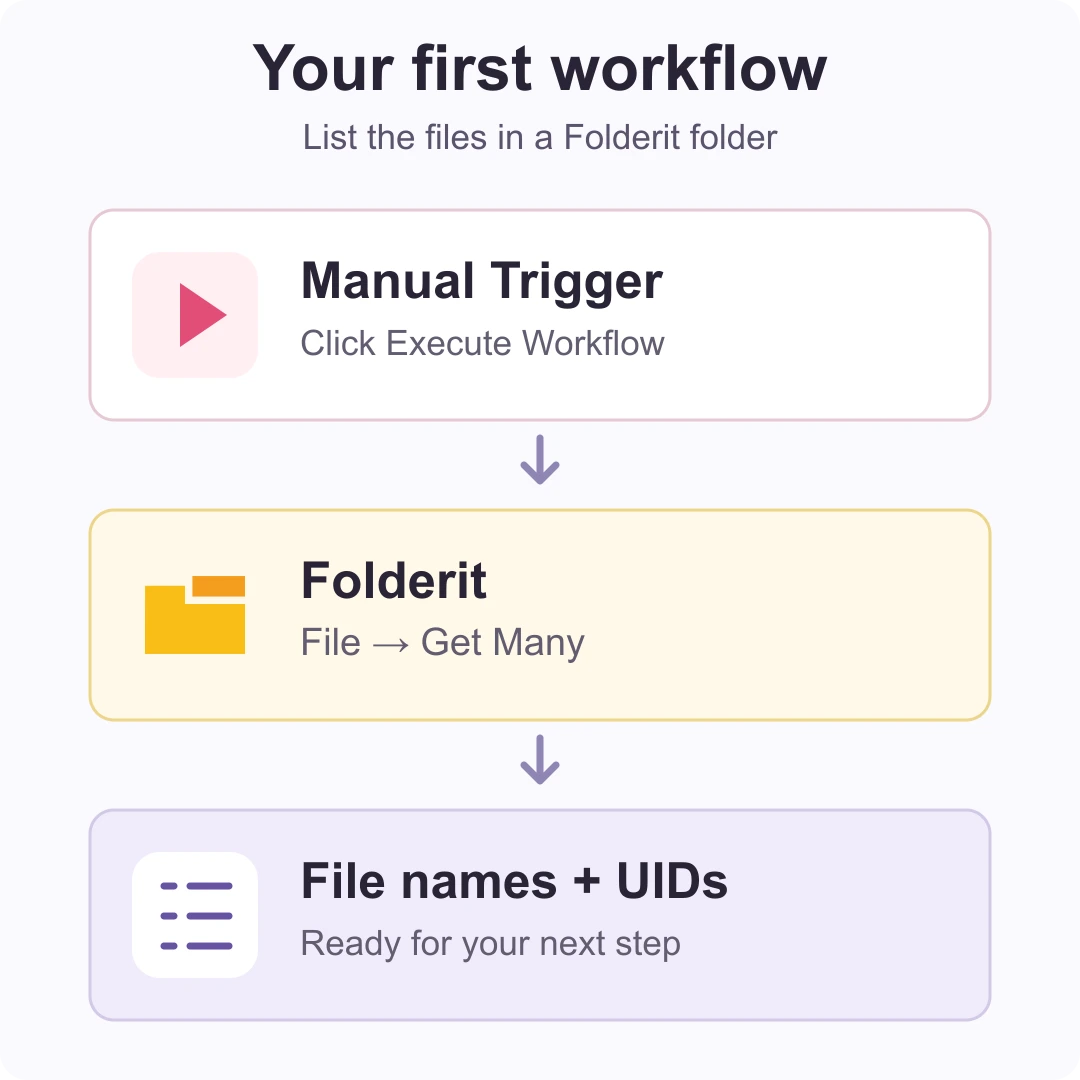
- Create a new n8n workflow. Select Add first step → Trigger manually.
- Add a Folderit action after the manual trigger and select your saved Folderit credential.
- Set Resource to File and Operation to Get Many.
- Select Account Name or ID, then choose a folder under Folder Name or ID. For this test, use a folder that already contains a harmless sample file.
- Leave Return All off and set Limit to 5. Save and select Execute Workflow.
- Open the Folderit node’s Output. Confirm the returned filenames belong to the selected folder. Each file is a separate item, and its
uidis the identifier used by later file actions.
This test reads file details without downloading their contents. An empty folder can return no items even when the connection works. Account, folder, file, and metadata UIDs identify different resources; use the appropriate dropdown or the identifier returned by the corresponding action.
What you can do with Folderit nodes
| Resource | Available operations |
|---|---|
| File | Get details, list files, search, upload, download, add a version, and list versions. |
| Folder | Create a child folder, get details, list child folders, and search folders. |
| Metadata | List existing field definitions, read a record’s metadata, and update or clear one selected field. |
| Workflow | List eligible manual starts, start a configured workflow, and retrieve workflow status. |
| Folderit Trigger | Watch for new files, folders, and file versions; record changes; metadata changes; and workflow task events. |
Search can use document names, content, metadata, document numbers, and tags. Narrow the search to the intended parent folder where appropriate. Metadata updates use existing field definitions and validate the selected value’s type.
File Upload and Add Version accept incoming n8n binary data up to 100 MiB per file. Other services or your n8n instance may impose lower limits. Download returns binary data for another n8n step; it does not automatically save a file to your computer’s Downloads folder.
Workflow Start starts an eligible existing Folderit configuration. A queued response means the start was accepted; use Get Status to check progress. The current integration does not include delete operations or actions for submitting approval decisions.
Download an exact file version or PDF preview in 0.5.0
Use File → Get Versions to find a document’s version UID, then set that Version UID in File → Download. The connector checks that version’s history and verifies the downloaded size and available SHA-256 hash. File → Download Preview retrieves an available PDF preview; the API must report that a preview exists. Both return binary data inside n8n for a later workflow step or a manual download.
Practical workflow examples
Create a customer or project folder
Connect a CRM trigger, form submission, or manual trigger to Folderit → Folder → Create. Select the account and the existing parent folder, then map the customer or project name to Name. Enable Return Existing Folder if a same-name folder under that parent should be reused.
The new child folder appears inside Folderit, under the selected parent folder. For example, choosing Projects and entering Acme creates Projects → Acme in Folderit. Use a stable customer or project reference in the name where similarly named records are possible.
Save an email attachment or generated PDF
Use an email or document-generation node that supplies the actual file as binary data, then add Folderit → File → Upload. Select the destination account and folder. Set Input Binary Field to the upstream binary field containing that file, such as data or attachment_0; inspect the preceding node’s output to find the actual name. A filename or download URL alone is not the file content.
For multiple attachments, prepare one item per attachment before uploading. After a test, open the destination in Folderit and check that the document opens correctly. For a revision of an existing document, use Add Version with its File UID to preserve the document’s identity and version history.
Find documents and update a register
Use File → Search with a known reference in Query, choose the fields under Search In, and add a parent-folder filter. Pass the results to Metadata → Get, a spreadsheet node, or another configured business application. Keep a small result limit while testing and check both a matching and a no-match query.
Notify colleagues about document activity
Start with Folderit Trigger, choose the account and event, then connect an email, Slack, or Teams node. Configure the recipients or channel in that application’s node. These are workflows you configure using your own connections and mappings; installing Folderit does not automatically enable them.
Ready-to-configure workflows for Tailor-plan users
Start with the tested single-import starter pack. It contains three complete workflows, each with its own receipt-table setup, connection instructions, recovery notes and test checklist. They run in your own n8n instance using your own service accounts. Folderit Tailor with API access is required.
Download the email and Teams starter pack — extract the ZIP on Windows or macOS, then open START-HERE.html. Keep the extracted files together. You do not need a GitHub or npm account to download or use them.
Available in n8n’s public template library: Archive IMAP email attachments to Folderit with verified data table receipts and Send Folderit document due-date reminders to Microsoft Teams with receipt tracking. Open either listing and choose Use for free to add it to your n8n instance, then complete the credentials, receipt-table setup and test steps below. The document-arrival Teams workflow remains available in the starter pack.
Choose the task you want to automate
| Workflow | What you receive | Connections needed |
|---|---|---|
| Archive IMAP attachments | Permitted email attachments saved in Folderit, with each new file downloaded and checked against its original SHA-256 hash. | Folderit and a dedicated TLS IMAP mailbox. |
| New-document notices in Teams | A channel message with the document name, document UID and audit UID when a new document arrives; optional exact-folder filtering. | Folderit and a Microsoft Teams work account allowed to post in the chosen channel. |
| Due-date reminders in Teams | Current-window reminders based on the standard Folderit Due date, with saved receipts for confirmed notices. | Folderit and a Microsoft Teams work account allowed to post in the chosen channel. |
These examples were tested with verified Folderit 0.4.0 on n8n Cloud 2.46.0. They require n8n Data Table node v1.1, including its table-management operations. The downloaded workflows are inactive and contain no saved credentials or pinned execution results. They can be imported directly; the email and due-date reminder workflows are also published in n8n’s template library, linked above.
Import and connect one workflow
- Open your n8n instance in a browser. Create a blank workflow. In the workflow editor’s top-right ⋯ menu, choose Import from File and select the JSON for your chosen task. Keep its service trigger inactive while configuring it.
- On the imported canvas, find the lower, separate branch named 1. Set up receipt table. Open Ledger setup settings and choose a stable table name. Run only that manual setup branch, once at a time in the same n8n project. It creates n8n data; it does not upload files or send messages.
- Open the setup branch’s last node, Copy ledgerTableId into Settings. In its Output, copy the value of
ledgerTableId. Open the main workflow node named Settings and paste that value overYOUR_LEDGER_TABLE_ID. - In the main Settings node, replace the remaining
YOUR_…placeholders using the table below. This is the node on the canvas, separate from n8n’s application settings and the workflow’s top-right settings menu. - Open every Folderit service node and select your saved Folderit OAuth2 API credential. For the arrival workflow, select it in the Folderit Trigger too, and set the same account there as in Settings. In the mailbox or Teams node, select the corresponding provider credential. Enter passwords and API secrets only in n8n’s credential dialog.
- Read the workflow’s coloured notes. Complete the small test for your chosen task below, check the actual Folderit files or Teams messages, and test repeat handling and recovery. After configuration is complete, temporarily publish or activate an event trigger for the dedicated test described below. Check its result, then unpublish or deactivate it until you are ready for regular use. The manual setup branch does not need activation.
What goes in the Settings node?
| Value | What to enter |
|---|---|
accountUid |
The Folderit account UID accessible to your API client. Ask your Folderit administrator for it and confirm the same account in a normal Folderit node’s Account Name or ID selector. It is a different identifier from the API Client ID. |
folderUid |
The destination folder for attachments, the exact arrival folder to monitor, or the folder containing documents with Due dates. Ask the administrator for its UID. To verify it, use Folderit → Folder → Get with that folder and inspect the output. For arrival notices only, leaving this value blank accepts accessible account events. Folder filters do not include descendants. |
ledgerTableId |
The ID returned by the manual setup branch above. It identifies a table in your n8n project, not a Folderit folder. Copies expected to suppress the same input must share this table and preserve its completed receipts. |
mailboxScope and allowedExtensions |
For attachment archiving: a permanent label identifying your intake mailbox, plus the permitted file extensions. Keep the label stable across repeats. It is not a mailbox password. |
teamId and channelId |
For Teams: the exact Microsoft team and channel IDs, supplied or confirmed by your Microsoft administrator. A display name such as “General” is not its channel ID. The delegated work account selected in n8n must have posting access. |
reminderDays and overdueDays |
For reminders: the default milestones are 30,7,1,0, with the 0-day notice available once through 7 days overdue. The default schedule is 09:00 UTC and date comparisons use UTC calendar days. |
A small first test
- Email archive: begin with an empty dedicated test inbox. Once configuration is complete, temporarily publish or activate the workflow so New email with attachments is listening. Send a synthetic email with two small permitted attachments and one disallowed extension. Confirm that only the two permitted files appear and open correctly in your chosen Folderit folder. The first IMAP connection may fetch existing unseen messages; read/unread status is unchanged.
- Teams arrival notice: use a test folder and channel. Activate the workflow, allow its initial baseline poll, then upload one synthetic document to that folder. Confirm its actual channel notice. A manual preview can contain historical events; it is not proof of scheduled delivery.
- Due-date reminder: put a harmless document in the chosen folder and set its standard Folderit Due date to today. Run the service branch and inspect the actual Teams notice. Documents without a Due date are skipped. The workflow reads dates; it does not infer expiry from document text or change the Folderit record.
Each workflow records confirmed destination actions in its n8n receipt table. Repeating the same retained input checks those receipts. If a result is uncertain, processing stays blocked for inspection. Read the recovery guide before retrying or editing a lock. There is no exactly-once guarantee across n8n, Folderit and Microsoft.
Verified on 28 October 2026: real IMAP intake saved two permitted attachments; independent downloads matched their SHA-256 hashes and a repeat added no files. Real Teams arrival and Due-date notices were independently read back from Microsoft. Tests covered exact-folder exclusion, skipped future/missing dates, duplicate replays, one new reminder after a changed date during overlapping runs, and blocking a fresh replay after an uncertain send failure. Test your own connections and permissions before using customer data.
Check new supplier certificates before human review
The separate supplier-certificate intake workflow checks new documents in one exact Folderit folder for a permitted filename extension and expiry recorded in the standard Due date. Teams receives missing-date, expired or short-validity warnings with corrective actions, or a request for human review. It does not approve certificates or extract dates from their contents.
Follow its setup and recovery guide, including a separate receipt table, reviewer role and minimum validity window. This example passed real Teams delivery, scheduled polling, replay/overlap and failure-quarantine checks on 3 November 2026, using n8n Cloud 2.46.4 and Folderit 0.4.0. It is a separate example download and is not published in n8n’s template library.
Optional additions: the SMTP failure-alert workflow needs its own sender, recipient and SMTP credential; configure it under the main workflow’s ⋯ → Settings → Error workflow. The Outlook-trigger variant and other advanced examples are separate downloads. External SMTP delivery and Outlook intake have not yet passed real-provider acceptance here. Core email/Teams starter workflows do not require the optional alert connection.
Import a prepared example
Folderit’s public repository contains editable workflow JSON examples. These are starting points that need your own credentials and settings:
- Archive email attachments in Folderit — a basic example that splits attachments, filters allowed extensions, uploads and checks stored document details. For verified-byte checks and saved receipts, use the single-import starter pack above. Configure your IMAP and Folderit connections and the destination folder in the workflow’s setup notes. Replaying a message can create duplicates.
- Send new-document notifications to Slack — retrieves file details, optionally filters one parent folder, and includes the audit UID in the message. Configure the trigger, Folderit connection and Slack channel. The workflow includes guidance for replacing the final action with Microsoft Teams.
- Find documents with a read-only AI agent — searches document names in a fixed folder and retrieves matching document details through Folderit tools. The supplied model uses local Ollama; n8n Cloud needs its own reachable model provider. This does not download or summarize full document contents.
- Search documents and read metadata — fill in the account UID, parent-folder UID, and query in Search Settings, then select your credential in both Folderit nodes.
- Create a test folder, upload a file, and download it — fill in the two UIDs in Test Settings and select your credential in each Folderit node. It creates test content in Folderit; each execution uploads another file.
- Watch for new file versions — select the account, credential, optional exact file UID, and polling interval before publishing or activating the workflow.
These additional examples include setup notes and import inactive, without saved credentials or pinned results. They are separate from the published IMAP template and the three-workflow starter pack above. Configure and test the full workflow with your own connected services before activation. These additional examples have separate setup and validation scopes. The local AI branches were tested on n8n 2.42.5; real Slack delivery and Outlook intake remain unverified. The single-import pack above has its own completed real IMAP and Teams acceptance tests.
In the n8n workflow editor, open the three-dot menu near the top-right → Import from URL and paste one of the example links above. You can also download the JSON and use Import from File. Review every node, replace all placeholders, and test before enabling scheduled execution. See n8n’s workflow import guide.
Use Folderit as a tool for an AI Agent
An n8n AI Agent can call a configured Folderit operation to answer a request. For example, it can retrieve details for a particular File UID and report the document’s exact name. Start with a read-only operation such as File → Get or a narrowly scoped File → Search.
- Add an AI Agent node and connect a chat model that supports tool calls. Configure that model’s own connection.
- Use the AI Agent’s Tool + connector to add Folderit.
- Select the Folderit credential, resource, and operation. Keep Account Name or ID and any search-folder scope fixed.
- For File → Get, let the model supply only File UID using n8n’s Let the model define this parameter control. Describe the tool clearly: it retrieves document details for the supplied UID.
- Test with a known non-sensitive document. Ask: “Use the Folderit tool to get details for document UID [your file UID]. Report its exact name and UID.” Replace the bracketed text with a real File UID.
- Inspect the execution’s tool call and returned Folderit data, then compare them with the agent’s answer. A plausible sentence alone does not prove that the tool ran.
Each Folderit tool performs the operation you configure. Add separate tools for separate tasks. Give agents write operations only where that behaviour is intended. File Upload, Add Version, and Download require binary workflow data and are handled by regular Folderit workflow nodes, rather than the AI tool menu.
Review what document data the selected model receives, and use a provider approved by your organisation. An AI connection is separate from the Folderit connection and may incur usage charges. See n8n’s AI Agent guide.
For an advanced local demonstration, the repository also includes a document-and-AI example using Ollama. It requires a separately installed model. Its 127.0.0.1 address is suitable when n8n and Ollama run directly on the same computer; an n8n Cloud workflow needs a model service reachable from the Cloud instance.
Polling, activation, and retries
Folderit Trigger uses scheduled polling, rather than an instant webhook. Select the account, event, and optional exact Record UID, then choose the polling interval and publish or activate the workflow in your n8n instance. Record UID filters one exact file or folder; it is not a folder-wide subscription to all descendants.
First activation establishes a starting point for new activity. Manual testing previews up to ten recent matching events. After activation, create a new test event and confirm that the scheduled execution reaches the intended destination.
The current trigger reads recent audit history and requires polling at least once per hour; choose a shorter interval on busy accounts. Interruptions over 23 hours, excessive backlogs, or a missing saved checkpoint require reconciling missed activity before resetting the trigger. Monitor failed executions rather than assuming that a quiet workflow is healthy.
Retries can repeat downstream actions. Keep track of processed event IDs or stable business references for uploads, notifications, and other consequential steps. After an uncertain upload or workflow start, inspect Folderit before repeating the action.
Troubleshooting
Folderit does not appear in the node search
Check that verified community nodes are enabled and ask an instance owner or administrator to install the integration. Search for Folderit and confirm the package name n8n-nodes-folderit. On Cloud, follow the installation section above; an npm account is not needed.
The account list is empty or an API request fails
Check API entitlement and the Client ID/Client Secret pair. Confirm the API client can access the selected account and folder. Check that File UID, Folder UID, and Account UID have not been mixed up. Test with File → Get Many in a known accessible folder. If a Folderit step fails, later steps may not run.
I cannot find the created folder or downloaded file on my computer
A created folder is in Folderit under the selected parent folder. Downloaded file content is in the n8n node’s binary output for the next workflow step. To place it somewhere else, add a suitable destination node.
Upload says the binary field is missing
Inspect the previous node’s binary output. Match Input Binary Field to its field name and make sure the upstream node retrieved the file itself. A URL or JSON field containing a filename is insufficient.
The AI model fails or does not call Folderit
Test the chat model connection separately, confirm that it supports tools, and check the Folderit connection on the tool node. A local Ollama address on someone else’s computer is not reachable as localhost from n8n Cloud. Inspect the real tool call and result before relying on the final answer.
A trigger does not detect a change
Check activation, polling schedule, account, event type, and the optional exact-record filter. Check failed executions and the polling limits above. Changes made before the initial baseline are not a historical import.
Setup succeeded, but no file or Teams message appeared
The 1. Set up receipt table branch only prepares local n8n data. It does not execute the main service workflow. Copy its returned table ID into the main Settings node, finish the credentials and placeholders, then run the task’s first test above. Files appear in Folderit; receipt rows appear in n8n’s Data Tables.
Processing lock is busy, or a receipt is pending
Open the failed workflow’s Executions view and identify its owner execution. Another run may still be working, or a previous action may have an uncertain result. Check the actual destination and follow the manual recovery steps. Do not delete the table, clear all receipts or unlock a running execution to make the error disappear.
Teams is connected, but the channel cannot receive a notice
Use the intended Microsoft work or school account with delegated posting access. Confirm that teamId and channelId identify the same team/channel available to that account. A personal Teams login or a channel display name is insufficient. Inspect the failed send node in Executions before retrying.
The reminder workflow ran but sent no reminder
Check the exact monitored folder, its document’s standard Folderit Due date, the UTC date and configured milestone window. The folder scan excludes descendants. Missing dates and dates outside the current windows can legitimately produce no notice; a completed receipt also suppresses the same document/date/milestone/destination.
For the operation reference and current implementation limits, see the Folderit n8n documentation. For account or setup help, contact Folderit. You can also compare the Make, Zapier, and Microsoft Power Automate connection guides.