Document and Form Record Numbering
Folderit supports automated numbering for documents in folders and for records created from form templates. Choose the setup route for the items you want to number. A video tutorial for folder-based document numbering appears at the end of this article. Numbering is available in Medium and Tailor plans.
Numbering documents in folders
Go to the folder where you need that numbering automation (or to the parent folder of sub-folders that you want affected by the same automation). Click on ‘Numbering’ on the toolbar.

The document numbering automation modal will appear.
Click on ‘Activate’ to see the following fields:
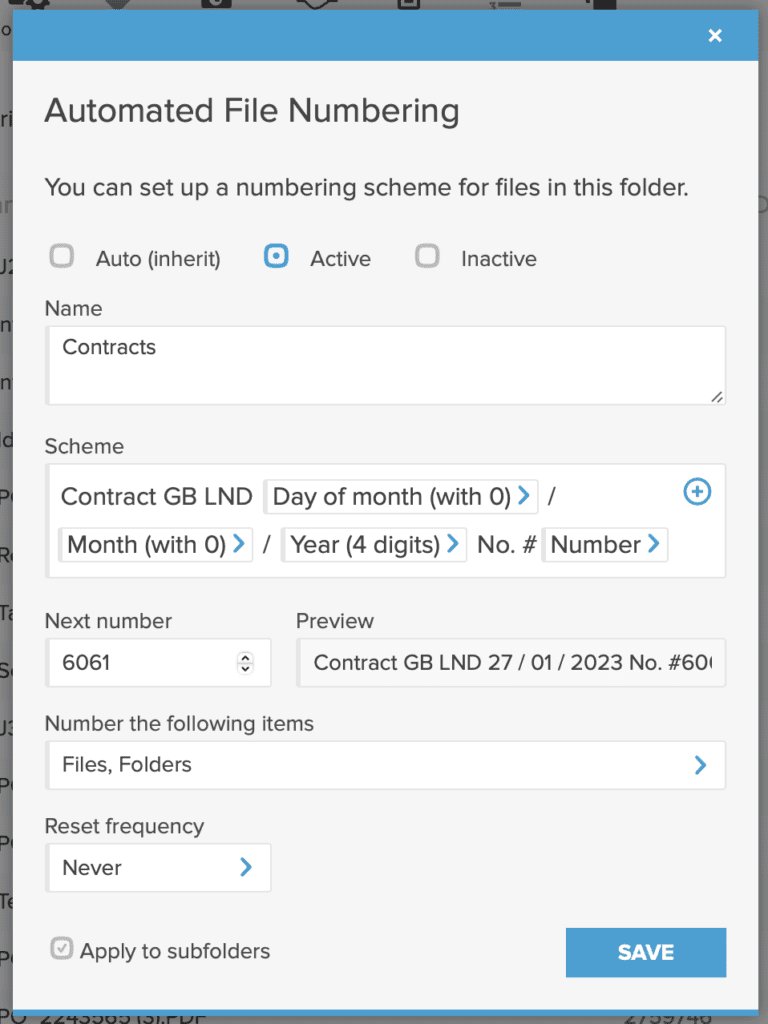
- Name — the name or description of the scheme for your (team’s) reference.
- Scheme — Allows you to input text and use dynamic elements like date, time and of course the Number element, which increases one by one for each uploaded document.
- Next number — the number from which the numbering automation will start. It is 1 by default but can be anything else too.
- Number the following items — This allows you to multi-select all the types of resources that should be treated as equal and numbered based on your setup. So you can apply the numbering to files, links and also folders. For example, when you consider a sub-folder with all its files a single complete document.
- Reset frequency — if you need the number counter to reset after a certain time, this is where you can set it up. For example, if you want the first document on January 1 to have the number 1 again, then set restart to choose Month: January and Day: 1.
- Apply to sub-folders — if you want the same numbering automation to affect lower level folders of this parent folder too, then you can enable it here.
The document number that is now added to any document someone uploads to this folder (or its sub-folders) will be visible as part of the document’s metadata in detail view (when you click on the file).
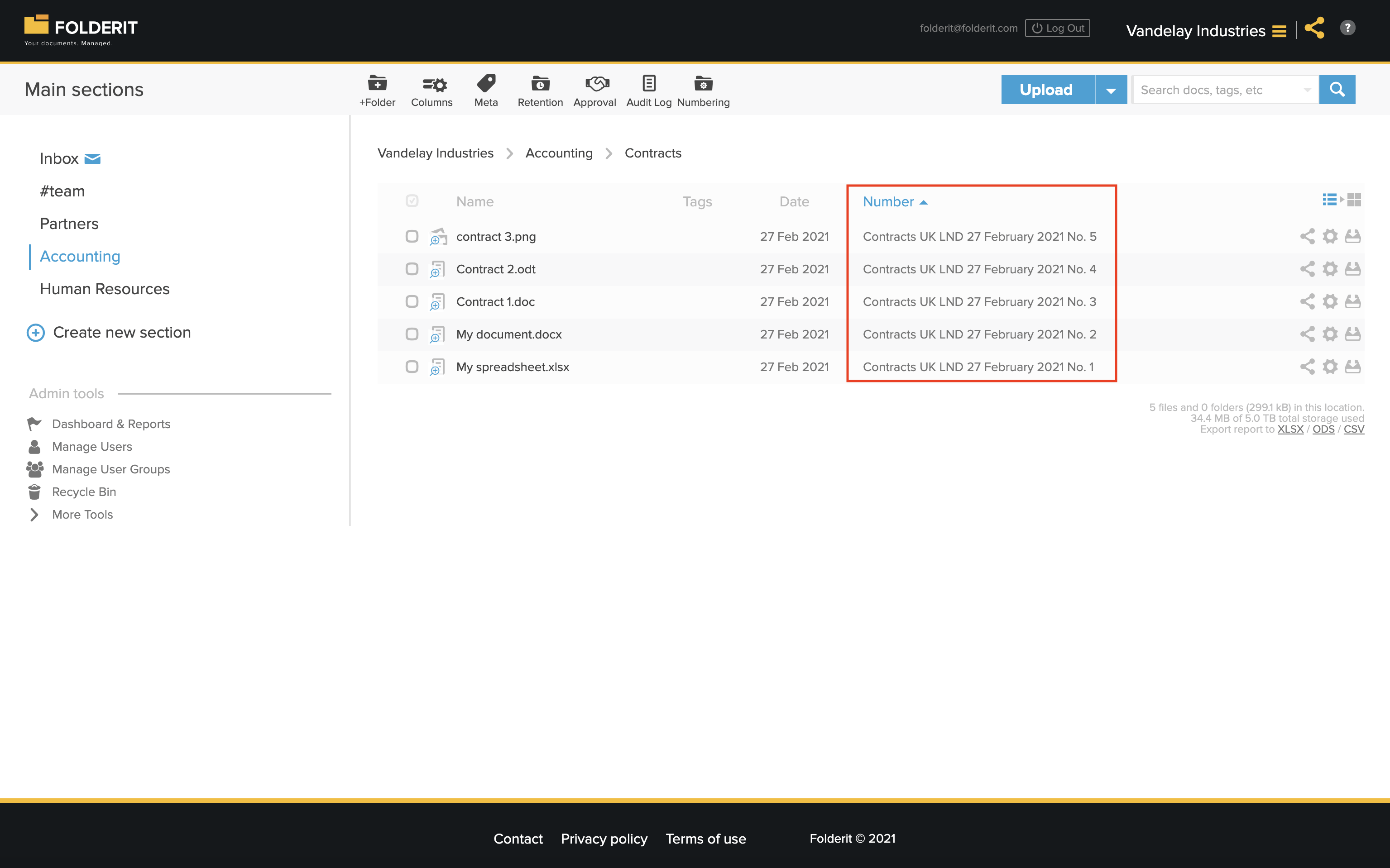
If you prefer to see the document number in the list view as well, then customize the list view columns to start displaying this number. For that, click on ‘Columns’ in the toolbar, then the blue Plus icon to add another column and search for ‘Document number’ field.
The results will look similar to this:
To see all numbering schemes and document registry, account Administrators can use the ‘Admin Tools > Numbering’ view. This lists all the numbering schemes under that account. Clicking on any of them lists all files under that numbering scheme.
In ‘Search > Advanced Search’ you will see a separate ‘Number:’ field to search by document number.
Numbering form records
To configure numbering for form records, open the numbering settings from the form template. The Form record numbering dialog includes a form selector, so one scheme can be applied to several templates.
- Go to Admin tools → Form templates.
- Open the gear menu in the template’s Actions column.
- Select Set up numbering.
- Choose Active under Status.
- Under Apply to forms, select the form templates covered by the scheme. The template used to open the dialog is preselected; you can select multiple templates.
- Enter a descriptive Name for the scheme.
- Build the Scheme using fixed text and the + control for fields such as Number and date or time components.
- Set Next number and review Preview.
- Choose the Reset frequency and any related date settings.
- Select Save.
Reset options for form numbering
- Never: no scheduled reset.
- Yearly: choose a Month and Day.
- Monthly: choose a Day.
- Weekly: choose a Weekday.
- Daily: no additional date selection.
The Day selector includes Last day. The scheme field picker includes two- and four-digit years, month and day components, and time components.
The form template’s Record name pattern defines the name displayed for a record. Automatic numbering is configured separately through Set up numbering. See eForms (Form templates) for creating forms, or Automated Reminders for Form Records for date-based follow-ups.