Custom Permission
Custom Permissions provide granular control over what an individual user or user group can do with a shared folder and its contents.
This option is available on the Tailor plan. It is useful when the standard Previewer, Viewer, Editor, or Upload-only permission levels are either too broad or too restrictive.
Instead of assigning one predefined permission level, you can enable the required actions individually. You can also choose whether the permissions apply only to the selected folder or recursively to its subfolders.
For a comparison of the standard access levels, see Access Permission Levels.
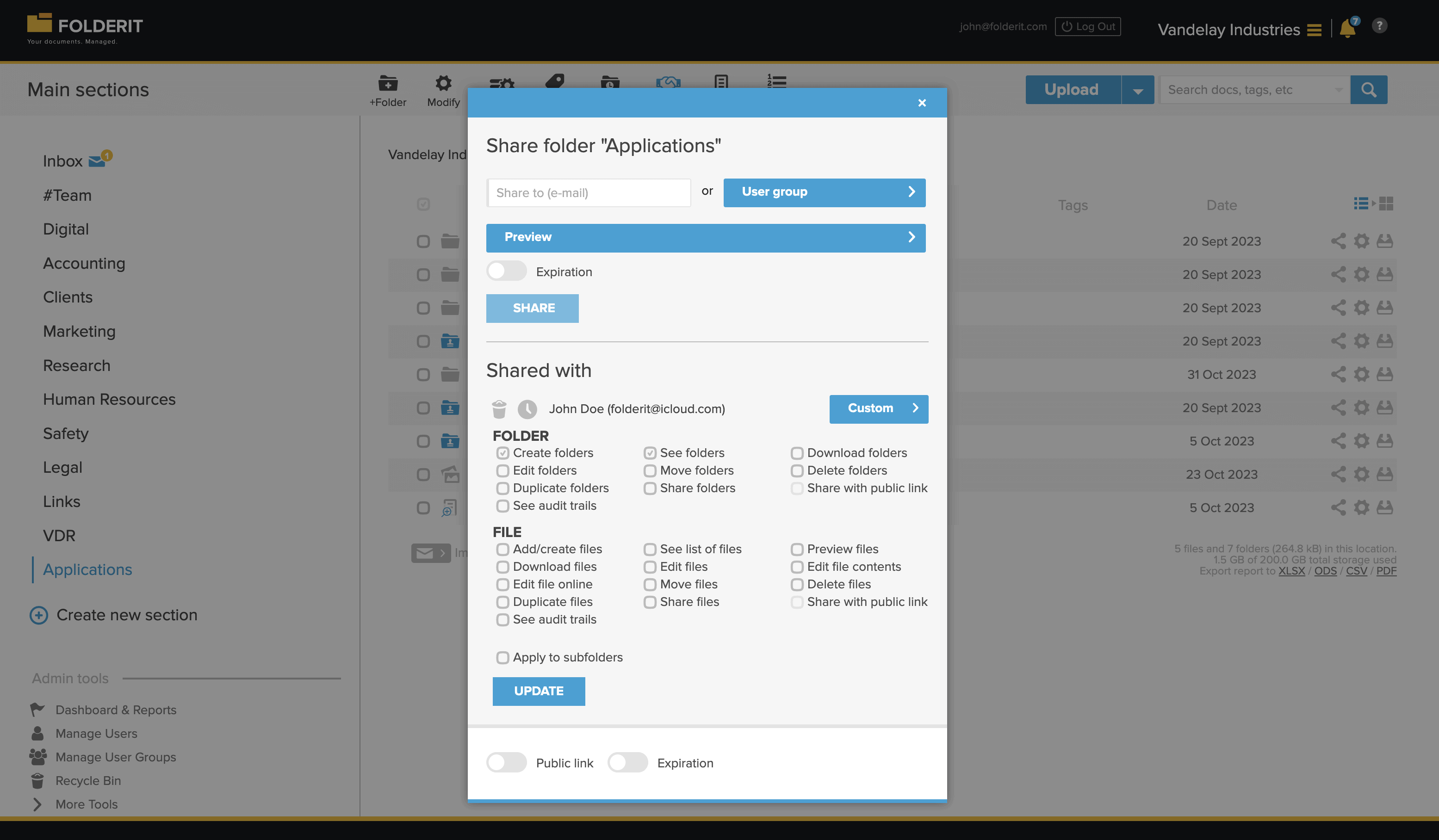
Assign Custom Permissions
- Open the sharing window for the folder.
- Select the user or user group that should receive access.
- Choose Custom as the permission level.
- Enable the required folder and file permissions.
- Choose whether the access should apply recursively to subfolders.
- Save the sharing settings.
For general sharing instructions, see Sharing Files, Folders, and Other Resources.
Recursive Access
Recursive access applies the selected custom permissions to the shared folder and its subfolders.
When recursion is disabled, the permission applies only to the selected folder. This can be useful when a user should see a folder in the navigation hierarchy but should not automatically receive the same access to everything below it.
Folder Permissions
No Permissions
Shows the shared folder in the navigation structure without granting access to its contents or additional folder actions.
This can be useful when users need to understand the folder hierarchy but should not access the resources inside that folder.
Create Folders
Allows users to create new folders inside the shared folder.
Additional permissions may be required for users to view, edit, move, share, or delete the folders they create.
View Folders
Allows users to see the immediate subfolders inside the shared folder.
Download Folders
Allows users to download the shared folder and its permitted contents as an archive.
Edit Folders
Allows users to modify folder settings and attributes, including the folder name and metadata. Depending on the available controls, this may also include folder views, workflows, retention, and other folder-level settings.
Move Folders
Allows users to move the folder to another location where they also have the required destination permissions.
Delete Folders
Allows users to delete the folder and its contents.
Duplicate Folders
Allows users to create a copy of the folder.
Share Folders
Allows users to grant other users or groups access to the folder.
Public Link Sharing for Folders
Allows users to enable, disable, and manage a public link for the folder.
Required dependency: the user must also have the Share Folders permission.
Learn more about Sharing with Public Links.
Folder Audit Trails
Allows users to view the activity history for the folder and its permitted events.
Learn more about the Audit Log.
File Permissions
Add Files
Allows users to upload or add files to the shared folder.
View File List
Allows users to see the files listed in the folder.
Without additional permissions, users may be able to see file names without being able to preview, download, or modify the files.
Preview Files
Allows users to open supported files in the Folderit preview.
This permission by itself does not allow downloading, printing, or copying text from the preview.
Learn more about Previewing Files.
Download Files
Allows users to download files to their device.
Edit File Attributes
Allows users to modify file-related information and settings, including metadata, reminders, workflows, and check-out settings where available.
Update File Versions
Allows users to upload a new version of an existing file.
Learn more about Versioning and File History.
Online File Editing
Allows users to edit supported Microsoft Office files through the Microsoft 365 integration.
When Add Files is also enabled, users may create new Word, Excel, or PowerPoint documents through the Office integration.
Learn more about Creating and Editing Microsoft Office Documents.
Move Files
Allows users to move files to another Folderit location where they also have the required destination permissions.
Delete Files
Allows users to delete individual files.
Duplicate Files
Allows users to create copies of files within Folderit.
Share Files
Allows users to grant other users or groups access to individual files.
Public Link Sharing for Files
Allows users to enable, disable, and manage public links for files.
Required dependency: the user must also have the Share Files permission.
File Audit Trails
Allows users to view the activity history for individual files.
Permission Dependencies
Some permissions are useful only when combined with other permissions. For example:
- Public Link Sharing also requires the corresponding Share permission.
- Online File Editing requires access to the file and a supported Microsoft Office format.
- Move Files and Move Folders require suitable permissions in both the original and destination locations.
- Create Folders does not automatically grant permission to view, edit, or delete the newly created folders.
- View File List does not automatically grant preview or download access.
Example Custom Permission Sets
Document submission
Enable Add Files when a user should submit documents without receiving broader access to existing content.
Read-only document access
Enable View File List, Preview Files, and optionally Download Files.
Metadata editor
Enable View File List, Preview Files, and Edit File Attributes, while leaving file deletion and sharing disabled.
Document contributor
Enable Add Files, View File List, Preview Files, Download Files, and Update File Versions.
Recommendations
- Grant only the permissions required for the user’s role.
- Review recursive access carefully before applying permissions to a large folder structure.
- Test complex permission combinations with a non-administrator user account.
- Avoid granting sharing, deletion, or audit access unless it is required.
- Review custom permissions periodically when a user’s role changes.
Multiple-file uploads and archive extraction
Add Files can permit multiple-file uploads without Create Folders. Keep these permissions separate when a contributor should submit documents into an existing folder but should not create new folders.
Uncompressing an archive that contains folders, or extracting into a new folder, also requires Create Folders. An upload permission does not automatically authorize that folder-creation step. See Uploading Files for the upload routes.