Connect Folderit to n8n
Connect Folderit to other business applications with the Folderit integration for n8n. Use it to create folders, upload and retrieve documents, search records, update metadata, work with file versions, and start configured Folderit workflows. Folderit can also provide tools for an n8n AI Agent.
Folderit is a verified community integration, available on n8n Cloud and compatible self-hosted n8n instances. n8n Cloud runs the automation for you, so you do not need to host n8n yourself. This guide covers the operations in Folderit integration version 0.4.0.
New to n8n? A workflow is a sequence of connected steps. Each step is a node: a trigger starts the workflow, and action nodes read or change data in connected applications. Folderit supplies a regular action node and a separate Folderit Trigger node.
Useful links: Folderit package · n8n Cloud dashboard · Workflow examples · Folderit API credentials
Jump to requirements, installation, your Folderit connection, your first workflow, workflow examples, AI tools, or troubleshooting.
Before you start
- A Folderit account with API access. API access is available with the Tailor plan; see Folderit API access.
- A Folderit API Client ID and its matching Client Secret, with permission to use the intended account, folders, and files.
- An n8n Cloud account or access to your organisation’s self-hosted n8n instance. An instance owner or administrator must install the integration; other members can use it once installed.
- Accounts and connections for any other applications in your workflow. AI workflows also need a compatible chat model and its connection. Separate service subscriptions or usage charges may apply.
Use a dedicated test folder and a small, non-sensitive file for your first test. You do not need a GitHub or npm account to use Folderit on n8n Cloud.
1. Add Folderit to n8n
On n8n Cloud
- Sign in through the n8n Cloud dashboard and open your n8n instance.
- Create or open a workflow. On its canvas, select the + button to open the nodes panel.
- Search for Folderit. If it is not already installed, look under More from the community.
- Select Folderit and choose Install. The package name is
n8n-nodes-folderit. Installation requires the instance owner or an administrator. - Add a Folderit action to your workflow. Choose the regular Folderit node for document operations, or Folderit Trigger when Folderit activity should start the workflow.
If Folderit does not appear, ask the instance owner to enable Verified community nodes under Instance settings in the Cloud console. A restart may also be needed after enabling the feature. See n8n’s verified-node installation guide.
On a self-hosted n8n instance
Use the verified-node search above if your instance supports it. Alternatively, an owner or administrator can open Settings → Community Nodes → Install inside the n8n web application and enter n8n-nodes-folderit. Follow the installation prompts, then return to the workflow canvas and search for Folderit. See n8n’s self-hosted installation instructions. Your organisation’s instance settings may restrict community packages.
2. Create your Folderit connection
- Sign in to Folderit as the primary user and open the API credentials page. Generate or retrieve your Client ID and Client Secret. Ask your Folderit administrator if you do not have access.
- In your n8n workflow, open a Folderit node. At the top of its parameters, find the credential selector and choose Create new credential for Folderit OAuth2 API.
- Give the credential a recognisable name. Enter the Client ID and the matching Client Secret, then save. n8n handles the token exchange; leave the integration’s authentication defaults unchanged.
- Back in the Folderit node, choose the account in Account Name or ID. Its dropdown retrieves the accounts available to that API client.
- Test actual data access using the first workflow below. Saving a credential alone does not prove that it can access the intended Folderit account.
The Client ID is an API identifier, rather than your email address. Store the secret only in n8n’s credential store. Use the same saved credential on each Folderit node that should share this connection.
Operations use the connected API client’s permissions. A person chatting with an AI agent does not automatically receive a separate Folderit identity. Choose the account and permitted scope deliberately when sharing workflows.
3. Test your connection by listing files
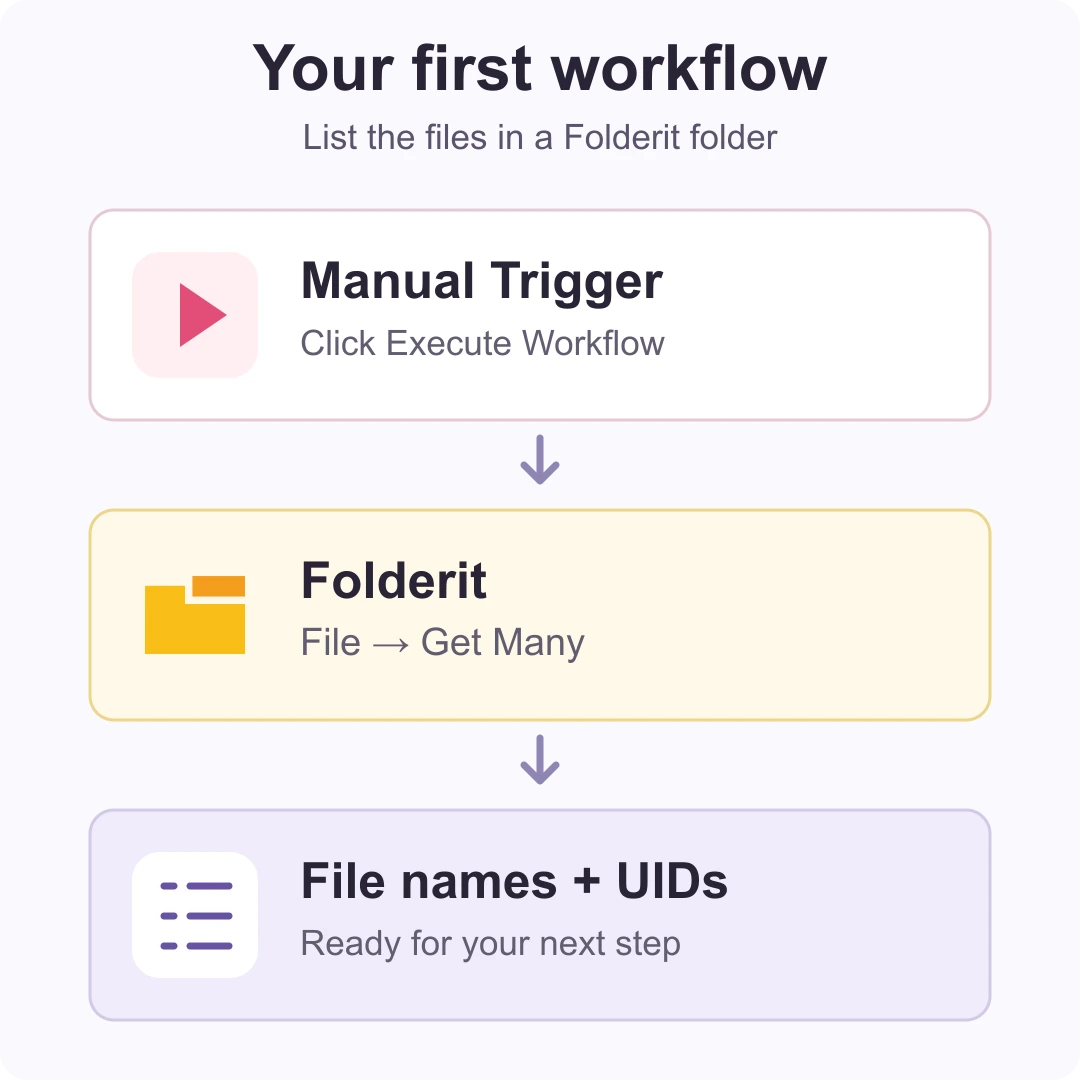
- Create a new n8n workflow. Select Add first step → Trigger manually.
- Add a Folderit action after the manual trigger and select your saved Folderit credential.
- Set Resource to File and Operation to Get Many.
- Select Account Name or ID, then choose a folder under Folder Name or ID. For this test, use a folder that already contains a harmless sample file.
- Leave Return All off and set Limit to 5. Save and select Execute Workflow.
- Open the Folderit node’s Output. Confirm the returned filenames belong to the selected folder. Each file is a separate item, and its
uidis the identifier used by later file actions.
This test reads file details without downloading their contents. An empty folder can return no items even when the connection works. Account, folder, file, and metadata UIDs identify different resources; use the appropriate dropdown or the identifier returned by the corresponding action.
What you can do with Folderit nodes
| Resource | Available operations |
|---|---|
| File | Get details, list files, search, upload, download, add a version, and list versions. |
| Folder | Create a child folder, get details, list child folders, and search folders. |
| Metadata | List existing field definitions, read a record’s metadata, and update or clear one selected field. |
| Workflow | List eligible manual starts, start a configured workflow, and retrieve workflow status. |
| Folderit Trigger | Watch for new files, folders, and file versions; record changes; metadata changes; and workflow task events. |
Search can use document names, content, metadata, document numbers, and tags. Narrow the search to the intended parent folder where appropriate. Metadata updates use existing field definitions and validate the selected value’s type.
File Upload and Add Version accept incoming n8n binary data up to 100 MiB per file. Other services or your n8n instance may impose lower limits. Download returns binary data for another n8n step; it does not automatically save a file to your computer’s Downloads folder.
Workflow Start starts an eligible existing Folderit configuration. A queued response means the start was accepted; use Get Status to check progress. The current integration does not include delete operations or actions for submitting approval decisions.
Practical workflow examples
Create a customer or project folder
Connect a CRM trigger, form submission, or manual trigger to Folderit → Folder → Create. Select the account and the existing parent folder, then map the customer or project name to Name. Enable Return Existing Folder if a same-name folder under that parent should be reused.
The new child folder appears inside Folderit, under the selected parent folder. For example, choosing Projects and entering Acme creates Projects → Acme in Folderit. Use a stable customer or project reference in the name where similarly named records are possible.
Save an email attachment or generated PDF
Use an email or document-generation node that supplies the actual file as binary data, then add Folderit → File → Upload. Select the destination account and folder. Set Input Binary Field to the upstream binary field containing that file, such as data or attachment_0; inspect the preceding node’s output to find the actual name. A filename or download URL alone is not the file content.
For multiple attachments, prepare one item per attachment before uploading. After a test, open the destination in Folderit and check that the document opens correctly. For a revision of an existing document, use Add Version with its File UID to preserve the document’s identity and version history.
Find documents and update a register
Use File → Search with a known reference in Query, choose the fields under Search In, and add a parent-folder filter. Pass the results to Metadata → Get, a spreadsheet node, or another configured business application. Keep a small result limit while testing and check both a matching and a no-match query.
Notify colleagues about document activity
Start with Folderit Trigger, choose the account and event, then connect an email, Slack, or Teams node. Configure the recipients or channel in that application’s node. These are workflows you configure using your own connections and mappings; installing Folderit does not automatically enable them.
Prepared workflows for Tailor-plan users
Folderit Tailor includes API access. The workflows below use your own n8n instance and service connections. Each imports inactive, with placeholders and setup notes, and contains no saved credentials. Start with synthetic files in a test folder.
Download the complete customer workflow package — unzip it and open START-HERE.html on your own computer. It includes all six JSON files and instructions. You do not need access to Folderit’s development computer.
| Workflow | What it does | Connections needed |
|---|---|---|
| IMAP attachment archive | Archives permitted attachments, checks the actual downloaded bytes and saves processing receipts | IMAP and Folderit |
| Outlook attachment archive | The same receipt-based process with a Microsoft Outlook trigger | Outlook and Folderit |
| New documents → Microsoft Teams | Posts a document-arrival notice, with optional exact parent-folder filtering | Folderit and Microsoft Teams |
| Due-date reminders → Microsoft Teams | Checks a folder’s standard document Due dates daily and sends current-window reminders | Folderit and Microsoft Teams |
| Shared failure alerts | Emails workflow/execution IDs to an operator when a connected workflow fails | SMTP |
| Processing receipt-table setup | Creates the shared n8n Data Table; run this first, once at a time | No external service |
- Import and execute Processing receipt-table setup first, in the same n8n project. Copy
ledgerTableIdfrom its final node. - Import a customer workflow. Open its Settings node, replace every
YOUR_…placeholder and paste the table ID. Select credentials in every service node. - Configure Shared failure alerts, then select it under each main workflow’s ⋯ → Settings → Error workflow.
- Test the actual destination, a repeated input, a controlled failure and its alert before publishing or activating.
The archives coordinate overlapping runs through a shared table. If an upload or message result is uncertain, they hold processing for inspection instead of automatically repeating the action. Read the full setup, permissions, recovery and validation guide before activation. Keep workflow copies that should suppress repeats on the same table. Completed receipts must be retained while their inputs may be replayed.
Expiry reminders read the standard Folderit Due date, not dates extracted from document text. Default milestones are 30, 7, 1 and 0 days; the schedule uses UTC. The scan covers one folder, excluding descendants.
Validation: on 27 October 2026, a fresh n8n Cloud 2.45.4 instance installed verified Folderit 0.4.0, passed a real 75-byte UTF-8 round trip and created/reused its receipt table. Native tests covered real Folderit uploads, repeats, overlapping runs, interrupted-result protection across restart and manual recovery. All 61 automated tests passed. Teams sending used a local test stub; real IMAP/Outlook/Teams and external SMTP delivery still need testing with your chosen accounts. These are downloadable examples, not approved listings in n8n’s template library.
Import a prepared example
Folderit’s public repository contains editable workflow JSON examples. These are starting points that need your own credentials and settings:
- Archive email attachments in Folderit — splits attachments into separate files, filters allowed extensions, uploads and checks the stored document details. Configure your IMAP and Folderit connections and the destination folder in the workflow’s setup notes. Replaying a message can create duplicates.
- Send new-document notifications to Slack — retrieves file details, optionally filters one parent folder, and includes the audit UID in the message. Configure the trigger, Folderit connection and Slack channel. The workflow includes guidance for replacing the final action with Microsoft Teams.
- Find documents with a read-only AI agent — searches document names in a fixed folder and retrieves matching document details through Folderit tools. The supplied model uses local Ollama; n8n Cloud needs its own reachable model provider. This does not download or summarize full document contents.
- Search documents and read metadata — fill in the account UID, parent-folder UID, and query in Search Settings, then select your credential in both Folderit nodes.
- Create a test folder, upload a file, and download it — fill in the two UIDs in Test Settings and select your credential in each Folderit node. It creates test content in Folderit; each execution uploads another file.
- Watch for new file versions — select the account, credential, optional exact file UID, and polling interval before publishing or activating the workflow.
Each starter workflow includes setup notes and imports inactive, without saved credentials or pinned results. They are downloadable examples, not approved n8n template-library listings. Configure and test the full workflow with your own connected services before activation. The attachment-processing and AI branches were tested locally on n8n 2.42.5; real IMAP and Slack delivery remain to be verified. The fresh Cloud round-trip and receipt-table checks described above are complete.
In the n8n workflow editor, open the three-dot menu near the top-right → Import from URL and paste one of the example links above. You can also download the JSON and use Import from File. Review every node, replace all placeholders, and test before enabling scheduled execution. See n8n’s workflow import guide.
Use Folderit as a tool for an AI Agent
An n8n AI Agent can call a configured Folderit operation to answer a request. For example, it can retrieve details for a particular File UID and report the document’s exact name. Start with a read-only operation such as File → Get or a narrowly scoped File → Search.
- Add an AI Agent node and connect a chat model that supports tool calls. Configure that model’s own connection.
- Use the AI Agent’s Tool + connector to add Folderit.
- Select the Folderit credential, resource, and operation. Keep Account Name or ID and any search-folder scope fixed.
- For File → Get, let the model supply only File UID using n8n’s Let the model define this parameter control. Describe the tool clearly: it retrieves document details for the supplied UID.
- Test with a known non-sensitive document. Ask: “Use the Folderit tool to get details for document UID [your file UID]. Report its exact name and UID.” Replace the bracketed text with a real File UID.
- Inspect the execution’s tool call and returned Folderit data, then compare them with the agent’s answer. A plausible sentence alone does not prove that the tool ran.
Each Folderit tool performs the operation you configure. Add separate tools for separate tasks. Give agents write operations only where that behaviour is intended. File Upload, Add Version, and Download require binary workflow data and are handled by regular Folderit workflow nodes, rather than the AI tool menu.
Review what document data the selected model receives, and use a provider approved by your organisation. An AI connection is separate from the Folderit connection and may incur usage charges. See n8n’s AI Agent guide.
For an advanced local demonstration, the repository also includes a document-and-AI example using Ollama. It requires a separately installed model. Its 127.0.0.1 address is suitable when n8n and Ollama run directly on the same computer; an n8n Cloud workflow needs a model service reachable from the Cloud instance.
Polling, activation, and retries
Folderit Trigger uses scheduled polling, rather than an instant webhook. Select the account, event, and optional exact Record UID, then choose the polling interval and publish or activate the workflow in your n8n instance. Record UID filters one exact file or folder; it is not a folder-wide subscription to all descendants.
First activation establishes a starting point for new activity. Manual testing previews up to ten recent matching events. After activation, create a new test event and confirm that the scheduled execution reaches the intended destination.
The current trigger reads recent audit history and requires polling at least once per hour; choose a shorter interval on busy accounts. Interruptions over 23 hours, excessive backlogs, or a missing saved checkpoint require reconciling missed activity before resetting the trigger. Monitor failed executions rather than assuming that a quiet workflow is healthy.
Retries can repeat downstream actions. Keep track of processed event IDs or stable business references for uploads, notifications, and other consequential steps. After an uncertain upload or workflow start, inspect Folderit before repeating the action.
Troubleshooting
Folderit does not appear in the node search
Check that verified community nodes are enabled and ask an instance owner or administrator to install the integration. Search for Folderit and confirm the package name n8n-nodes-folderit. On Cloud, follow the installation section above; an npm account is not needed.
The account list is empty or an API request fails
Check API entitlement and the Client ID/Client Secret pair. Confirm the API client can access the selected account and folder. Check that File UID, Folder UID, and Account UID have not been mixed up. Test with File → Get Many in a known accessible folder. If a Folderit step fails, later steps may not run.
I cannot find the created folder or downloaded file on my computer
A created folder is in Folderit under the selected parent folder. Downloaded file content is in the n8n node’s binary output for the next workflow step. To place it somewhere else, add a suitable destination node.
Upload says the binary field is missing
Inspect the previous node’s binary output. Match Input Binary Field to its field name and make sure the upstream node retrieved the file itself. A URL or JSON field containing a filename is insufficient.
The AI model fails or does not call Folderit
Test the chat model connection separately, confirm that it supports tools, and check the Folderit connection on the tool node. A local Ollama address on someone else’s computer is not reachable as localhost from n8n Cloud. Inspect the real tool call and result before relying on the final answer.
A trigger does not detect a change
Check activation, polling schedule, account, event type, and the optional exact-record filter. Check failed executions and the polling limits above. Changes made before the initial baseline are not a historical import.
For the operation reference and current implementation limits, see the Folderit n8n documentation. For account or setup help, contact Folderit. You can also compare the Make, Zapier, and Microsoft Power Automate connection guides.