Assigning Workflow Substitutes
Assign a substitute to cover a user’s selected workflow types for a defined period. This is useful when a colleague is away and another person needs to handle their workflow responsibilities.
Set up the substitution from Manage users in the relevant Folderit account.
Add a substitute
- Open Manage users under Admin tools.
- Find the user who needs a substitute. Click the gear icon on their row and choose Add substitution.
- In the Substitutes window, click ADD A SUBSTITUTE.
Shortcut: If the user has no substitute configured, click the two-arrows icon beside their name to open the Add substitute form directly.
Choose the person, period, and workflows
- Enter the substitute’s email address in the Substitute field.
- Set From and To, including the start and end times. Check that the displayed account is the account you intend to configure.
- Under Workflows, select the types the substitute should cover: Approval, Acknowledgement, eSign, eID, Fill fields, and/or Review. All six are selected initially; clear any that do not apply.
- Click SAVE.
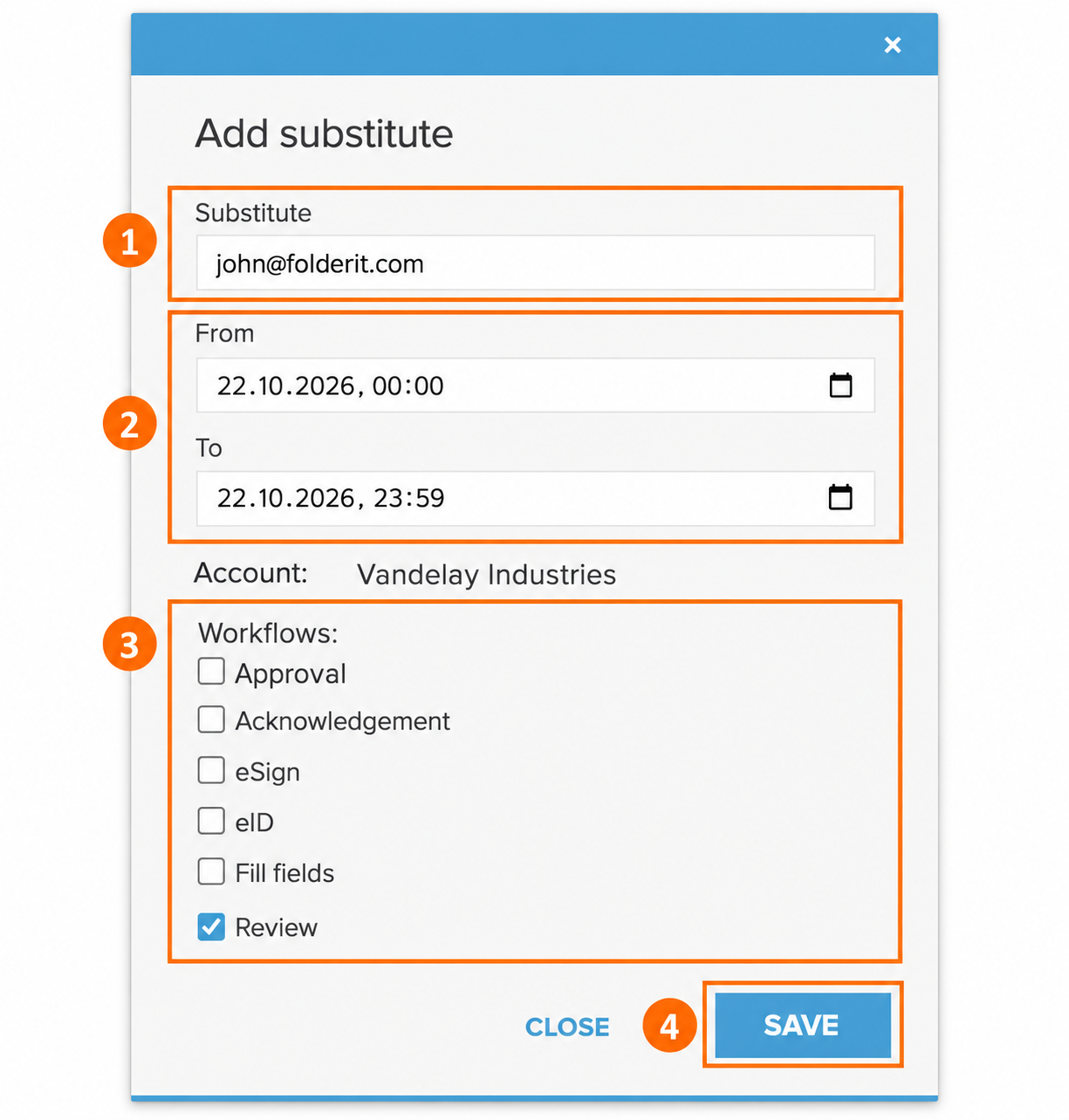
Example: A colleague is away for the day and needs cover for document reviews. Enter the covering colleague’s email address, set the absence period, and leave only Review checked.
Check the substitution
Once the substitution is saved, the user’s two-arrows icon turns blue. Click it to see a quick preview of the substitute’s name, email address, and period.
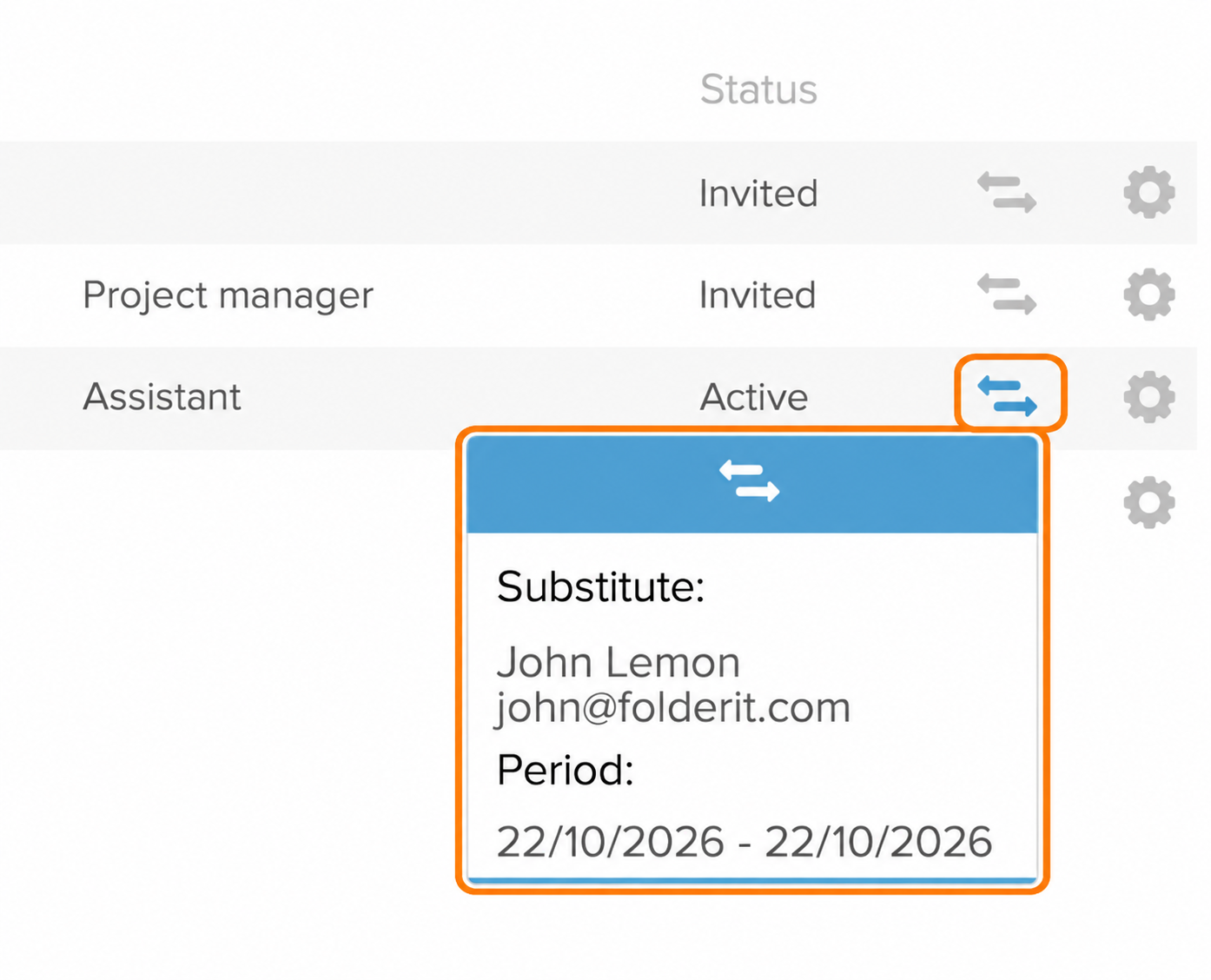
The Status column, such as Active or Invited, describes the user’s status. Use the arrows preview to check the substitution details.
Edit or remove a substitute
Open the user’s gear menu → Add substitution again. The Substitutes window lists the substitute, From and To dates, and account.
- To change the assignment, click Edit, update the email, dates/times, or workflow choices, and click SAVE.
- To remove it, click the trash icon (Remove) beside the entry. Check the details in the confirmation window, then click Remove.
The list and arrows preview show dates. Open Edit when you need to check the exact start and end times.