DocuSign

Folderit’s built-in DocuSign integration lets you send documents stored in Folderit for electronic signing through your existing DocuSign account.
The integration is available on the Medium and Tailor plans. A separate DocuSign account and subscription are required.
You can send documents to Folderit users or external recipients by entering their email addresses. Recipients complete the signing process through DocuSign and do not need to be registered Folderit users.
Requirements
- A Folderit Medium or Tailor subscription.
- An active DocuSign account and subscription.
- Available DocuSign envelopes.
- Access to the Folderit main account used to connect the integration.
Each DocuSign workflow uses one DocuSign envelope, whether the document has one signer or several signers.
Connect DocuSign to Folderit
The DocuSign account must be connected by the owner of the Folderit main account—the account responsible for the subscription or the original trial account that invited the other users.
- Sign in to Folderit using the main account.
- Go to My Profile → Integrations → DocuSign.
- Start the connection process and sign in to the DocuSign account when prompted.
- Authorize Folderit to use the DocuSign integration.
If the integration has not yet been connected, Folderit will also prompt you to connect it when you attempt to start your first DocuSign workflow.
Ways to start a DocuSign workflow
DocuSign can be used in several types of Folderit processes:
- Single-document workflow — manually send an individual document for signing.
- Folder-level automation — automatically start a predefined signing workflow when a document is added to a configured folder.
- Workflow template — reuse a prepared signing process with predefined recipients and workflow settings. Learn more about workflow templates.
- Workflow Designer — include DocuSign as a stage in a larger automated process. Learn more about the Workflow Designer.
Send a single document for signing
- Click the document name to open its detail view.
- Click Start DocuSign workflow in the right-hand panel.
- If the DocuSign account has not yet been connected, follow the instructions shown by Folderit.
- Enter the email address of a signer and click Invite.
- Repeat the previous step for every additional signer.
- Confirm that starting the workflow will use one DocuSign envelope.
- Optionally enable Move after completed and select the folder where the completed document should be moved.
- Click Start Electronic Signing Flow.
Allow a short time for Folderit and DocuSign to communicate. When the workflow controls close or update, the signing invitations have been sent.

Create a folder-level DocuSign automation
A folder-level automation automatically starts the same DocuSign workflow whenever a new document is added to the configured folder. This can be useful for recurring processes such as contracts, employment documents, consent forms, or supplier agreements.
- Open the folder that you want to automate.
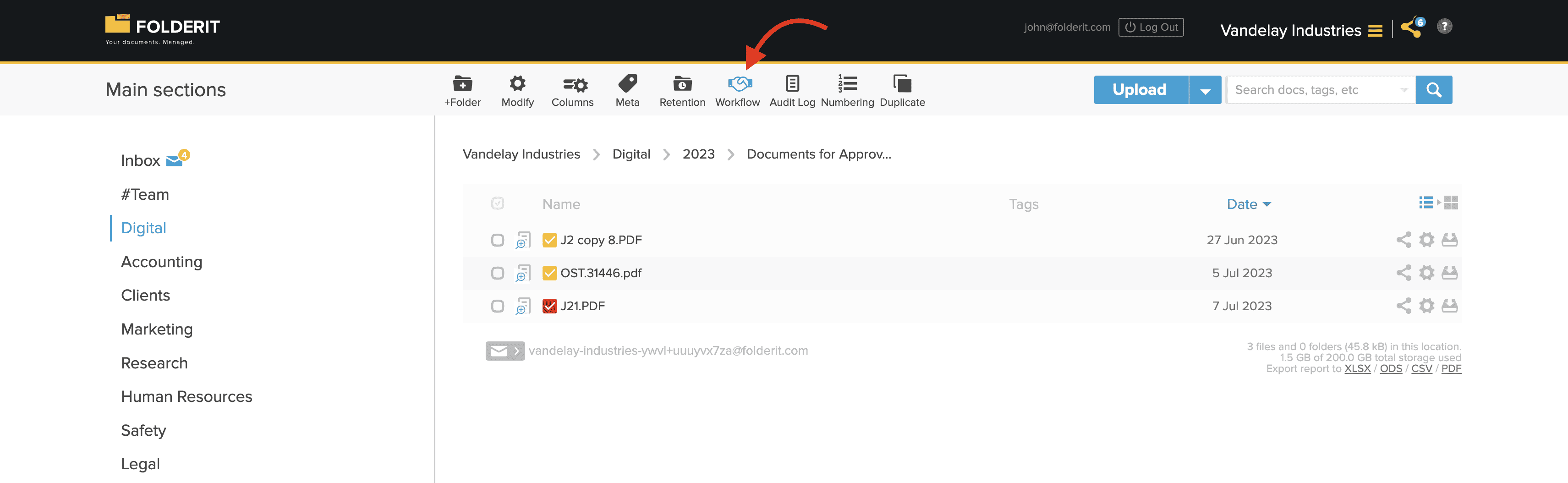
- Click Workflow in the toolbar or folder settings.
- Activate the automated workflow.
- Select DocuSign as the workflow method.
- Add the required signer email addresses.
- Use the plus button to add additional recipient rows when needed.
- Choose the signing order.
- Optionally enable Move after completed workflow and select the destination folder.
- Save and activate the automation.
Signing order
- Parallel — all signers receive their invitations at the same time.
- Serial — signers receive their invitations one at a time in the defined order. The next person is invited after the previous signer completes their task.
- Custom — recipients can be arranged into multiple stages when supported by the selected workflow configuration.

What the signer receives
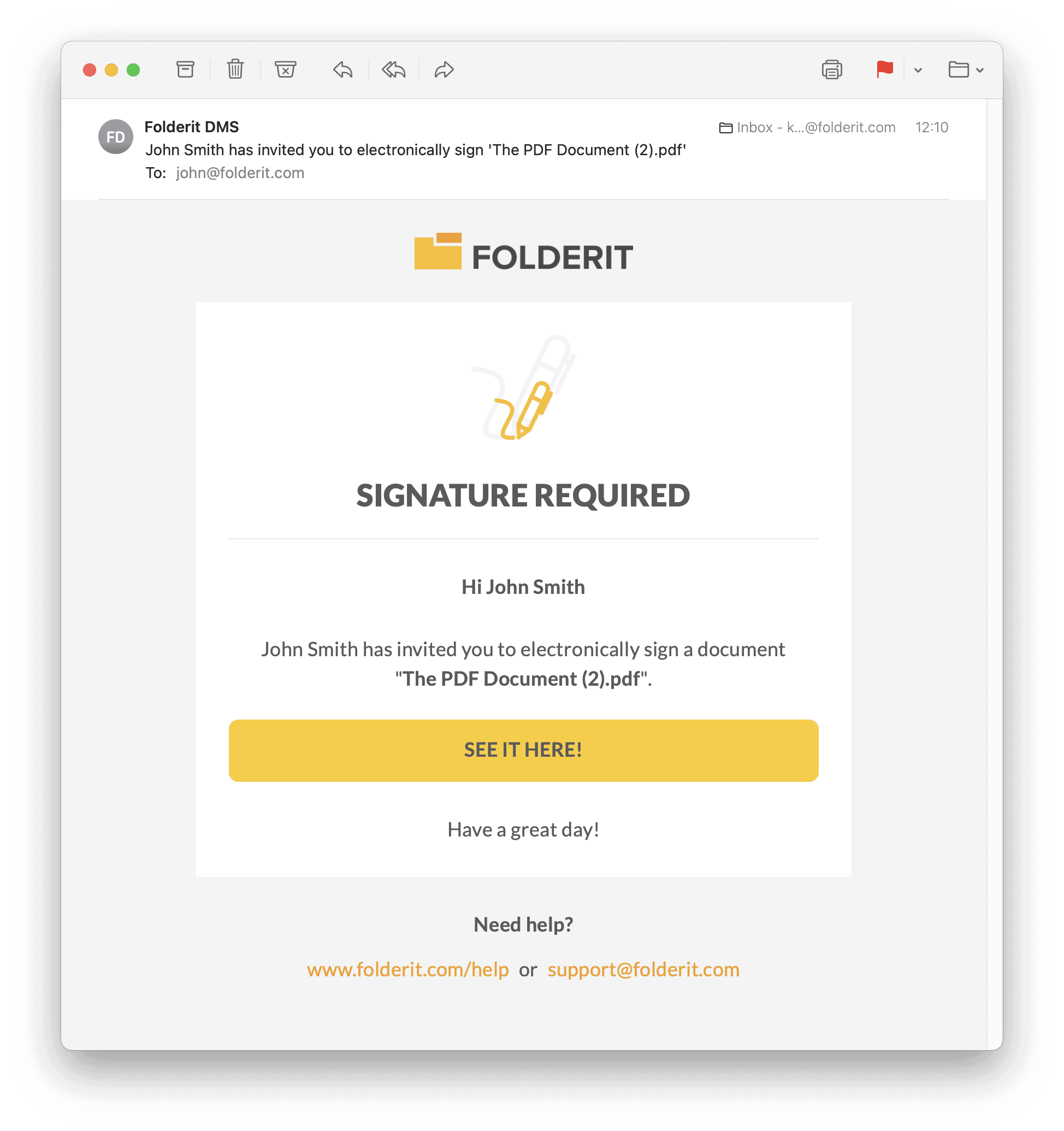
Each signer receives an email invitation containing a link to the DocuSign signing process. The signer follows the DocuSign instructions to review and sign the document.
The invitation and signing interface are provided by DocuSign. Signers do not need access to the Folderit account unless they also need to work with the original document inside Folderit.
DocuSign notifications
The owner of the connected DocuSign account may receive DocuSign email notifications about documents sent for signing, including information about document views and completed signatures.
These messages are generated by DocuSign and cannot be managed through Folderit’s notification settings. Change them in the connected DocuSign account instead.
Monitor workflow progress
The document’s workflow information remains available in Folderit, where authorized users can review its current status and completed workflow activity.
Workflow tasks assigned to Folderit users are also available from their task dashboard. Learn more about tasks and requests in the personal dashboard.
When a process involves another person completing the task on someone’s behalf, see workflow deputies and delegations.
Other electronic-signing options
Organizations that do not require DocuSign may also use Folderit’s native electronic-signing method or supported electronic-ID signing options, depending on their Folderit plan and signing requirements.