Searching
Folderit provides two main search modes: Live Search for quick results while typing, and Deep Search for more comprehensive searches across file content, metadata, notes, and other indexed information.
Live Search
Live Search displays results immediately as you type in the search field, without requiring you to click the Search button.
Live Search checks:
- file names;
- folder names;
- metadata.

Deep Search
To run a Deep Search, enter your search term and click the magnifying-glass Search button.
Deep Search checks file and folder names and metadata, but can also search document content using Optical Character Recognition and text indexing.
Content search can find text inside supported documents such as PDF and DOCX files, as well as text visible in PNG and JPG images, including scans and photographs of paper documents. XLSX file content is not included in OCR content search.
For more accurate OCR results, make sure the correct document language is selected. Learn how to change the OCR language, or review the languages supported by Folderit OCR.
Filter search results
Use the filters on the search page to narrow results by the items you need, their metadata or their associated tasks. You can combine a search term with the relevant filters, then click SEARCH. Use Advanced search to open additional options when needed.
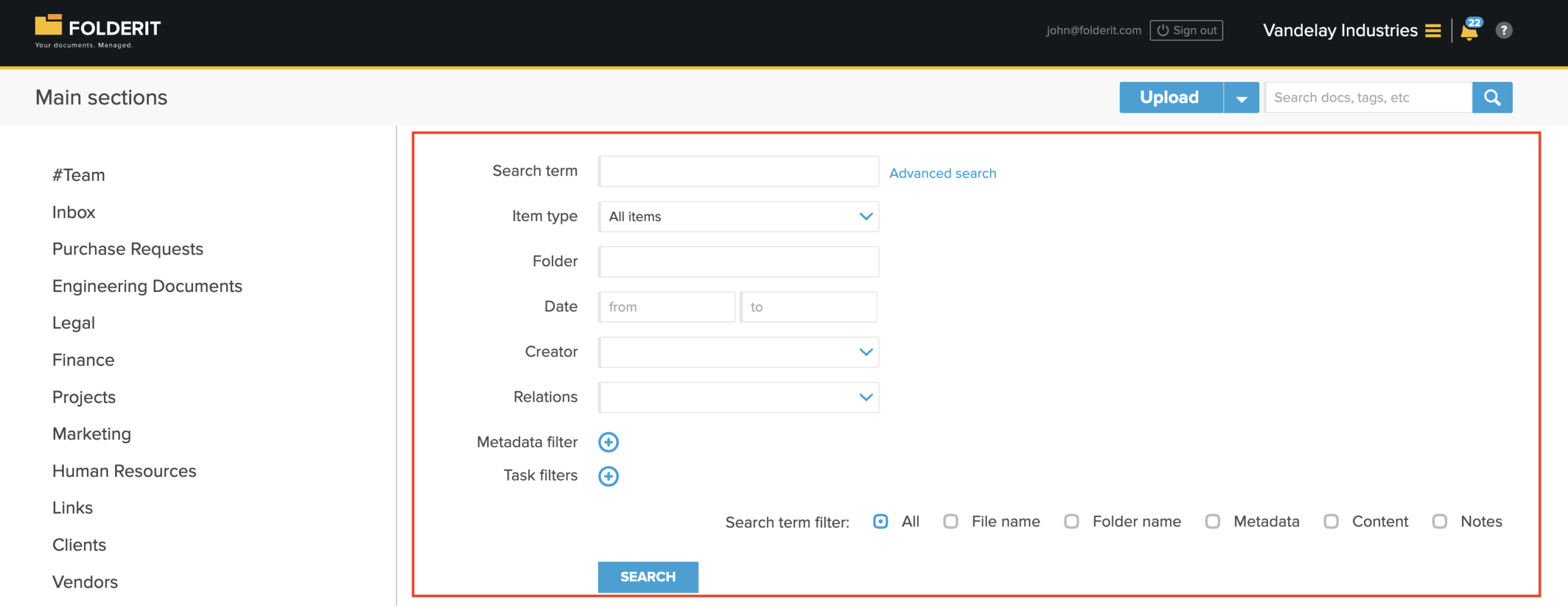
Choose which items to find
- Search term: enter the text you want to find.
- Item type: keep All items selected for a broad search, or choose File, Folder, Link, All forms, or a specific form template.
- Folder: click the field, browse to the folder you want to search within, select it, and click Select.
- Date: use the from and to fields to set a date range.
- Creator: select a creator to find items created by that person.
- Relations: choose Has any relations, Has no relations, Related to item, or Not related to item. See Linking / Relating Items for more about connections between items.
The general Relations filter applies to Related items links. A value in a form’s Relation field is separate and does not by itself make the record match Has any relations.
For Related to item or Not related to item, click Select item and choose the item whose links you want to search. The picker lets you browse folders or use Search items by name. Select the matching item, then click SEARCH on the search page. Use Clear item to remove the selected target.
Add metadata filters
Click the + beside Metadata filter to add a condition. Choose the metadata field, select the condition available for that field type, and enter or select the value to match. Add further conditions as needed.
Choose Item type before adding form-field conditions. When you select a specific form template, the form-specific entries in the Metadata filter menu are limited to that form. Default metadata and account-wide custom metadata remain available. With All items or All forms, the menu can include fields from multiple forms.
The value control depends on the field type. For a dropdown field, select one of the choices configured in the form, rather than typing an arbitrary value. For example, a form’s Country filter offers that form’s configured country choices. Choosing a form changes the available form fields; it does not limit the Creator list to that form’s users or replace the general Relations and Task filters.
For example, filter by a department, contract type or date stored in a metadata field. Form fields can also be used in search filters, helping you find structured records by their field values.
You can leave Search term empty and search using filters alone. For example, select All forms under Item type, add the relevant Customer name metadata field, choose is, enter the customer name and click SEARCH. If several forms share that metadata field, it is also available under its shared metadata name.
Add task filters
Click the + beside Task filters to add a condition. Available criteria include State, Response, Issuer, Method, Recipient, and task dates: Created, Activated, Sent, Viewed, Deadline, and Responded. Configure the condition, combine it with a folder or metadata filter if needed, and click SEARCH.
For example, add Method → Approval and choose a folder to find items with approval tasks in that folder. A matching task can belong to an earlier file version; open the item’s Versions list to see the version associated with its task status.
You can combine task criteria. For example, choose Item type → File, add Method → Approval, then add State → Responded to narrow the results to files matching those task conditions.
Choose where to search for your text
Search term filter controls where Folderit looks for the text entered in Search term. Keep All selected for a broad text search, or select the relevant areas:
- File name
- Folder name
- Metadata
- Content — indexed document text, including supported OCR content
- Notes
Metadata under Search term filter searches for your text within metadata. Metadata filter lets you set a condition on a particular field and value. Use the latter when you need a more precise field-based search.
Additional advanced options
Advanced search also provides filters such as file extension, tags, signers and document number. Only file extensions that currently exist in your Folderit account are displayed as available extension filters.
Example: find records from a particular team
- Choose the relevant Folder.
- Select a Creator if you need records created by a particular person.
- Use Metadata filter to match the team or department field, if your records use one.
- Add a Task filter if you also need to narrow the results by associated tasks.
- Click SEARCH and review the matching items.
Search filters do not grant access to items. Results remain limited by your permissions.
Search operators
You can use search operators to require or exclude specific words and phrases.
| Search syntax | Meaning |
|---|---|
"search phrase" | Search for the complete phrase. |
+phrase | The result must include the word. |
+"search phrase" | The result must include the complete phrase. |
-phrase | The result must not include the word. |
-"excluded phrase" | The result must not include the complete phrase. |
Sort search results
You can sort search results by clicking the available column headings, including file name, date, and score.
Understanding the search score
The Score indicates how closely a result matches the search query. A higher score generally means that the search term is more likely to appear in the indexed file content.
OCR results may vary depending on the quality of the source material. Factors such as angled photographs, poor lighting, low image quality, unusual fonts, or unclear scans can affect how accurately text is recognized.
To exclude an account from file-content indexing, go to Manage Accounts → Settings → Modify and clear the File Indexing checkbox. See also: modifying an account.
Actions available in search results
Search results work similarly to a regular Folderit list view. Depending on your permissions, you can:
- preview files;
- download files;
- share files and folders;
- open file or folder details;
- export search results with metadata to Excel or CSV.
To export search results, scroll to the bottom of the results page and select the available Excel or CSV export option.
Share a simplified search-results view
You can add parameters to the end of a search-results URL to simplify how the page is displayed.
| URL parameter | Effect |
|---|---|
&hideForm=1 | Hides the search fields and displays only the results. |
&disableLinks=1 | Disables clickable file names so users can preview results without opening the files directly. |
These parameters do not change access permissions. Users will only see results for files and folders they are authorized to access.