Add and Edit Metadata
Metadata is the information attached to a file, folder, or external link, such as its title, tags, dates, and custom values. This guide explains how to fill in those values, save your changes, and use them to find documents.
Looking to set up fields or folder templates? Go to Custom Metadata Fields and Folder Templates.
Add or edit metadata
You need permission to modify the selected file, folder, or external link.
- Open the item you want to update.
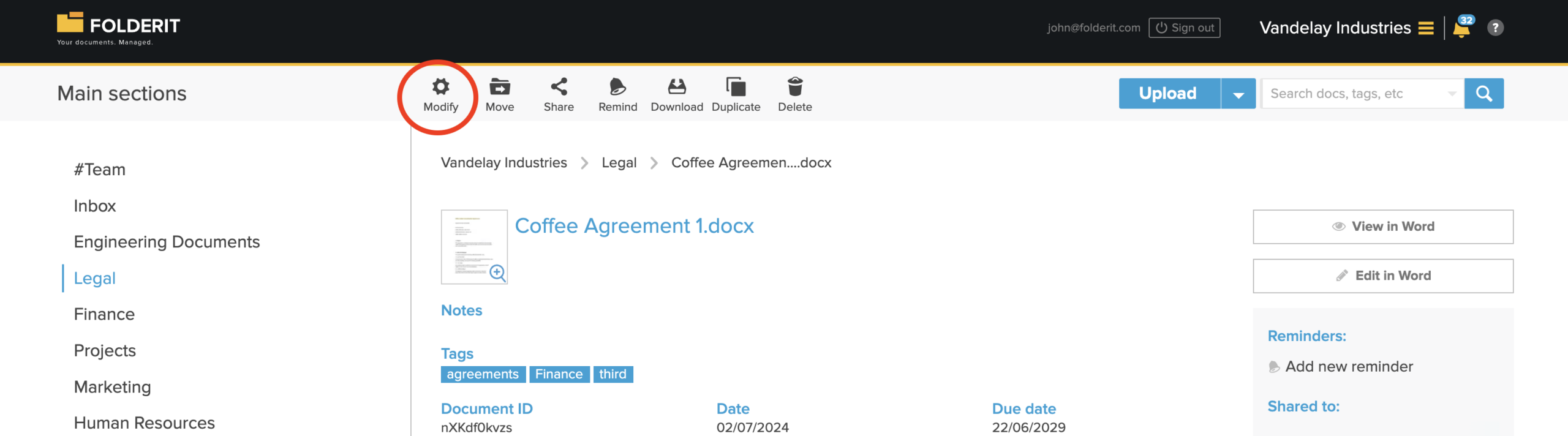
- Click Modify in the toolbar.
- Enter or update its metadata values, including any required custom fields.
- Click Save to finish, or use Save & Next to save the current item’s metadata and move straight to the next item.
Complete missing required values
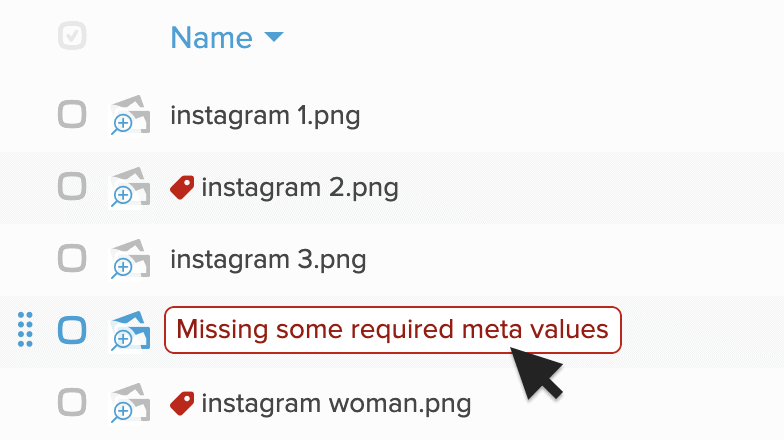
Resources with missing required metadata values are marked in the list or thumbnail view. Click the warning to open Modify, complete the missing values, and save.
Default metadata fields
The following fields appear for uploaded files. Document ID is generated automatically; the other fields let you describe the document.
- Title — displays the file name. Changing the title also changes the file name, but the file extension cannot be changed here.
- Notes — stores longer descriptions, comments, or other information about the document. Full web addresses beginning with
http://orhttps://become clickable after saving. - Tags — adds keywords that can be used to classify, search, and manage resources. Enter a comma after each tag to add it.
- Signed by — records the names of people who signed the document. Enter a comma after each name to add another signer.
- Document ID — a unique number generated automatically for every uploaded document. It can be used to refer to a document, connect related resources, or maintain an external registry. Learn more about linking and relating items.
- Date — records the relevant date of the document, such as an issue date, agreement date, or invoice date.
- Due Date — records the document’s due date. It is visible in the document detail view and in the folder list view when the Due Date column is enabled. Admin Tools → Dashboard & Reports → Due Documents lists documents that are overdue or due within the next 30 days. This document metadata field is separate from task and workflow deadlines. A workflow’s Due By field is an independent setting.
View and find items using metadata
- View values: open an item to see its metadata in the detail view.
- Compare documents: add metadata columns to a folder’s list view. List values can appear with text and background colours configured for that field.
- Find documents: use metadata values and other indexed information to search in Folderit.
- Automate processes: use metadata in workflow conditions with the automation designer.
Need a new field, colours, or a folder template?
To create fields, change the colours of List options, or apply a common set of fields to a folder, see Custom Metadata Fields and Folder Templates. That guide covers setup and the required Manage Metadata permission.
Manage tags
For tag creation, sub-tags, administration, and tag-based sharing, see Managing Tags.