Duplicating
You can duplicate any file or folder (including all sub-folders) in Folderit, which is especially useful for creating templates or replicating standardized folder structures across departments or projects. During duplication, you can choose to carry over metadata (custom fields and values), tags, related item links, sharing permissions, reminders, workflow resolutions (like approvals or acknowledgements), and the full workflow configuration. This flexibility ensures that you can reuse document structures exactly as needed, without unnecessary reconfiguration.
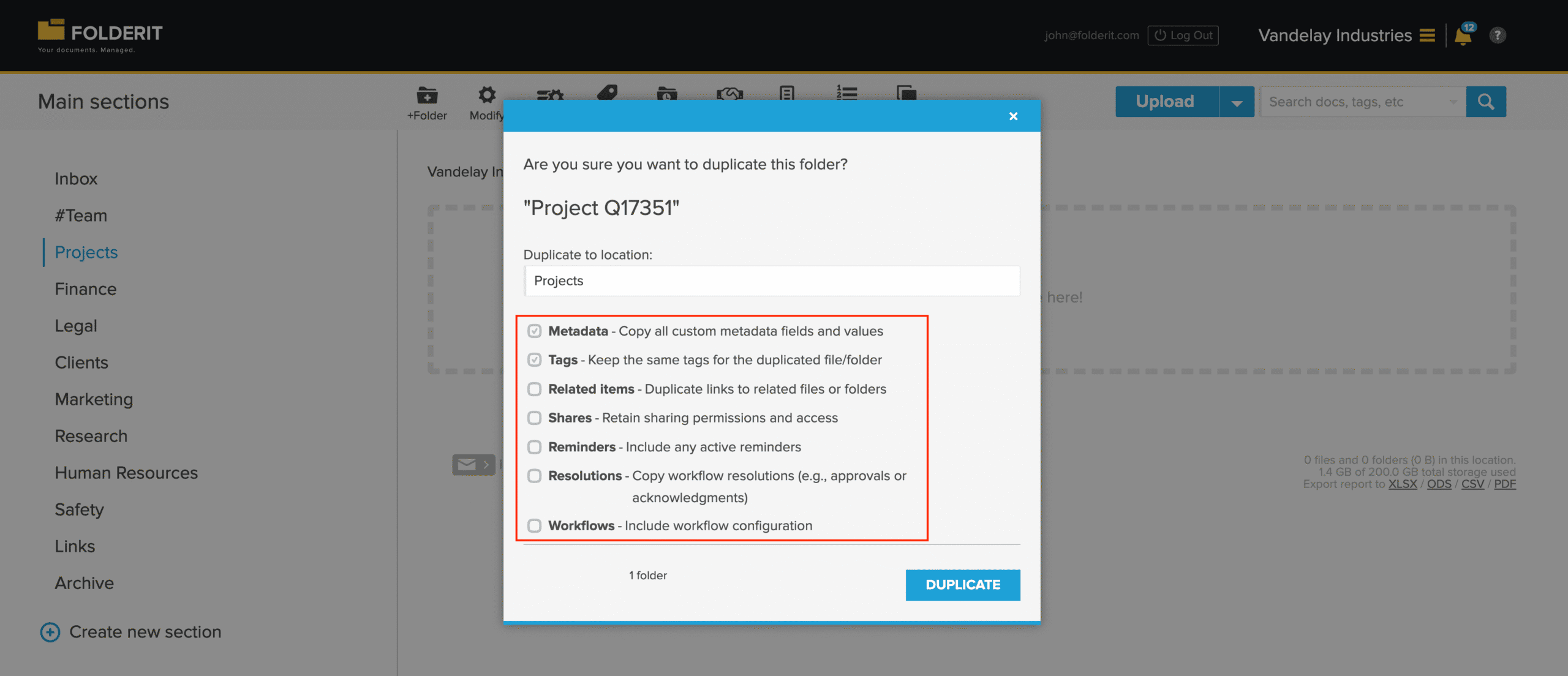
Duplicating Files
For file duplication, you can choose between three options:
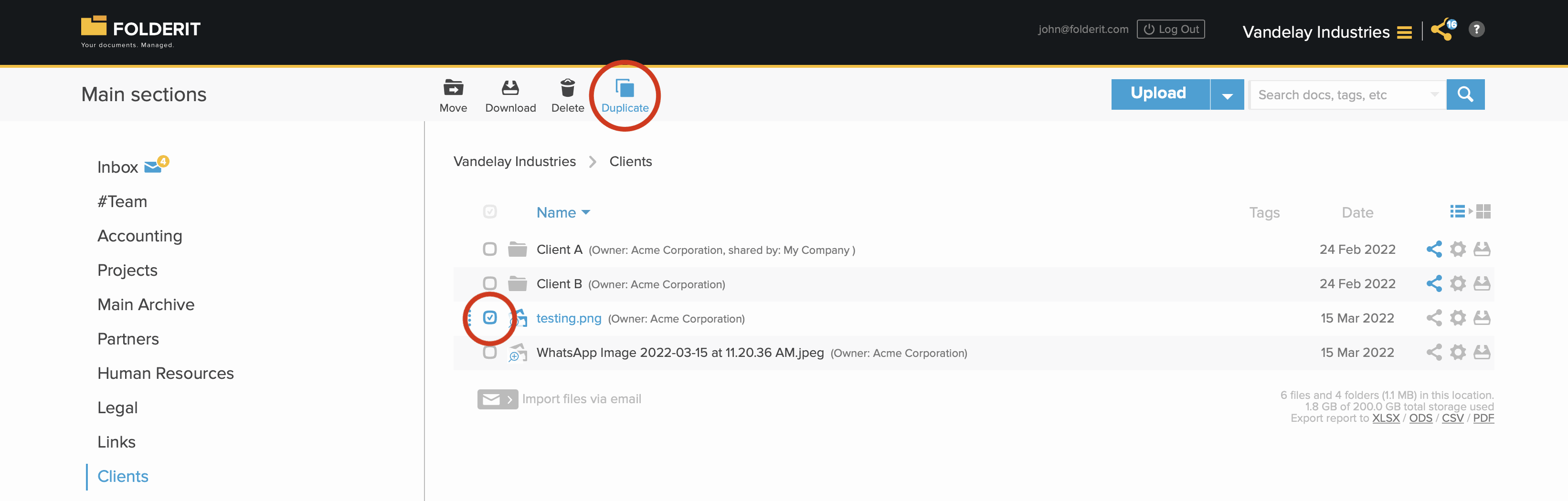
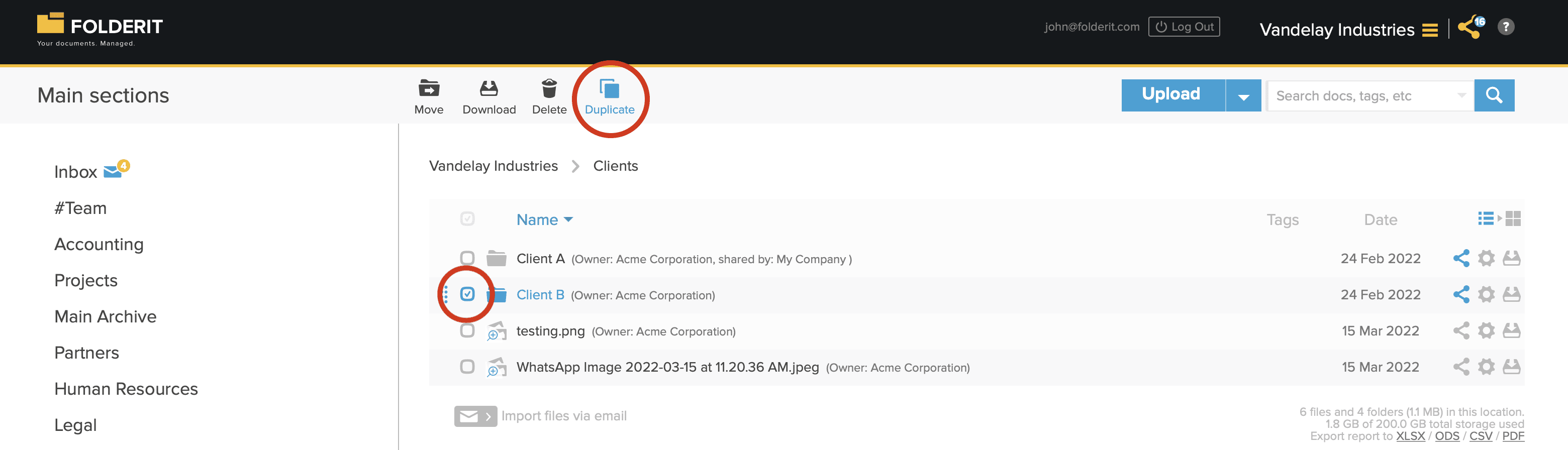
1. Select the file(s) in the list view with check-mark and choose ‘DUPLICATE’ from the toolbar. It can also be a mix of files and folders.
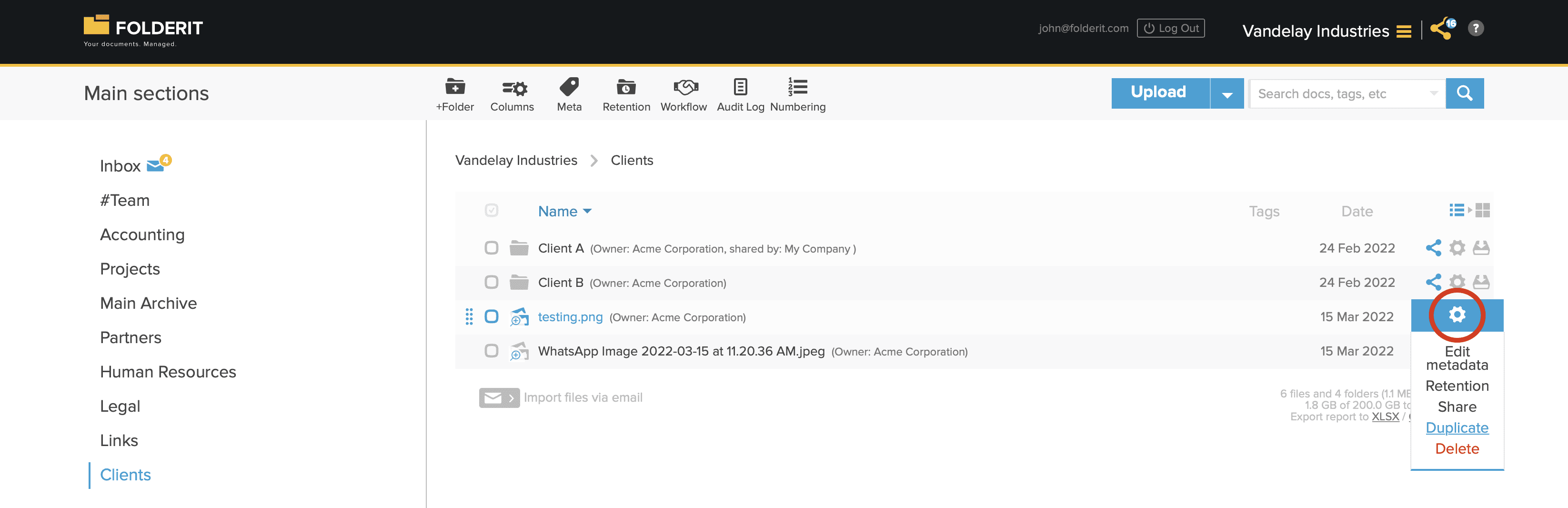
2. Click on the file’s settings (gear) icon in list view and choose ‘DUPLICATE’.
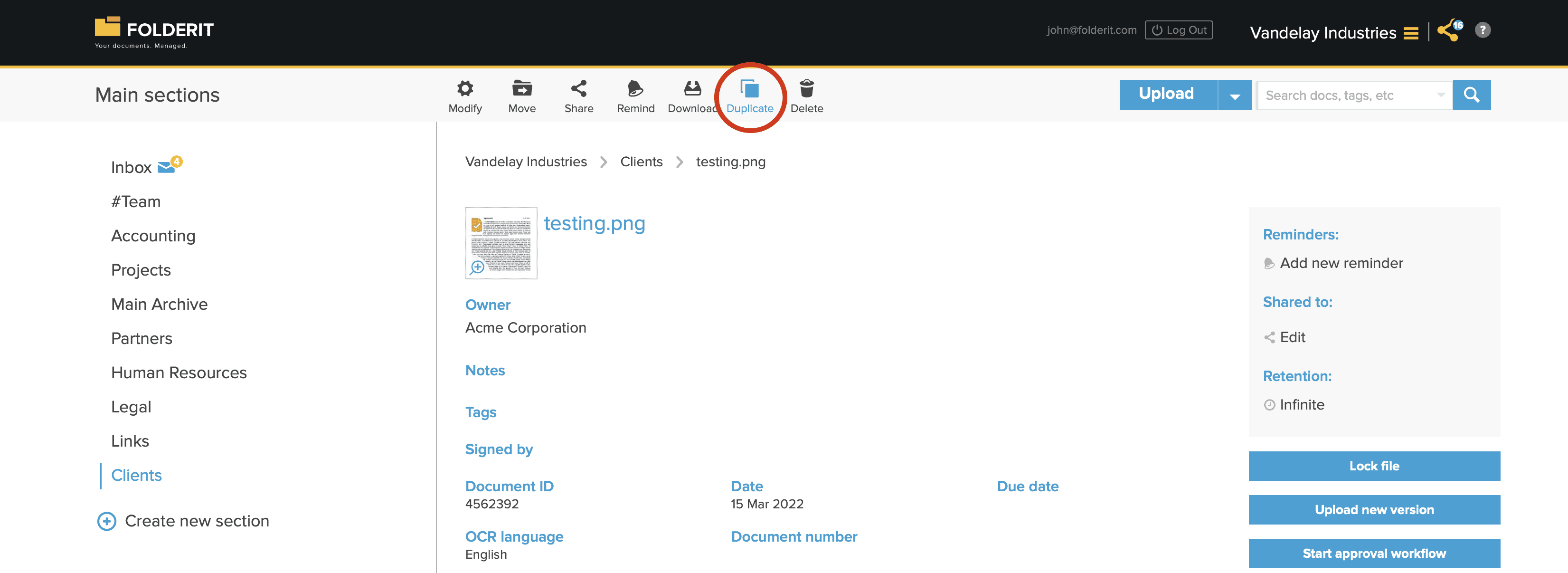
3. Click on the file to get to the file’s detail view and choose ‘DUPLICATE’ from the toolbar.
Duplicating Folders
To duplicate a folder with everything in it — either an empty folder structure or with files, you have two options:
1. Select the folder(s) with check-marks and choose ‘DUPLICATE’ from the toolbar.
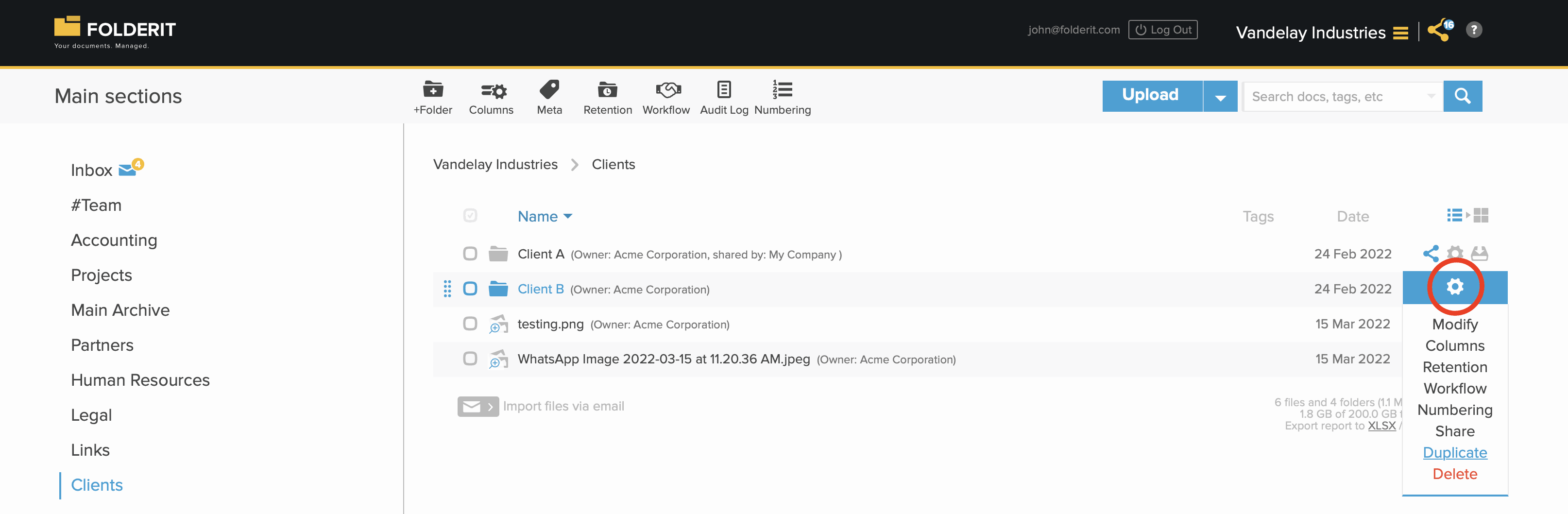
2. Click on folder’s Settings (gear) icon and choose ‘DUPLICATE’ from the dropdown list.
Duplicate a form record
- Open the form record and select Duplicate in the toolbar.
- Choose the destination folder and review the options in the duplication dialog.
- Confirm the duplication, then open the new record to review its values.
The form template controls which field values carry over through each field’s Copy on duplicate setting. To change it, open Admin tools → Form templates, edit the template, select the field and set Copy on duplicate, then save the template.
For a File field included in duplication, the new record receives a separate copy of the attachment. A File field excluded from duplication stays empty. An empty optional Table field can remain empty in the duplicated record.
A form’s Relation field is a field value. Its Copy on duplicate setting is separate from the general Related items checkbox in the duplication dialog. Leaving Related items unchecked does not exclude a Relation field whose Copy on duplicate setting is enabled.
Configure names for duplicated records
- Open Admin tools → Form templates and edit the template.
- Enable Use custom name when duplicating records.
- Enter a Duplicate name template and save.
Use {name} for the original record name and {duplicateNumber} for the duplicate number. For example, Copy {name}[-{duplicateNumber}] produces Copy Purchase request for the first copy and Copy Purchase request-2 for the next. The bracketed part is omitted for the first copy. To include the number from the first copy, use a pattern such as {name}-{duplicateNumber}.