File Archiving Software
Keep completed work easy to find. Folderit file archiving software brings your documents, retention settings and access controls into one searchable archive.
Store closed project files, signed contracts, financial documents and older business records with the context you will need later. Organise them by department, customer or project, then let authorised people retrieve the right file without searching through old drives and email threads.
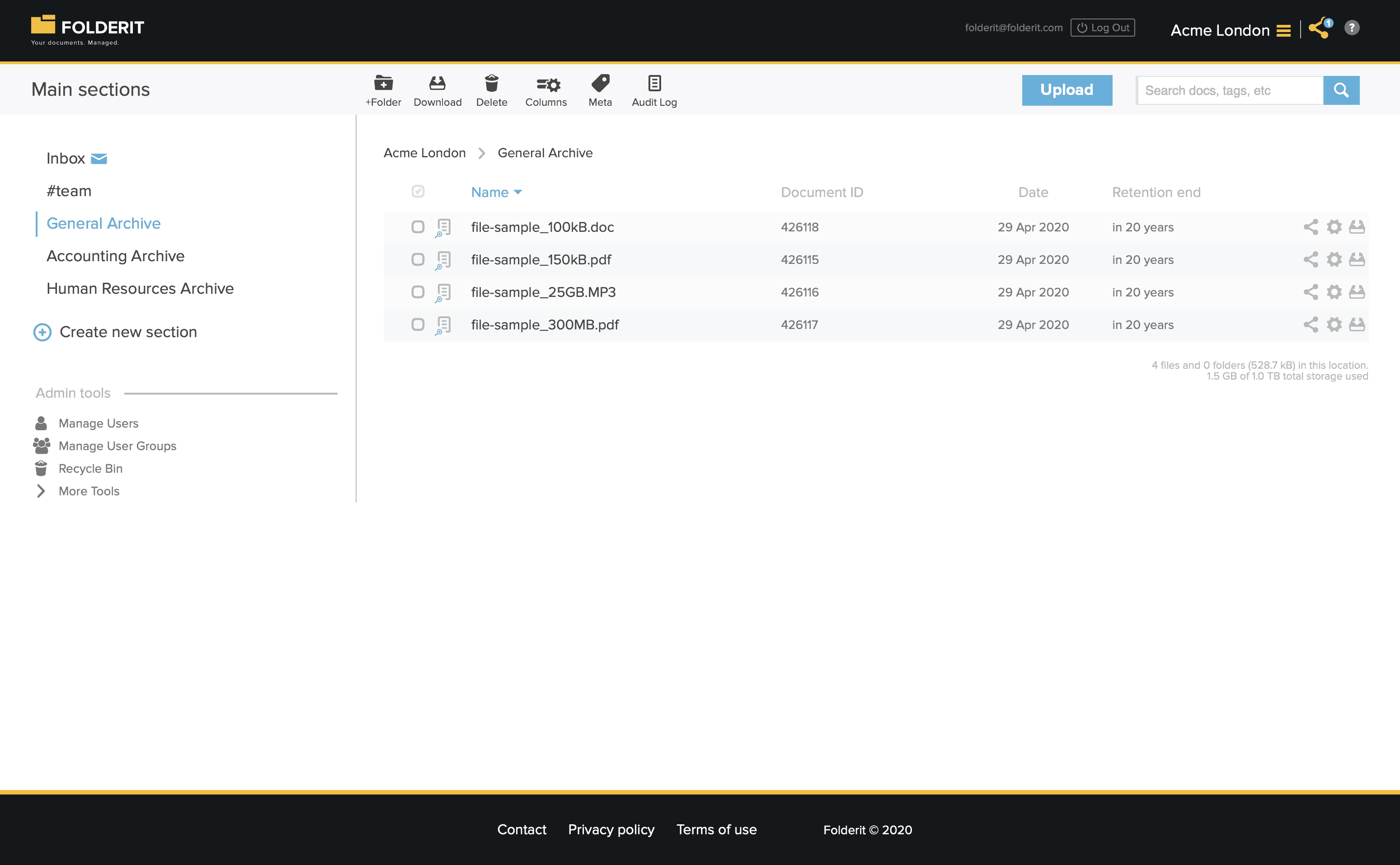
Give completed files a clear home
An archive works best when people know what belongs there and how to retrieve it. Start with a structure that matches your work, then add the dates and identifiers that make each file recognisable.
- Bring in files and folders.Upload individual files or existing folder structures. Folderit accepts files up to 50 GB each. Storage support is broader than preview and OCR support, so specialist formats may need their original application to open.
- Add useful archive metadata.Use fields such as project number, department, counterparty and completion date. Configure folder metadata templates and display the key fields as columns, reducing the need to encode everything in a filename.
- Decide when work is ready to archive.Move completed files into your archive, or configure a workflow to move an item after successful approval. If archiving depends on elapsed time, use a retention rule with an archive folder as its destination.
Example: closing a project. Keep the signed handover, final drawings and completion report under the project reference. Have the responsible people approve the relevant documents, then use the configured destination folder for the completed items. Review access so the team can consult the archive while only designated people can update it.
Find an old document without knowing its filename
Search by context or content
Search filenames and metadata, or use Deep Search to look inside supported documents and scans. Combine a customer name, project reference or department with a folder or date filter to narrow the results.
OCR and content search support formats including PDF, DOCX, PNG and JPG. Scan quality and the selected language affect OCR accuracy; XLSX content is not included in OCR content search.
Keep supporting information connected
Use Related items to connect a contract to its supporting documents or a project folder to relevant records. People can follow the connection from the item’s details instead of maintaining duplicate copies.
Search results respect access permissions. You can export results with metadata to Excel or CSV when preparing a file list for a review.
Let people consult the archive without changing it
Separate reading from editing
Give readers Viewer access to preview and download files without changing or deleting the stored content. Use Previewer access when someone should review supported files in Folderit without download or print access.
Tailor’s custom permissions let you configure individual actions, such as updating file versions, sharing or deleting. Set an access expiry for a person or group when their access should end on a particular date.
See versions and activity
When an authorised person needs to replace a file, version history keeps earlier versions together with the current one and shared metadata. Available controls allow earlier versions to be downloaded or restored.
Administrators can filter the audit log by user, date, scope or action, and export it as XLSX, ODS or CSV. This helps answer questions such as who downloaded a document or when a file was deleted.
Set security rules for your team. Folderit’s security policy settings include enforced two-factor authentication and IP restrictions. Dynamic watermarking is a separately purchased add-on. Review the security and privacy details for your organisation’s requirements.
Manage retention and keep an export route
Choose how long files stay
Files are kept indefinitely by default. With retention automation on Medium and Tailor plans, you choose the period, starting date field and end action.
The end action can move files to an archive folder, send them to the recycle bin or permanently delete them. Archiving can preserve the folder hierarchy. Rules can extend to subfolders, with individual file or folder exceptions.
Display Retention end in the folder list and review approaching end dates in Dashboard & Reports. Choose periods and disposal actions according to your organisation’s policy.
Download files when you need them
Download selected files or folders for an authorised recipient, a handover or a local copy. Individual files download as they are; folder downloads are packaged as ZIP files.
You can also download an account’s files and folders. For large archives, use smaller sections or folders rather than one oversized download. Audit logs and search-result metadata have their own export options.
If you need to host the system in your own infrastructure, explore Folderit on-premises.
Questions to settle before moving your archive
How is a file archive different from a backup?
An archive keeps retained files organised and available for reference. A backup is a recovery copy used when data is lost or damaged. Archive structure, permissions and retention rules serve a different purpose from recovery arrangements; plan for both. Folderit provides file and folder downloads for local copies, alongside its hosted service protections described on the security page.
Does putting a file in an archive make it read-only?
A folder named “Archive” does not by itself prevent edits. Configure access for the people and groups using it. Viewer and Previewer permissions prevent those recipients from changing the stored content; authorised editors still have the actions their permissions allow. Review the destination folder’s access as part of your archive setup.
Can I keep my existing folder structure?
Yes. Folderit supports folder uploads, and retention’s “Archive to a Folder” option can preserve the existing hierarchy. For ZIP imports, follow the upload guide’s batch guidance. Test a representative folder first, checking its files, metadata and access before moving a large archive.
What if I also need forms and active records?
The same platform supports digital records management with eForms, searchable field values and workflows. You can manage ongoing records and completed files in one system, with different folder structures and access settings for each.
Make your archive easier to use
Try Folderit with a sample of your files, or bring your archive structure and retention requirements to a demo.