In many teams, the process still looks like this:
- a form is filled in;
- someone copies the values into a Word template;
- the document is saved as PDF;
- and later someone finds a wrong name, missing field, old address, or incorrect amount.
Generating PDFs from form data removes the weakest step: manual transfer.
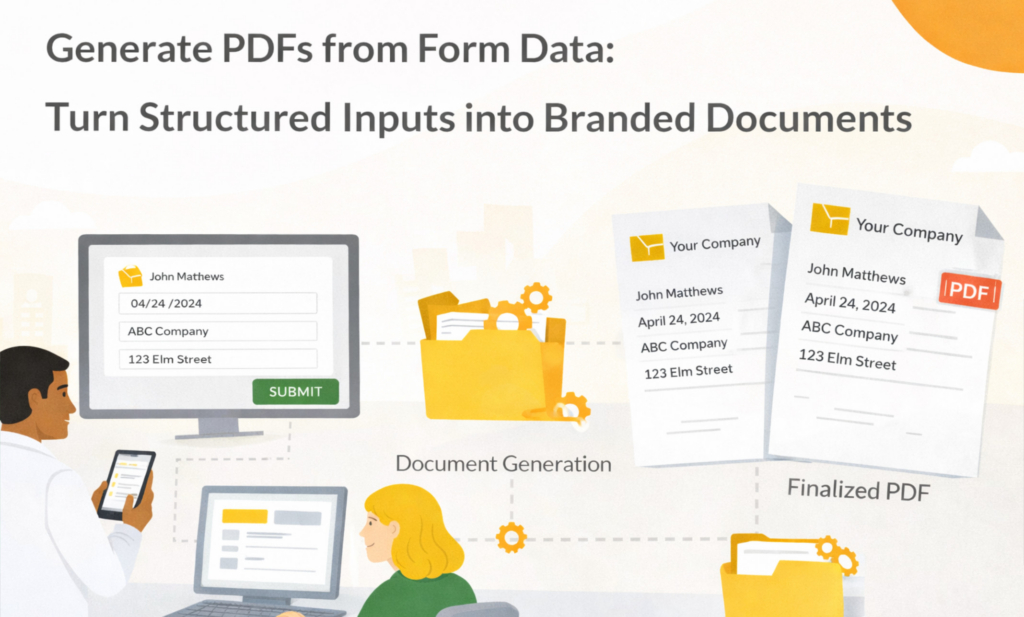
When the data is structured and the template is prepared correctly, PDF generation becomes a reliable, repeatable process. Users submit a form, the system fills the template, and the final PDF is created from the submitted values.
In Folderit, generated documents can also be stored in the system, downloaded as PDF or DOCX, emailed to a recipient, and used in workflows such as approval, review, acknowledgement, or signing.
Key takeaways
- Use structured form data as the source of truth
- Use ODT templates with placeholders to keep layout and branding consistent
- Generate PDF and/or DOCX documents from filled form records
- Store, download, or email generated documents depending on the process
- Use workflows when the generated document needs approval, review, acknowledgement, or signing
What this post covers and what it doesn’t
This post focuses on: the “form data → generated PDF” pattern and how structured inputs become branded documents.
It does not cover:
- step-by-step setup. For that, see: How to Create Documents from eForm Data
- how to design eForms from scratch. See: Document management forms and Folderit eForms KB
- full approval workflow design. See: Document workflows
Why generating PDFs from form submissions is harder than it sounds
Forms are easy. PDFs are easy. The messy part is everything between them.
Common problems include:
- field names do not match template placeholders;
- dates, numbers, and currencies are entered inconsistently;
- table rows or line items are copied manually;
- users reuse an old Word file instead of the correct template;
- the final PDF is downloaded but not stored in the right place;
- there is no clear audit trail of what happened.
The fix is simple, but it requires structure:
- Capture clean form data.
- Use a prepared document template.
- Generate the PDF from submitted values.
- Store, download, email, or process the generated document in a controlled way.
The form-to-PDF system that actually works
Step 1: Treat each form submission as a record, not an email
If form data arrives by email, someone usually has to copy it, rename it, store it, and remember what happened later. That is where mistakes happen.
When a form submission creates a structured record inside a document management system, the data is easier to control.
In Folderit, eForms create records inside folders. These records can have searchable fields, permissions, audit trail, retention, reminders, workflows, and file attachments when needed.
Learn more: Document management forms
Step 2: Make sure the form data is structured
Good PDF generation starts before the PDF is created. The form should collect data in a way the template can use reliably.
Examples of structured inputs include:
- client name;
- client code;
- registration number;
- billing email;
- invoice date;
- payment terms;
- line items or table rows;
- approval notes or comments.
For simple documents, text, date, number, select, and email fields may be enough. For documents with repeated data, such as invoices or schedules, table-style fields can help keep rows consistent.
Step 3: Create an ODT template with placeholders
The template controls how the final document looks. It contains the normal document text, headings, logo, layout, tables, signature areas, and placeholders.
In Folderit, the document generation template is uploaded as an ODT file. The generated output can be PDF and/or DOCX.
Example placeholder:
{{ client-name }}
Example sentence inside the ODT template:
This agreement is made with {{ client-name }}, registration number {{ reg-number }}.
When the PDF is generated, Folderit replaces the placeholders with values from the filled eForm record.
For step-by-step instructions, see: How to Create Documents from eForm Data
Step 4: Use the exact placeholders from the form
Do not guess placeholder names. Copy them from the available form fields shown in the document generation template setup.
Example:
- Field name: Client name
- Placeholder:
{{ client-name }} - Submitted value: Umbrella Corporation
- Generated PDF value: Umbrella Corporation
This keeps the connection between the submitted form data and the generated PDF reliable.
Step 5: Generate the PDF and optionally DOCX
Once the form record and template are ready, the user opens the submitted record and generates the document from the connected document generation template.
PDF is usually best for final documents, sharing, signing, archiving, and external distribution.
DOCX is useful when an editable Word document is needed.
Many teams make both formats available: PDF for final use and DOCX for editable drafts or internal preparation.
Step 6: Store, download, or email the generated document
After generation, the document can be handled in different ways depending on the process.
In Folderit, generated documents can be:
- stored in Folderit;
- downloaded as PDF;
- downloaded as DOCX;
- emailed from the system to a recipient.
For controlled business documents, storing the generated PDF in Folderit is often the best option because it keeps the document in the same governed environment as other business records.
Step 7: Use workflows when the document needs review or approval
Generated documents can be used in Folderit workflows after they are stored in the system.
For example, a generated PDF can be:
- sent for approval;
- sent for review;
- sent for acknowledgement;
- sent for signing with Folderit eSign or DocuSign integration.
This is useful for contracts, HR documents, policies, certificates, finance documents, client documents, and compliance records.
Learn more: Document workflows
Three examples of generating PDFs from form data
1) Invoice PDFs from form data
A finance user fills an invoice form with customer details, line items, VAT, due date, and payment terms. Folderit uses an invoice ODT template to generate the invoice as PDF or DOCX. The invoice can then be stored in Folderit, downloaded, emailed, or routed for approval.
Read: Invoice Generator: PDF from Line Items
2) Contract PDFs from request forms
A user submits a contract request form with party details, terms, dates, and notes. The contract template fills in the correct values and produces a PDF or editable DOCX. If stored in Folderit, the generated contract can be reviewed, approved, and signed.
Read: Contract Generation from Request Forms
3) Certificate PDFs from completion records
A training or compliance record contains the participant name, date, certificate ID, and validity period. Folderit generates a branded certificate PDF from that data. The certificate can be stored, downloaded, emailed, or kept as part of the person’s record.
Read: Certificate Generator: PDF Certificates
How Folderit ties it together
Folderit connects the main parts of the process:
- eForms store the submitted data as structured records
- Document Generator turns submitted data into PDF or DOCX documents using ODT templates
- Document management keeps generated documents controlled with permissions, audit trail, sharing, version history, search, and retention
- Workflows help route generated documents for approval, review, acknowledgement, or signing
Start at the hub: Folderit Document Generator
Form-to-PDF checklist
Before using form-to-PDF generation in real work, check that:
- the eForm captures all values needed in the final PDF;
- the ODT template contains the correct placeholders;
- the generated file name is clear;
- PDF output is enabled;
- DOCX output is enabled if editable files are needed;
- users know whether to store, download, or email the generated document;
- workflows are ready if approval, review, acknowledgement, or signing is needed;
- the full process has been tested with sample form data.
FAQ
Do I need workflows to generate PDFs from form data?
No. Workflows are optional. They are useful when the generated document needs approval, review, acknowledgement, signing, or other follow-up steps.
Can generated PDFs be stored in Folderit?
Yes. Generated PDFs can be stored in Folderit and managed like other documents with permissions, audit trail, sharing, version history, retention, workflows, and search.
Can the generated document be downloaded or emailed?
Yes. The generated document can be downloaded as PDF or DOCX, or emailed directly from Folderit to a recipient.
What template format does Folderit use?
Folderit uses ODT files as document generation templates. The generated output can be PDF and/or DOCX depending on the selected output formats.
Can we pull data from CRM or ERP instead of forms?
Folderit provides an API for integrations. If you want to connect external systems to Folderit, see: Folderit DMS API.
Want to build this in your own process?
- Start with the hub: Folderit Document Generator
- Follow the tutorial: How to Create Documents from eForm Data
- Or try it yourself: Start a free trial