Certificates look simple, but creating them manually can take more time than expected. Even with a certificate design ready, someone still has to enter the participant name, course title, completion date, certificate ID, validity period, issuer details, and any other required information. Then the certificate has to be exported, sent, stored, and found again later.
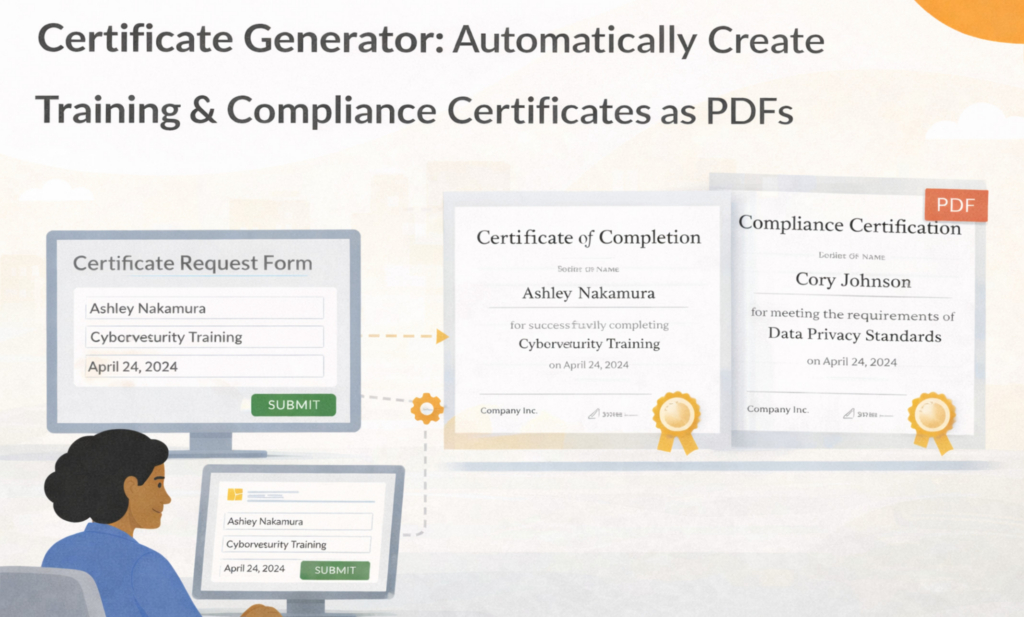
A certificate generator helps by turning structured completion data into consistent certificate documents. Instead of manually editing a certificate file for each person, you collect the data once and generate the certificate from a controlled template.
In Folderit, certificate data can be captured with an eForm record. A certificate template is prepared as an ODT file, and the generated certificate can be created as PDF and/or DOCX, depending on the enabled output formats. The generated certificate can then be stored in Folderit, downloaded, emailed to a recipient, or used in workflows when review, approval, acknowledgement, or signing is needed.
Key takeaways
- Structured completion records reduce manual certificate editing
- ODT templates can generate branded certificate PDFs and DOCX files
- Certificate names, dates, IDs, course titles, and validity periods can come from submitted form data
- Generated certificates can be stored, downloaded, emailed, searched, retained, and audited in Folderit
What this post covers and what it doesn’t
This post focuses on: creating training, compliance, and completion certificates from structured data and document generation templates.
It does not cover: learning management system comparisons or training delivery tools. This article is about generating certificate documents and managing them inside a document management process.
For step-by-step document generation setup, see: How to Create Documents from eForm Data. For eForms, see: Folderit eForms KB.
Why certificate generation starts with structured data
A certificate is only reliable if the data behind it is reliable. The participant name must be spelled correctly, the course or compliance program must be clear, the completion date must be correct, and the certificate ID or reference number must be easy to trace later.
If this information is stored in emails, spreadsheets, or handwritten lists, every certificate becomes a small manual project. Someone has to copy the details, check them, export the file, and then remember where the certificate was saved.
A structured completion record gives the certificate generator a clean source of data. In Folderit, this can be done with eForms. A submitted eForm creates a record inside the selected folder, with searchable fields and normal Folderit document management controls around it.
Learn more: Document management forms
What certificate data should you capture?
The exact fields depend on your organization, but most certificate generation processes need the same core information: participant name, course or program name, completion date, certificate ID, issuer name, validity period, department, instructor, location, and any notes or supporting files.
For compliance certificates, you may also want to capture the regulation, standard, training category, renewal date, expiry date, or evidence file. For internal training certificates, the record may include the employee, department, manager, training session, completion result, and acknowledgement status.
The goal is not to make the form complicated. The goal is to collect the values that must appear on the certificate and the values that help you find or prove the certificate later.
Create certificate PDFs from an ODT template
In Folderit, the certificate template is prepared as an ODT file. The template contains the certificate layout, logo, wording, signature area, certificate number area, and placeholders for values from the eForm record.
For example, a certificate template may include placeholders for participant name, course title, completion date, certificate ID, validity period, and issuer. When the certificate is generated, Folderit replaces those placeholders with values from the submitted record.
PDF is usually the best output format for certificates because the layout stays fixed and the certificate is ready to send, print, archive, or share. DOCX output can also be useful when an editable version is needed internally.
For template guidance, read: DOCX/ODT Template Placeholders.
Design tips for clean certificate templates
Certificates are more visual than many business documents, so template design matters. A certificate may include a logo, formal heading, participant name, course title, dates, certificate ID, signature block, and footer text. The layout should look polished, but it should also be simple enough to generate reliably.
Avoid fragile layouts that depend on manual dragging, overlapping objects, or many floating text boxes. Use clear sections, predictable spacing, and enough room for long participant names and long course titles. A template that looks perfect with “John Smith” may behave very differently with a long legal name or a long compliance course title.
Before using a certificate template in production, test it with realistic data. Include short names, long names, long course titles, missing optional fields, and different dates. Always check the generated PDF, not only the ODT template.
Certificate file names and traceability
A generated certificate should be easy to identify later. A clear generated file name can include the document type, participant name, course name, date, or certificate ID.
For example, a file name pattern such as Certificate - {{ participant-name }} - {{ course-name }} - {{ certificate-id }} could generate a file name like Certificate - Maria Tamm - Safety Training - CERT-2026-014.pdf.
Consistent naming helps HR, compliance, training teams, managers, and auditors find the right certificate without opening every file manually. It also helps when certificates are stored by employee, course, department, year, or compliance category.
Storing and managing generated certificates
Generating the certificate is only part of the process. The certificate may need to be emailed to the participant, stored under an employee record, kept under a course folder, retained for a defined period, or shown as evidence during an audit.
In Folderit, generated certificates can be stored as managed documents. Once stored, they can use permissions, audit trail, sharing, version history, search, retention, reminders, and workflows like other documents in the system.
This is useful for training records, compliance evidence, warranty certificates, completion certificates, internal qualification records, and any process where the certificate must remain findable and controlled after it is created.
A simple certificate generation workflow
A practical certificate generation workflow can start when a training or compliance completion record is created. The user enters the participant details, course title, completion date, certificate ID, and any other required information into an eForm. The record is checked, and then the certificate is generated from the connected ODT template as a PDF or DOCX.
After generation, the certificate can be stored in Folderit, downloaded, or emailed to a recipient. If review or approval is required before issuing the certificate, the generated document can be stored in Folderit and routed through a workflow.
For the broader document generation process, read: Document Generation Workflow.
Common certificate generator pitfalls
The most common pitfall is missing or inconsistent source data. If the participant name, certificate ID, course name, or completion date is wrong in the source record, the generated certificate will also be wrong. Make important fields required and check the record before generating the certificate.
Another common issue is layout fragility. Certificates often use centered text, logos, and signature areas. Test the template with long names and long titles before using it for real recipients.
A third issue is poor archiving. If certificates are only downloaded or emailed, they may become difficult to find later. Storing generated certificates in Folderit helps keep them searchable, permission-controlled, and available for audits or follow-up.
Certificate generator checklist
Before using certificate generation in production, confirm that the eForm captures the certificate data you need, the ODT template uses the correct placeholders, and the generated file name is clear. Test PDF output with long names, long course titles, different dates, optional fields, and the expected certificate ID format.
If certificates will be emailed, stored, reviewed, approved, signed, or retained, test those steps as well. The certificate should not only look good; it should fit the full document management process.
How Folderit supports certificate generation
Folderit connects the data, template, generated certificate, and document management process. eForms capture the completion data as structured records. ODT templates define the certificate layout and placeholders. Document Generator creates the certificate as PDF or DOCX. Folderit then helps manage the generated certificate with storage, download, email, permissions, audit trail, workflows, search, version history, and retention.
Start at the hub: Folderit Document Generator
FAQ
Can Folderit generate certificate PDFs?
Yes. Certificate data can be captured in a Folderit eForm record and used to generate a certificate from an ODT template. PDF output can be enabled for final certificates, and DOCX output can also be enabled if an editable document is needed.
Do we need to generate DOCX as well as PDF?
Usually PDF is enough for certificates because the layout should remain fixed. DOCX can be useful if your team needs an editable internal version.
Can certificates be emailed from Folderit?
Yes. Generated documents can be emailed directly from Folderit to a recipient, or downloaded when needed.
Can certificates be stored and searched later?
Yes. Generated certificates can be stored in Folderit and managed with permissions, audit trail, sharing, version history, retention, workflows, and search.
Can certificates be approved before issuing?
Yes. If a generated certificate is stored in Folderit, it can be used in review or approval workflows before it is issued.
Next steps
To build templates properly, read DOCX/ODT Template Placeholders. For the full process, read Document Generation Workflow. To see the feature in context, start at the Folderit Document Generator hub.
Or try it directly: Start a free trial.