Contract work often slows down before legal review even starts. The first draft has to be created, deal terms have to be collected, clauses have to match the situation, and the final agreement must later be reviewed, signed, stored, and found again.
Contract generation helps by turning structured request data into a draft contract automatically. Instead of copying details from email threads or spreadsheets into an old Word file, your team captures the required information once and uses a controlled template to generate the agreement.
In Folderit, this can start with an eForm request record. The generated contract can then be stored in Folderit, downloaded as PDF or DOCX, emailed to a recipient, reviewed, approved, signed with Folderit eSign or DocuSign integration, and retained with the rest of your document records.
Key takeaways
- Contract generation reduces manual drafting by using structured request data and reusable templates
- Request forms help capture deal terms, party details, payment terms, dates, and review information consistently
- ODT templates with placeholders can generate DOCX or PDF contracts from submitted form records
- Generated contracts can be stored, downloaded, emailed, reviewed, approved, signed, and retained in Folderit
What this post covers and what it doesn’t
This post focuses on: how contract generation from request forms works, why structured request data matters, and how generated contract drafts can move into review and signing.
It does not cover: full contract lifecycle management strategy or detailed e-signature setup. For those topics, see How to improve contract administration with document management and Electronic signature solution.
For step-by-step document generation setup, see: How to Create Documents from eForm Data.
Why contract generation starts with better request data
A contract draft is only as good as the information used to create it. If the requester sends deal details in an email, legal may still need to ask follow-up questions: What is the exact legal name? Which country applies? What are the payment terms? Is there a renewal clause? Is an SLA required?
A contract request form solves this by turning those questions into structured fields. Instead of receiving an unstructured message, your team receives a record with clear values: party details, scope, price, contract term, renewal rules, billing details, risk notes, and required attachments.
In Folderit, these request forms can be created as eForms. A submitted eForm becomes a record inside the relevant folder, with searchable fields, permissions, audit trail, workflows, reminders, retention, and file attachments when needed.
Learn more: Document management forms and Folderit eForms KB.
What a contract request form should capture
A useful contract request form should capture the facts that normally delay drafting. For a sales agreement, that may include the customer’s legal name, registration number, address, contact person, billing email, payment terms, currency, contract start date, renewal terms, and special conditions. For vendor contracts, the form may focus on supplier details, category, country, service scope, data processing requirements, insurance documents, and approval notes.
The exact fields depend on the contract type, but the principle is the same: ask for the information once, in a consistent structure, before the draft is generated. This reduces back-and-forth and makes it easier to create a contract that is complete from the beginning.
For higher-risk agreements, the request form can also include review information: who requested the contract, which department owns it, whether legal review is required, whether personal data is involved, whether the counterparty has provided their own terms, and which supporting files are attached.
From request form to contract draft
Once the request data is structured, the contract draft can be generated from a template. In Folderit, the document generation template is prepared as an ODT file. The template contains the contract wording, layout, headings, signature areas, and placeholders for values from the eForm record.
For example, the ODT template may contain a sentence like this:
This Agreement is entered into with {{ client-name }}, registration number {{ reg-number }}, located at {{ address }}, {{ city }}, {{ country }}.
When the contract is generated, Folderit replaces the placeholders with values from the submitted request record. The generated output can be made available as PDF, DOCX, or both, depending on how the document generation template is configured.
For template guidance, read: DOCX/ODT Template Placeholders.
Conditional clauses and contract variations
Many contracts are not just “one template with a few names replaced.” They often include optional wording depending on the deal. A contract may need a data processing clause, SLA wording, a specific payment term, a confidentiality section, renewal language, or jurisdiction-specific text.
This is where structured request data becomes especially useful. If the form asks whether an SLA is required, whether personal data is processed, or which payment term applies, the template can be prepared to include the relevant wording and avoid unnecessary sections.
The goal is not to make the template overly complex. The goal is to make the generated contract read naturally. Optional clauses should appear as clean sections, and the document should still look correct when a section is not needed.
Review, approval, and signing after generation
Generating the draft is only the first part of the contract process. After the draft exists, it may need legal review, management approval, counterparty review, internal acknowledgement, or signature.
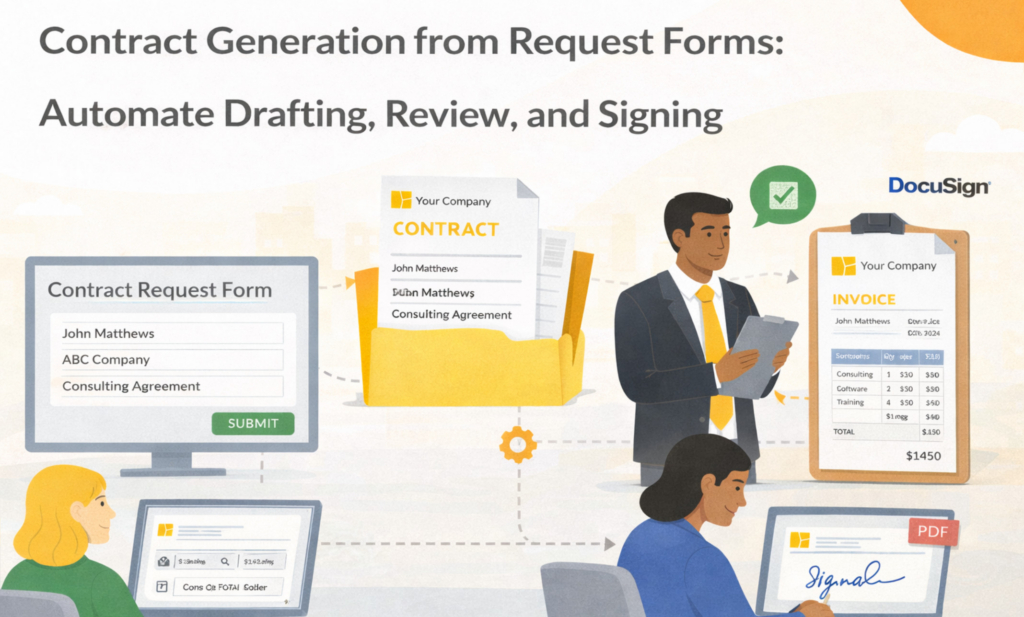
If the generated contract is stored in Folderit, it can be used in the same document workflows as other documents. A generated agreement can be sent for review, approved by a manager, signed using Folderit eSign or DocuSign integration, and retained in the correct folder with audit trail and access permissions.
This is important because contracts are not just files. They are controlled business records. The system should show who created the draft, where it was stored, who reviewed it, who approved it, who signed it, and which final version is valid.
Relevant pages: Document workflows and Electronic signature solution.
A simple contract generation workflow
A practical contract generation workflow can be simple. First, a user submits a contract request form with the required deal and counterparty information. The responsible person checks that the data is complete. Then the contract is generated from the connected ODT template as PDF or DOCX.
If the generated document is only needed as a quick draft, it may be downloaded as DOCX. If it is ready for formal processing, it can be stored in Folderit and sent through review, approval, or signing workflows. Once completed, the final agreement stays in Folderit with the correct permissions, audit trail, version history, retention settings, and searchability.
For a broader workflow blueprint, read: Document Generation Workflow.
How Folderit supports contract generation without scattering files
One common problem with contract drafting is that every step happens in a different place. The request arrives by email, the template is stored on someone’s desktop, the draft is reviewed as an attachment, the signed file is uploaded later, and nobody is fully sure which version is final.
Folderit keeps the process closer together. The request record can live in the right folder, the document generation template is connected to the eForm, the generated contract can be stored in Folderit, and the review, approval, signing, audit trail, retention, and sharing process can happen in the same document management system.
That helps teams reduce duplicate files, avoid uncontrolled versions, and keep contract records easier to find later.
Security overview: Security & Privacy
Common contract generation pitfalls
The most common problem is not the generation itself. It is poor input data. If the requester does not provide the legal name, address, term, price, or required clause information, the generated draft will still need manual cleanup. Make the request form specific enough to capture what the template needs.
Another common issue is using placeholders inconsistently. If a placeholder is typed manually, renamed, or copied from another form, the template may not generate correctly. Always copy placeholders from the available form fields shown in the document generation template setup.
A third issue is losing traceability after generation. A contract draft should not disappear into a downloads folder or email thread. Store important generated agreements in Folderit, use consistent generated file names, and keep the final signed contract connected to the rest of the document process.
Contract generation checklist
Before using contract generation in production, check that the request form captures the right data, the ODT template uses the correct placeholders, the generated file name is clear, and the output formats match the process. PDF is usually best for final agreements, while DOCX is useful when the draft must remain editable.
Also test the full path after generation. If the contract needs review, approval, signing, email sending, storage, or retention, test those steps with sample data before using the template for real agreements.
FAQ
Can the contract be generated in DOCX and PDF?
Yes. Folderit document generation templates can make PDF, DOCX, or both formats available. DOCX is useful for editable drafts, while PDF is usually better for final distribution, signing, and archiving.
Can generated contracts be stored in Folderit?
Yes. Generated contracts can be stored in Folderit and managed like other documents with permissions, workflows, audit trail, sharing, version history, retention, and search.
Can generated contracts be sent by email?
Yes. A generated contract can be emailed directly from Folderit to a recipient, or downloaded as PDF or DOCX when needed.
Do external parties need Folderit accounts to sign?
Folderit supports signing workflows that can include external signers. Learn more: Electronic signature solution.
What template format is used for contract generation?
Folderit document generation templates are prepared as ODT files. The generated contract can be created as PDF and/or DOCX depending on the output formats enabled for the template.
Next steps
To improve contract management more broadly, read How to improve contract administration with document management.
To set up document generation step by step, follow How to Create Documents from eForm Data. To see how the feature fits into Folderit, start at the Document Generator hub, or start a free trial.