A document generator is only as good as the template you give it. If the template is clean, predictable, and built for automation, the generated PDF or DOCX can look professional with very little manual work. If the template is messy, the output will usually be messy too.
Most broken generated documents are not broken because the generator failed. They are usually broken because the template was copied from an old file, placeholders were typed incorrectly, formatting was pasted from different sources, or the layout was too fragile for real business data.
This guide explains how to build document generation templates that work reliably with structured eForm data. In Folderit, the template file is prepared as an ODT document. The generated output can be PDF and/or DOCX, depending on the output formats enabled for that document generation template.
Key takeaways
- Use the exact placeholders shown in Folderit’s Available form fields table
- Do not rename, rewrite, or guess placeholders manually
- Keep each placeholder in one complete piece of text
- Use simple, predictable ODT layouts for reliable PDF and DOCX output
- Test templates with realistic eForm data before using them in production
What this post covers and what it doesn’t
This post focuses on: how to prepare ODT templates and placeholders so Folderit can generate clean PDF and DOCX documents from submitted eForm data.
It does not cover: step-by-step setup, eForm creation, or full workflow design. For those topics, see How to Create Documents from eForm Data, Folderit eForms KB, and Document Generation Workflow.
Use ODT as the template format
In Folderit Document Generator, the document generation template is uploaded as an ODT file. You can prepare the file in LibreOffice Writer or another editor that can save documents in ODT format.
The ODT template contains the document layout: headings, paragraphs, tables, logo, signature areas, static wording, and placeholders. Folderit then uses that template together with submitted eForm data to create the final PDF and/or DOCX document.
This distinction matters for users searching for “DOCX template placeholders.” In Folderit, DOCX can be a generated output format, but the template file itself is prepared as ODT.
External reference for the file format: OpenDocument Format (OASIS)
Use the exact placeholders shown in Folderit
When you create a document generation template in Folderit, the setup page shows an Available form fields table. This table lists the placeholders that can be used in the ODT template and in the generated file name.
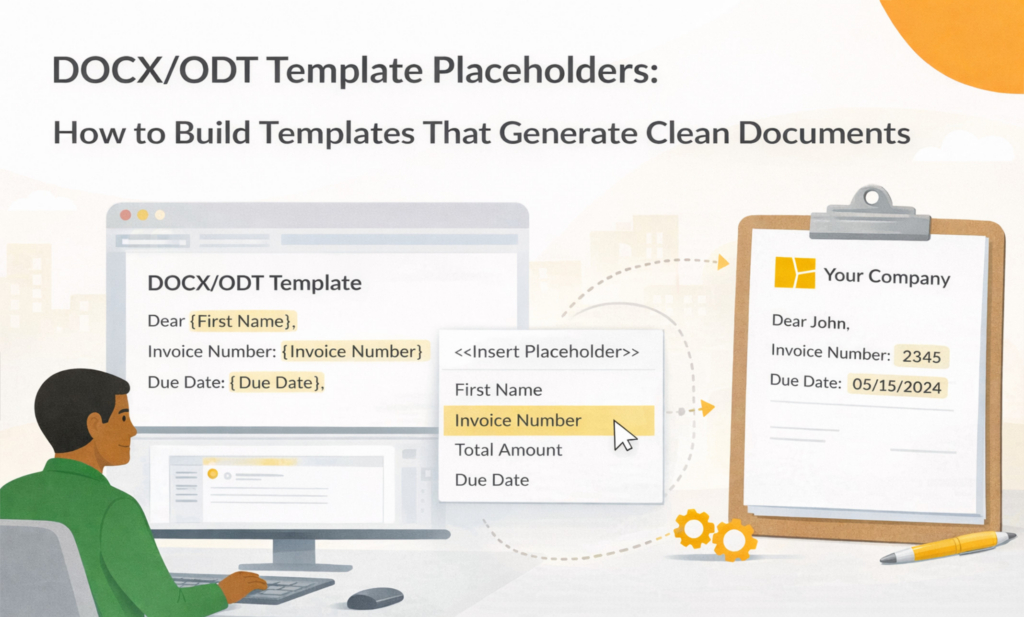
For example, a form field called Client name may have a placeholder such as {{ client-name }}. If the submitted value is Umbrella Corporation, Folderit replaces the placeholder with that value when the document is generated.
The most important rule is simple: copy the placeholder exactly as shown. Do not change the spelling, casing, punctuation, or naming style. A placeholder from another form template may look similar, but it will not necessarily work for the selected eForm.
Correct: {{ client-name }}
Incorrect: {{ Client Name }}, {{ client_name }}, {{ client }}, or {{ customer-name }}
The placeholder must match the placeholder shown by Folderit for that specific eForm field.
Keep each placeholder in one piece
A placeholder should stay as one complete piece of text inside the template. Do not split it across lines, table cells, text boxes, or separately formatted fragments.
For example, {{ contact-email }} should remain together. Avoid breaking it into {{ contact- on one line and email }} on another. Also avoid applying different formatting to only part of a placeholder. If you want the inserted value to appear in bold, format the whole placeholder in bold.
This is especially important when editing templates that were copied from old documents. Word processors sometimes split text internally when you paste content, change formatting, or edit inside tables. Keeping placeholders simple and untouched helps prevent generation problems.
Write natural document text around placeholders
Placeholders should sit inside normal, readable document text. A good template should still be easy to understand before the data is inserted.
For example, an agreement template might contain this sentence:
This Agreement is entered into with {{ client-name }}, registration number {{ reg-number }}, located at {{ address }}, {{ city }}, {{ country }}.
After generation, the sentence might become:
This Agreement is entered into with Umbrella Corporation, registration number 2715384615, located at Easy St 17, London, United Kingdom.
Before uploading the ODT template, read the text as if the placeholders had already been replaced. This helps you notice grammar, spacing, punctuation, and layout problems early.
Plan for empty or optional values
Missing values can make a generated document look unfinished. A blank space in the middle of a sentence, an extra comma, an empty table cell, or a missing date can make the final PDF look unreliable even when the rest of the document is correct.
If a value is required for a valid document, make that field required in the eForm or check it before generating the document. If a value is optional, write the surrounding text so the document still reads naturally when that value is empty.
For example, this can be risky:
Contact: {{ contact-name }}, {{ contact-phone }}, {{ contact-email }}
If the phone number is missing, the line may look awkward. A cleaner approach is to use separate lines for optional contact details, or make the important contact fields required before generation.
Keep layouts simple and predictable
Complex layouts can make generated output harder to control. The more floating text boxes, overlapping objects, merged cells, pasted formatting, and unusual spacing a template contains, the more likely it is that the generated PDF or DOCX will need adjustment.
For most business documents, a simple structure works best: heading, introduction, key details, terms, table if needed, signature block, and footer. Use normal paragraphs and headings where possible. Use tables only when they add structure, not as a workaround for every layout issue.
Simple does not mean plain. You can still include branding, logos, headers, footers, and professional formatting. The point is to make the template predictable so that long names, long addresses, optional values, and repeated rows do not break the final document.
Use tables carefully
Tables are useful for structured business data such as invoice rows, client details, approval summaries, asset lists, schedules, and checklists. They are also one of the most common places where generated documents can become messy.
When using tables in an ODT template, keep the structure simple. Avoid unnecessary merged cells, make sure long values can wrap cleanly, and test the table with both short and long sample values. If the document may contain many rows, test the maximum realistic number before using the template in production.
Page breaks are also important. A table that looks good with three rows may behave differently with thirty rows. Always check the generated PDF, not only the ODT template.
If invoices are your main use case, this post goes deeper: Invoice Generator: PDF from Line Items
Use clear generated file names
The generated file name matters because it helps users identify the document later. A good file name pattern usually includes the document type and one or two useful identifiers.
For example, Client Agreement - {{ client-name }} - {{ client-code }} could become Client Agreement - Umbrella Corporation - C-1025.pdf.
Other useful patterns may include Incident Report - {{ incident-title }}, Vendor Agreement - {{ vendor-name }}, or Onboarding - {{ employee-full-name }} - {{ start-date }}.
Use placeholders from the selected eForm only. A generated file name should be clear enough for everyday users, search results, audit review, and long-term storage.
Test the template before real use
A template that works with one perfect test record may still fail visually with real-world data. Before using a document generation template in production, test it with realistic examples.
Use a normal record with all important fields filled in. Then test long names, long addresses, long comments, missing optional values, short tables, long tables, PDF output, DOCX output if enabled, generated file names, page breaks, signature areas, and any storage, email, or workflow steps that will be used.
This testing does not need to be complicated, but it should be intentional. The goal is to find layout and placeholder problems before real documents are generated for customers, employees, vendors, auditors, or other important recipients.
How Folderit fits into this
Folderit connects the template, the source data, and the generated document inside the same document management system. eForms capture and store structured data as records. ODT templates define the document layout and placeholders. Document Generator creates PDF or DOCX documents from submitted eForm data.
After generation, the document can be stored in Folderit, downloaded, emailed, or used in workflows. If stored in Folderit, it can also be managed with permissions, audit trail, sharing, search, version history, retention, and other document management controls.
Start at the hub: Folderit Document Generator
For setup instructions, see: How to Create Documents from eForm Data
Template testing checklist
Before using a document generation template in real work, check that the ODT file uploads successfully, all placeholders were copied from the Available form fields table, and no placeholder is split across lines or formatting elements.
Then generate both PDF and DOCX output if both formats are enabled. Confirm that all placeholders are replaced with the correct values, the generated file name is useful, long values do not break the layout, optional empty values do not make the document look unfinished, and tables, page breaks, and signature areas look correct.
If the generated document will be stored, emailed, or used in workflows, test those steps too. A good template is not only about the visual output. It should fit the full document process.
FAQ
Can I use DOCX as the template file?
Folderit document generation templates are prepared as ODT files. The generated output can be PDF and/or DOCX depending on the selected output formats.
Where do the placeholders come from?
Placeholders come from the fields of the selected eForm. When you create or edit a document generation template, Folderit shows the available placeholders in the Available form fields table.
What happens if a field is empty?
If a field is empty in the submitted eForm record, there may be no value to insert into the generated document. For important values, make the field required or check the record before generating the document.
Can generated documents be sent for approval or signing?
Yes. If the generated document is stored in Folderit, it can be used in approval, review, acknowledgement, Folderit eSign, and DocuSign workflows.
Next steps
Need setup instructions? Start with How to Create Documents from eForm Data. Building the wider process? Read Document Generation Workflow. Feeding data from forms? See Generate PDFs from Form Data. Ready to try it? Start a free trial.