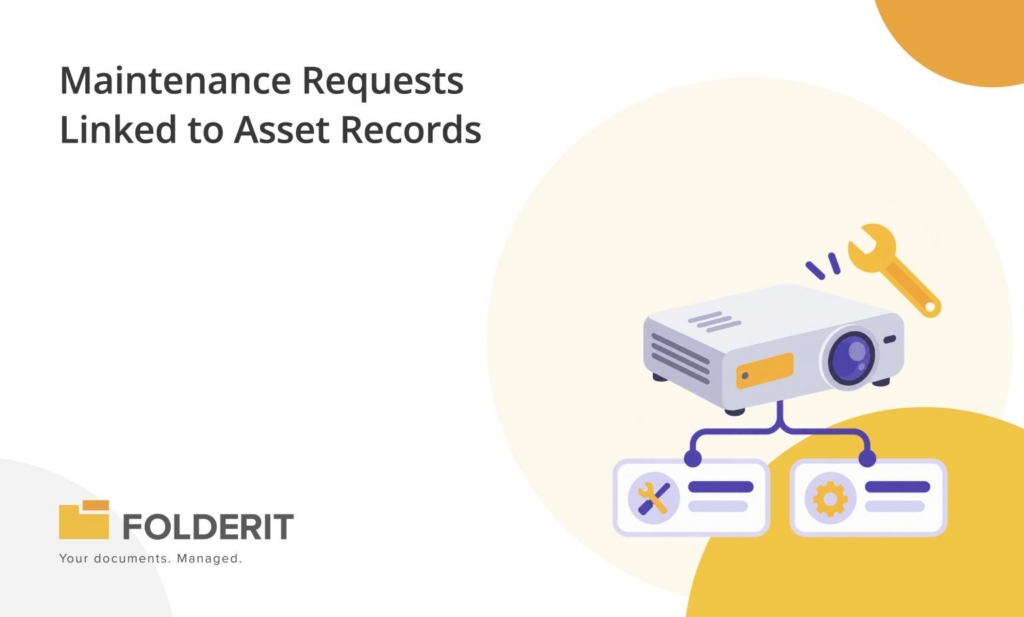
A meeting-room projector fails twice in a month. The asset register still contains one projector, but there are two separate reports: what happened on each occasion, who dealt with it and what was checked before the request was closed. Overwriting a single “Notes” field on the asset loses that distinction.
A useful maintenance request form creates one record for each reported problem and connects it to the equipment involved. In Folderit, you can combine an eForm record, an Asset relation field, a field-completion task and a review step. The result is a documented request and follow-up process inside your document management system.
The example below is a proposed configuration based on Folderit’s documentation, not an end-to-end test performed in a customer account. eForms and workflow configuration are available within the Tailor plan; confirm the scope required for your account before rollout.
Keep the asset and the request as separate records
The asset register describes the standing equipment record: identifier, model, location, responsible person and supporting documents. A maintenance request describes a particular event: the observed fault, reported date, operational impact, work undertaken and review outcome.
For a fictional example, asset AS-2030 — Meeting-room projector might have request MR-041 for an intermittent image and a later request MR-067 for a damaged connector. Both refer to AS-2030. Closing MR-041 should not erase the earlier report or automatically close MR-067.
This separation is also useful when work remains incomplete. A visit by a technician, an ordered replacement part and a completed repair are different events. The record should tell the next person which one actually happened.
Build a short intake form with room for later work
Under Admin tools → Form templates, create “Maintenance request”. The eForms guide describes the available field types and template settings. Use the following as a starting design, adjusting the labels to your organisation.
| Field | Type | What to capture |
|---|---|---|
| Request reference | Text | MR-041, using your agreed reference method. Automatic numbering is a separate configuration. |
| Asset | Relation | The actual record from your Asset register form. |
| Asset reference | Text | AS-2030, entered and checked against the selected asset for straightforward metadata searches. |
| Reported on and observed at | Date and Text | The report date, plus the time and time zone when relevant. |
| Location when observed | Text or Select | Where the equipment was when the problem occurred. |
| Reported problem | Textarea | Symptoms and circumstances, without requiring the reporter to diagnose the cause. |
| Impact and requested priority | Textarea and Select | Which activity is affected and why the reporter considers it urgent. |
| Reported by | User | The relevant Folderit user. Use an appropriate text/contact field if recording a report on someone else’s behalf. |
| Supporting files | File | A useful photo, supplier report or other evidence, when available. |
Make the essential intake fields required, but leave completion data optional at creation. Nobody reporting a fault can honestly provide the later repair result. Add fields for Work status, Assigned person, Next follow-up date, Work undertaken, Completion evidence and Review outcome for subsequent stages.
Use clear status choices such as New, Under review, In progress, Waiting for parts, Ready for review and Closed. In this design, people update those values. Selecting “Closed” does not itself prove that the work or any required technical checks were completed.
Configure the Asset relation deliberately
Add a Relation field labelled “Asset”. In its Fetch options from setting, select the actual Asset register form template. When completing a request, the user opens “Choose an item”, browses or searches for the equipment record and selects it. This limits the selectable records to that form type; it does not restrict the request template to one destination folder.
Store requests in a designated Maintenance requests folder. A user with the appropriate rights creates a record there through the arrow beside Upload, selects the form and submits it. Templates are available in folders where users have sufficient permissions, so include the intended destination in staff instructions.
The relation and the separate Asset reference serve different purposes. Choosing AS-2030 in a Relation field does not promise that a text field will automatically receive AS-2030, that the current location will be copied or that future asset changes will synchronise with the request. If you use the text reference for reporting, make the check explicit.
Keep “Location when observed” as an event detail. A later office move should not rewrite where an earlier fault occurred.
Send a field-completion task with the right context
After reviewing the intake, a coordinator can select the actual recipient and start a Fill fields workflow on the request. Show the asset, reported symptoms, location and impact as reference information. Allow the recipient to edit only the follow-up fields needed for their task.
- Open the request’s Workflow menu and add the recipient with the Fill fields method.
- Use the visible-field settings to show the request context and the follow-up fields.
- Under Editable fields, select Work status, Assigned person, Next follow-up date, Work undertaken and Completion evidence as appropriate. Include each editable field in the visible selection too.
- Write a task note explaining what a useful response contains: the action actually taken, the remaining blocker and the next agreed step.
- Place a subsequent approval or review stage after field completion if your process requires a separate closure decision.
The assigned-person field records responsibility. It is not, by itself, a configured task recipient or permission grant. Choose recipients explicitly in the workflow. A Due by value provides an informational deadline; the automation builder’s separate Timeout setting controls a timeout route.
Submitting the field-completion task updates the existing request. It does not perform a repair, authorise technical work or change the asset’s operational status automatically. The authorised person carries out those actions and records the result.
Record a useful outcome when the job is still open
For MR-041, a useful interim update could be: “Inspected the connection; replacement adapter ordered. Waiting for parts. Follow up with the supplier on 12 November.” That is more actionable than “Attended” and more accurate than marking the request complete.
If the wrong asset was selected, correct the relation and reference before recording further work. If two reports describe the same event, the coordinator should decide which request remains active, preserve the second report’s context and explain the decision. This design does not claim automatic duplicate detection.
For an urgent condition, use your established operational or emergency reporting channel. A saved form, a task deadline and a reminder are documentation and follow-up tools; they do not establish that someone is monitoring the queue continuously.
Check the evidence before closing the request
The reviewer should be able to identify what was reported, what work was done, who recorded it, what supporting evidence exists and whether another action remains. A missing supplier report or an unresolved defect is a reason to record the outstanding action, not a reason to invent a completion date.
Example equipment maintenance request form (PDF)
Keep technical acceptance criteria in the organisation’s approved procedures and supporting reports. Folderit can preserve the record and the workflow decision. It does not determine that equipment is safe to use.
Find outstanding work without confusing two kinds of relation
Configure the request folder’s columns to show the request reference, asset reference, work status, assigned person and follow-up date. For a targeted query, select the Maintenance request form as Item type in Search, then add the applicable metadata conditions.
To review repeat reports for AS-2030, search the Asset reference text field for that exact value and review the matching request records. This is why the reference needs consistent entry and checking.
A form’s Relation field and the general Related items links are separate features. Folderit’s general “Has any relations” search filter does not automatically match a record just because its form contains an Asset relation value. Use the field-based query above, or deliberately configure general Related items links if that is the retrieval method your team intends to use.
Set follow-up reminders and test the handover
If you need a reminder when Next follow-up date approaches, configure a rule under the form’s automated reminders. Choose the date field, timing, explicit recipient and any status conditions. Test a waiting-for-parts record and a closed record so you know which messages should be sent. A reminder does not reserve a technician, order parts or advance a status.
Protect the asset and request folders with suitable permissions. Check that each participant can see the necessary context, and that access to a request does not expose unrelated asset costs or other people’s records. Task field filters govern the task view; they are not a substitute for repository access controls.
Before rollout, test a new request, the wrong-asset correction, a request waiting for parts, a completed request awaiting review and an overdue follow-up. Confirm visible/editable fields, recipients, attachment handling, search results and the review outcome. These are suggested acceptance checks, not tests claimed to have been executed for this article.
If you already use Folderit for asset records, start with one equipment category and a small set of real requests. You can ask the Folderit team to help review the form and workflow design before extending it.