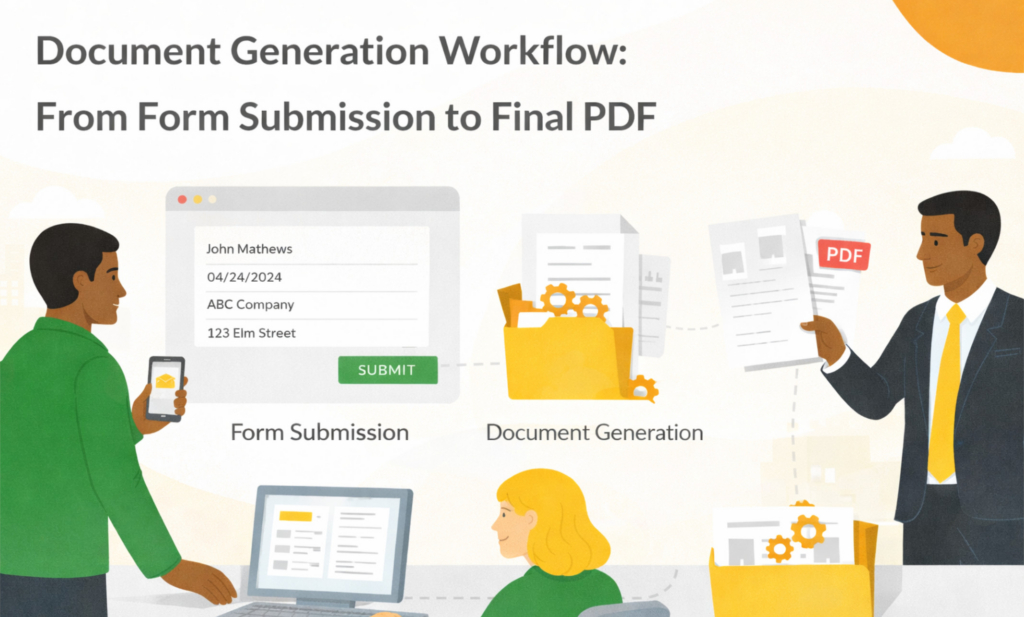
A document generation workflow is the process of turning submitted form data into a finished document, such as a PDF or DOCX, and then deciding what should happen next.
Instead of manually copying form answers into Word documents, renaming files, emailing drafts, and saving final PDFs somewhere later, a document generation workflow gives the process a clear structure:
- Where does the data come from?
- Which template should be used?
- When should the document be generated?
- Should the generated document be stored, downloaded, or emailed?
- Does it need approval, review, acknowledgement, or signing?
- How do you prove what happened later?
This post gives you a practical blueprint for moving from form submission to final PDF or DOCX document.
Key takeaways
- Treat form submissions as structured records, not loose emails
- Use an ODT template with placeholders for the form data
- Generate PDF and/or DOCX from the submitted record
- Store, download, or email the generated document depending on the situation
- Use workflows on generated documents when review, approval, acknowledgement, or signing is needed
What this post covers and what it doesn’t
This post focuses on: the end-to-end workflow for generating a document from structured data and moving it toward a usable final document.
It does not cover:
- step-by-step setup. For that, see: How to Create Documents from eForm Data
- detailed eForms setup. See: Folderit eForms KB and Document management forms
- deep approval workflow configuration. See: Document workflows
- e-signature setup instructions. See: Electronic signature solution
The 7-stage document generation workflow
Stage 1: Capture data as a structured record
Start with structured input, usually a form submission.
In Folderit, this can be an eForm record stored in a folder. The record contains fields and values, such as client name, employee name, invoice details, incident details, application data, or other information needed for the generated document.
The goal is simple: your source data should live in one clear place, not in emails, chat messages, old Word files, or scattered spreadsheets.
Learn more: Document management forms
Stage 2: Check that the needed data is present
Before generating the document, make sure the record contains the values the template needs.
This prevents “perfectly formatted wrong documents.” A PDF can look professional and still contain missing names, wrong amounts, old addresses, or incomplete terms.
Useful checks include:
- required fields are filled in
- names, addresses, IDs, and contact details are correct
- numbers and dates are entered in the expected format
- table rows or repeated data are complete when they are needed
- attached files or supporting documents are included if required
Tip: Good input data is the easiest way to avoid rework after the document has already been generated.
Stage 3: Use the right document template
The template controls the structure of the generated document: text, headings, layout, branding, tables, signature areas, and placeholders.
In Folderit, the document generation template is prepared as an ODT file. The ODT template contains placeholders that match fields from the eForm.
For example, a client agreement template may include placeholders such as:
{{ client-name }}, {{ client-code }}, {{ contact-email }}, and {{ payment-terms }}
When the document is generated, Folderit replaces those placeholders with the submitted values from the eForm record.
External reference for the template file format: OpenDocument Format (OASIS)
Stage 4: Connect form fields to template placeholders
This is the “wiring” step of document generation.
The form field provides the value. The placeholder marks where that value should appear in the document.
Example:
- Form field: Client name
- Placeholder:
{{ client-name }} - Submitted value: Umbrella Corporation
- Generated result: Umbrella Corporation
Use the exact placeholders shown in Folderit’s Available form fields table. Do not rename or rewrite them manually.
For a practical setup guide, read: How to Create Documents from eForm Data
Stage 5: Generate the output: PDF or DOCX
Once the source record and template are ready, the user opens the filled eForm record and generates the document from the available document generation template.
The available output formats depend on how the template was configured. Common options are:
- PDF for final documents, sharing, signing, archiving, and external distribution
- DOCX when an editable Word document is needed
Many teams use PDF for final versions and DOCX for editable drafts or internal preparation.
Stage 6: Choose what happens after generation
After generation, the document should not disappear into someone’s Downloads folder unless that is truly the goal.
In Folderit, generated documents can be:
- stored in Folderit
- downloaded as PDF
- downloaded as DOCX
- emailed from the system to a recipient
For controlled business documents, storing the generated file in Folderit is often the best option, because the document can then be managed with access control, workflows, audit trail, version history, search, sharing, and retention.
Stage 7: Review, approve, sign, store, and audit
The final stage depends on the type of document.
A generated document may need to be:
- reviewed by another team member
- approved by a manager
- acknowledged by employees or other users
- signed using Folderit eSign or DocuSign integration
- stored in the correct folder
- retained for a defined period
- found later through search, metadata, folder structure, or audit trail
This is where document generation inside a document management system becomes especially valuable: the generated file becomes part of a governed document lifecycle.
Relevant pages:
Practical example: client agreement workflow
Here is a simple document generation workflow for a client agreement.
- A user creates a Client eForm record with client name, client code, registration number, address, contact person, billing email, currency, and payment terms.
- The user checks that all important fields are filled in correctly.
- Folderit uses the connected Client Agreement ODT template.
- The user generates the agreement as PDF or DOCX from the submitted Client record.
- The generated agreement can be stored in Folderit, downloaded, or emailed to a recipient.
- If stored in Folderit, the agreement can be sent through approval, review, or signing workflows.
- The final agreement remains available in Folderit with permissions, audit trail, version history, search, and retention controls.
This same pattern can be used for HR letters, loan applications, certificates, incident reports, vendor forms, finance documents, and internal approvals.
Practical example: invoice generation workflow
- Capture invoice data in an eForm, such as customer, billing address, invoice rows, VAT, due date, and payment terms.
- Check that required fields and line items are present.
- Use an invoice ODT template with placeholders for customer details, line items, totals, and payment information.
- Generate the invoice as PDF or DOCX.
- Store the invoice in Folderit, download it, or email it to the customer.
- Use approval or review workflows if invoices need internal confirmation before sending.
For a deeper invoice-focused guide:
➡️ Invoice Generator: PDF from Line Items
How this looks in Folderit in plain language
Folderit connects three main parts of the process:
- eForms capture and store the structured data
- Document Generator turns submitted data into PDF or DOCX documents using ODT templates
- Workflows help route generated documents for review, approval, acknowledgement, or signing
Start at the hub: Folderit Document Generator
Document generation workflow checklist
Before using a document generation workflow in production, check the following:
- The eForm captures all required data.
- The ODT template uses the correct placeholders.
- The generated file name is clear and useful.
- The correct output formats are enabled: PDF, DOCX, or both.
- The generated document can be stored, downloaded, or emailed as needed.
- Users know when to use workflows after generation.
- Access permissions and retention rules are clear.
- The full process has been tested with real sample data.
FAQ
Can document generation be automated?
Document generation can be part of a wider automated process, depending on the setup and workflow requirements. A common first step is generating the document from a filled eForm record, then using workflows for review, approval, acknowledgement, or signing.
Where should we store the source record?
Store the source eForm record where it naturally belongs, such as a client folder, project folder, HR folder, finance folder, or incident folder. The generated document can then be stored in Folderit, downloaded, or emailed depending on the process.
What format is used for the document template?
Folderit document generation uses ODT files as templates. The generated output can be PDF and/or DOCX, depending on the selected output formats.
Can generated documents be signed?
Yes. If the generated document is stored in Folderit, it can be used in signing workflows with Folderit eSign or DocuSign integration.
Next steps
- If you need step-by-step setup instructions: How to Create Documents from eForm Data
- If you need clean input data first: Document management forms
- If you need workflow features: Document workflows
- If you want to try this inside Folderit: Start a free trial