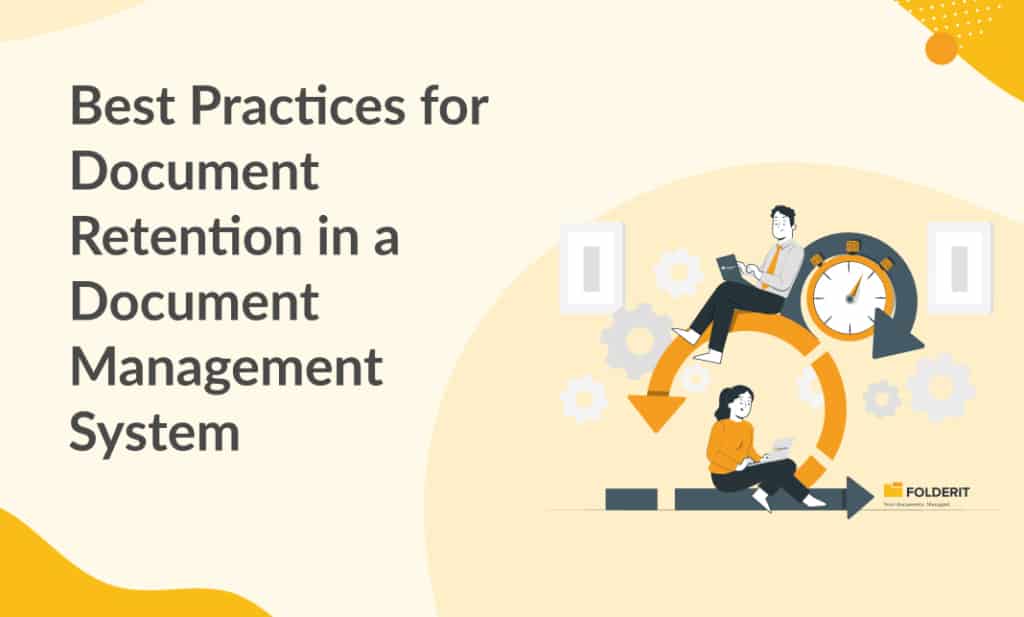
Document retention works when each record has a justified retention rule, an accurate start date and a controlled action at the end of the period. A document management system can apply those decisions consistently, but it cannot choose the correct legal period for your organisation.
This guide covers practical implementation in Folderit. If you still need to define the rules and responsibilities, use our document retention policy template and checklist first.
1. Approve the schedule before configuring automation
Group records by purpose and applicable jurisdiction. For each category, record the owner, retention trigger, duration, supporting authority and disposal or review action. A contract’s trigger might be its termination; a financial record’s trigger may be tied to a reporting period. Do not replace either with the date the file entered the DMS.
There is no universal seven-year rule for all business documents. As one jurisdiction-specific example, the US IRS gives different periods for different tax circumstances, including seven years for certain worthless-security or bad-debt claims. That guidance is not a global schedule for contracts or employee files.
2. Classify documents and validate their dates
Use folders and custom metadata to distinguish record categories, business owners and relevant dates. Define each date field precisely. Sample imported documents to check that source dates were preserved.
A missing or incorrect trigger date can cause premature action or indefinite retention. Investigate it before enabling a rule. Likewise, do not use last modification as a trigger unless the approved policy actually calls for it.
3. Configure retention in Folderit
Folderit stores files indefinitely by default. Its documented Retention Period Automation supports folder-level and individual-file settings, with plan availability described in the knowledge base.
- Locate the folder, open its gear menu and choose Retention.
- Set the rule to Active and enter the approved retention period.
- Open Advanced and select the Retention Start Date Field that represents the policy’s trigger.
- Choose the end action: archive to a folder, move to the Recycle Bin, or permanently delete.
- For archiving, select the destination and decide whether to preserve the folder hierarchy.
- Choose whether the rule applies to subfolders, then save and validate a test set.
Archiving moves records; it does not erase them. Moving to the Recycle Bin is also different from permanent deletion. Select the action that matches the policy rather than treating all three as interchangeable.
4. Manage exceptions and preservation instructions
Check for disputes, investigations and other preservation requirements before normal disposal. Record who issued the instruction, which records it covers, who can release it and when it must be reviewed.
Folderit allows exceptions on affected files and folders through their Retention settings. An Active override sets a custom rule; an Inactive override keeps the item indefinitely. Validate that the intended records are covered and control who can change or delete them.
A metadata label such as “On hold” is not, by itself, an enforced legal hold. A retention exception also needs appropriate access controls, a documented process and review of copies held outside the DMS. Do not assume a label stops an existing automation.
5. Make upcoming actions visible
Add Retention end as a folder-list column and use Dashboard & Reports to review files approaching their retention end. Assign a reviewer to investigate missing dates, unexpected outcomes and unresolved exceptions.
Start with a small test folder and records that may safely be moved. Confirm the countdown, destination and inheritance behaviour. Use permanent deletion only after the responsible owner has approved both the rule and the relevant exceptions.
6. Record disposal and account for other copies
Define what evidence the organisation needs for each disposal batch: record category, period covered, authorisation, action date and outcome. Folderit’s audit log can be filtered and exported to support the review. Validate that your evidence meets your own recordkeeping obligations.
Map copies in email, exports, local devices and backups. Removing a record from an active folder does not establish that every copy has disappeared. Agree how backup expiry, restoration and reapplication of deletion instructions are handled.
7. Review the process when conditions change
For personal data, GDPR storage limitation ties retention to purpose and relevant obligations. A company archive is not a reason to keep everything forever. Review schedules when laws, contracts, business purposes or systems change.
- Check a sample of completed actions and outstanding exceptions.
- Confirm that owners and permissions are still correct.
- Train users to classify records and enter reliable dates.
- Keep the approved policy, schedule and configuration evidence together.
For the governance document behind these settings, use the retention policy template. For the exact product controls, follow the Folderit retention setup guide.