Automated document routing becomes relevant at the exact moment every team hits with document management: you build a tidy folder structure, everyone promises to file things properly… and two weeks later you’re back to hunting for the latest version.
Not because people are careless. Because manual filing is one of those jobs that always feels “optional” when someone’s in a hurry.
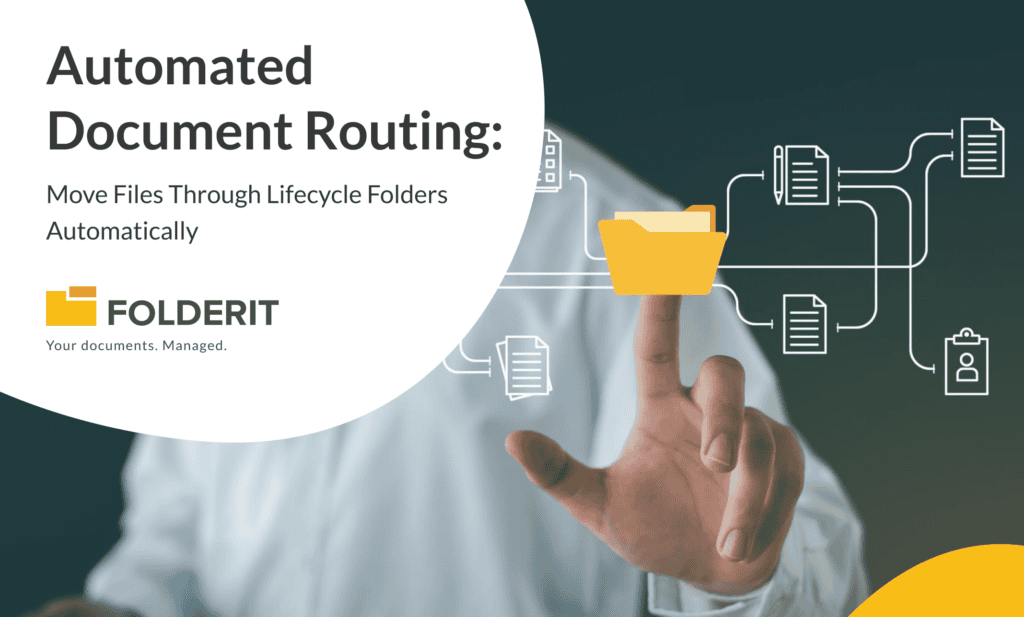
Automated document routing solves that problem by moving files for you. In Folderit, you can trigger routing when something happens—like a new version upload, a metadata change, a tag update, or a workflow result—then automatically move the file into the right lifecycle folder.
This article is about doing that in a way that stays clean and predictable, not fragile and over-engineered.
What this article covers
- What automated document routing means in a DMS
- A simple lifecycle folder setup you can reuse (Draft → Review → Approved → Archived)
- The best triggers for automated document routing in Folderit
- How to keep routing accurate over time (filters, recursion depth, “safe” patterns)
What is automated document routing?
Automated document routing means the system moves a file to the right folder automatically, based on rules you define.
Instead of relying on someone to remember “this goes to Approved now,” Folderit can do it the moment the system sees a relevant event. That event might be a new version upload, a tag being added, metadata changing, or a resolution finishing.
The reason this matters is simple: folder structure only helps if it reflects the real state of work. Routing is what keeps it honest.
Why manual routing breaks (even in good teams)
People don’t forget to move documents because they don’t care. They forget because the process has friction.
A few painfully common situations:
- A file gets uploaded into the closest folder that looks “about right.”
- An approval is finished, but the document stays in Draft because nobody moved it.
- Someone shares a document externally before it’s actually in its final state.
- Different people file the same type of document in different places, so search becomes guesswork.
If you’ve ever said “just search for it,” you’ve already seen the cost.
Automated document routing removes the step people naturally skip.
The simplest routing model that works: lifecycle folders
If you want automated document routing without complexity, start with lifecycle folders. They’re boring, which is exactly why they’re effective.
Draft → Review → Approved → Archived
In Folderit, you typically create these as subfolders inside a controlled area, like:
- Contracts/Draft
- Contracts/Review
- Contracts/Approved
- Contracts/Archived
Once those exist, the goal of routing is straightforward: whenever something changes, Folderit moves the document to the next folder that matches its real state.
How automated document routing works in Folderit
Folderit’s Workflow Designer is where routing is defined. Under the hood, the logic stays very readable:
Trigger → Filters → Move
Trigger: what happens that should start the workflow
Filters: which items should this apply to (folder tree, entity type, name pattern, etc.)
Move: where the file should go next
You can also add Conditional steps (if/else) and Delay steps, but most routing workflows stay clean when you start simple.
If you want the full list of triggers and filters Folderit supports, the knowledge base guide is the best reference.
The best triggers for automated document routing
If you’re building your first automated document routing setup, these triggers are usually the most useful in real life.
1) Route documents when a new file version is uploaded
This is the classic, and it works because it matches what users already do: upload a new version when something changes.
Typical patterns:
- New version uploaded into Draft → route to Review
- New version uploaded into Rework → route back to Review
If you only do one routing workflow, start here.
2) Route files when metadata changes
Metadata routing is a quiet superpower. It’s ideal when the “next folder” depends on a value people set, such as:
- status (Draft, Ready for review, Approved)
- document type
- confidentiality level
- project/customer field
- effective date
When a metadata value changes, Folderit can route the document immediately—no “please remember to move it” messages required.
3) Route based on tags (for teams that think in labels, not folders)
Tags are how many teams express intent: “approved,” “needs review,” “ready to publish,” “confidential.”
Automated document routing can follow that intent:
- Tag “Approved” added → move to Approved folder
- Tag “For review” added → move to Review folder
This works especially well when multiple teams touch the same documents, but you want the filing to stay consistent.
4) Route after a resolution finishes (approval/review/signing outcomes)
If you want routing to reflect true process state, this is your friend.
A common approach:
- One workflow starts an approval/review resolution
- Another workflow triggers when the resolution finishes and routes the file based on outcome
That means documents don’t move to Approved just because someone thought they were approved. They move when the system knows they were.
For the workflow overview (Approval, Review, Acknowledgement, Folderit eSign, DocuSign, eID), see document workflow page.
5) Route when sharing changes (for controlled external sharing)
This is less about lifecycle and more about governance.
Example: if a share is added in a confidential area, you can route the document into a “Shared externally – review” folder automatically. It’s a simple control, but it prevents “we didn’t notice” situations later.
A routing recipe you can copy: Draft → Review → Approved (with a Rework loop)
Here’s a practical lifecycle that fits lots of teams (contracts, policies, procedures, drawings, etc.):
- Draft: work in progress
- Review: ready for review/approval
- Approved: final
- Rework: rejected or changes required
A clean routing setup often looks like this:
- New version uploaded into Draft → route to Review (or start a Review resolution)
- Resolution finished successfully → move to Approved
- Resolution rejected → move to Rework
- New version uploaded into Rework → route back to Review
Notice what you’re doing: you’re using normal user behavior (upload a new version) as the trigger, and letting Folderit do the “move it to the correct place” step reliably.
The small details that keep automated document routing stable
Routing systems don’t usually fail because the logic is wrong. They fail because they trigger too broadly.
Always restrict routing to a folder tree
Start by limiting automated document routing to one controlled area, like Contracts or Policies. Use the folder location filter (and recursion depth) so the workflow doesn’t start acting on random content across the whole account.
It’s easier to expand later than to debug “why did that invoice get moved.”
Don’t make one routing workflow handle everything
If you try to do the whole universe in one workflow, it becomes unreadable.
A better pattern:
- one workflow per controlled folder tree (Contracts, Policies, etc.)
- or one workflow per lifecycle stage (start routing vs outcome routing)
You’ll thank yourself later.
Decide what happens when routing can’t decide
Sometimes the conditions don’t match. That’s not a failure—it’s reality.
A simple safety net is a “Needs filing” or “Routing exceptions” folder. If something doesn’t match your routing rules, move it there and review occasionally. That folder becomes your feedback loop: it shows you what rules you’re missing.
Keep folder names simple
Draft/Review/Approved is unglamorous, but it’s easy to understand and hard to misuse. Complex naming creates interpretation, and interpretation creates mistakes.
FAQ: automated document routing
Do I need approvals to use automated document routing?
No. You can route purely on uploads, tags, metadata, or moves. Approvals and signing are optional downstream steps.
Can Folderit route folders and links too?
Folderit workflows can be scoped to files, folders, and links. Automated document routing is most common for files, but the same concept can apply depending on your process.
What’s the best first workflow to start with?
Automated document routing based on “new file version uploaded” inside one controlled folder tree. It’s the easiest to understand, and it delivers immediate value.