Approving documents electronically through a document approval workflow or invoice approval workflow is essential in many organizations. An invoice, contract, purchase request, policy, or other business document often cannot move forward until the right people have reviewed and approved it.
Sometimes one manager’s approval is enough. In other cases, several departments or decision-makers must participate. Asking each person individually, circulating paper copies, forwarding email attachments, and manually tracking responses quickly becomes inefficient and difficult to control.
A document management system with approval workflows provides a faster and more reliable alternative. The document stays in one controlled location while users receive assigned tasks, record decisions, add comments, request clarification, and complete electronic signing where required.
See how documents can be approved or electronically signed in Folderit:
What Is a Document Approval Workflow?
A document approval workflow is a structured process that sends a document or other supported item to one or more users or groups for a formal decision.
Depending on the process, participants may be asked to:
- approve or reject the document;
- review its content;
- acknowledge that they have read it;
- complete required fields;
- sign it electronically;
- request clarification before deciding.
The workflow determines who participates, in what order they act, what information they can see, which deadlines apply, how many approvals are required, and what should happen after completion.
Why Electronic Document Approval Is Needed
Paper-based approval can require a physical document to travel between desks, departments, offices, or even countries. A document may remain unattended, be misplaced, or return without a clear record of who reviewed it.
Email removes the need to carry paper, but it introduces other problems. Attachments create uncontrolled copies, messages can be overlooked, comments become scattered across different threads, and someone must still track who has responded.
A dedicated document approval system keeps the document and its approval process together. The requester can see who has completed their task, who is still pending, what decision was made, and whether clarification or further action is required.
Common problems reduced by electronic approval include:
- documents waiting unnoticed in an inbox;
- uncertainty about who has approved or rejected;
- several conflicting copies of the same file;
- approvals being given on an outdated version;
- manual reminders and follow-up messages;
- missing comments or decision evidence;
- difficulty producing an audit record later.
Approving Documents Electronically in Folderit
Folderit allows organizations to approve documents electronically while keeping the file, metadata, permissions, versions, tasks, comments, and workflow history in one document management system.
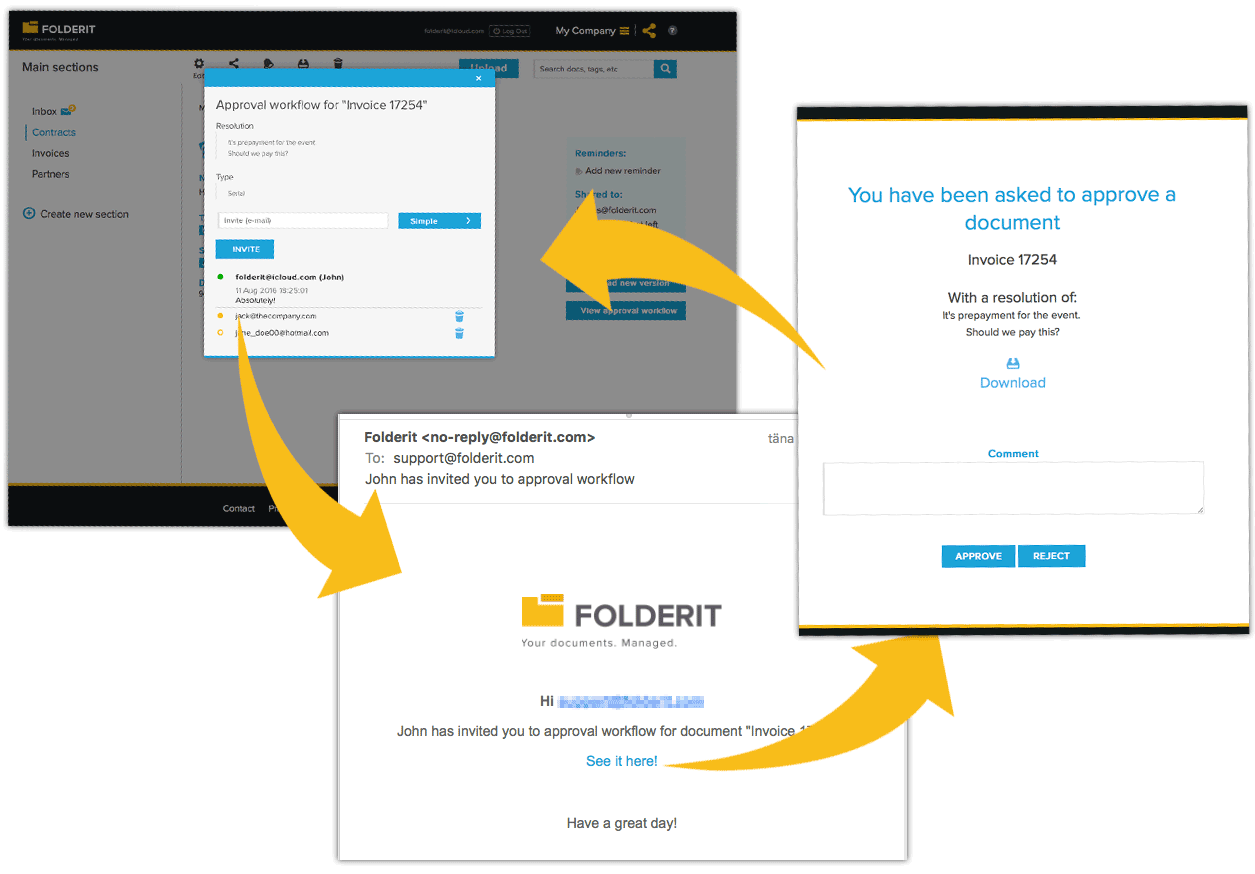
Users can start a workflow from the item’s Workflow menu, use a reusable workflow template, run a saved automation, or build a custom multi-stage workflow for the current item.
Approval may be used by itself or combined with review, acknowledgement, field completion, Folderit eSign, DocuSign, or eID signing.
Parallel, Serial, and Custom Approval Workflows
The order of participants depends on the business process.
- Parallel workflow: all participants receive their tasks at the same time.
- Serial workflow: participants receive tasks one after another in a defined order.
- Custom workflow: participants are arranged into stages that can combine parallel and serial actions.
For example, Legal and Finance may review a contract in parallel. After both complete their tasks, the document can move to Management for final approval and then continue to electronic signing.
Custom order is especially useful when several participants should act at the same time within one stage, while later stages depend on the successful completion of the earlier stage.
Multi-Stage Document Approval Workflows
A modern approval process does not need to contain approval actions only.
A single document can move through several different methods as part of one connected workflow. For example:
- Legal reviews the document.
- Finance and Management approve it.
- The employee or external party completes required fields.
- The authorized representative signs electronically.
- Other users acknowledge the final document.
- The completed file moves automatically to its final folder.
This avoids launching and tracking several unrelated workflows manually. The entire process remains connected to the same item and its version history.
Invoice Approval Workflow
Invoice approval is one of the most common uses of a document approval workflow.
An invoice may be uploaded manually, received through email-to-folder, saved from Outlook, or added through an integration. Metadata such as supplier, invoice number, department, value, due date, and project can be stored with the document.
The invoice can then be routed to the correct department, budget owner, or manager. A lower-value invoice may require one approval, while a higher-value invoice can be sent through additional financial or management stages.
After approval, the invoice may be moved automatically to a payment or accounting folder. That destination can have its own workflow or automation, allowing the process to continue without manual routing.
Invoice Approval Example
Consider a monthly telecommunications invoice containing charges from several departments.
The invoice is uploaded to Folderit and sent first to the relevant department representatives. Each person checks the charges associated with their team and records their decision or comment.
Once the departmental checks are complete, the workflow continues to the budget owner and then to the person responsible for authorizing payment.
The requester does not need to maintain a separate checklist. The workflow status shows which participants have completed their tasks and which actions are still pending.
If someone notices an unexplained charge, they can use Request clarification instead of rejecting the entire invoice immediately. The question can be sent to another user or group while the original approval task remains open.
Contract Approval and Signing
A contract may require input from several departments before it can be signed.
A typical contract workflow may include:
- Legal reviewing obligations, termination clauses, renewal conditions, and liability;
- Finance confirming pricing, payment terms, and budget availability;
- Management providing final authorization;
- authorized representatives signing electronically;
- the signed contract being moved automatically to the contract repository.
All decisions, comments, dates, versions, and signatures remain connected to the contract.
Contract Approval Example
A service agreement is uploaded together with related documents such as pricing schedules, correspondence, and earlier drafts.
Legal and Finance receive review tasks in the first stage. Legal can see the contract and related items, while Finance can also view the relevant metadata, including contract value and due dates.
The workflow is configured so that both departments must accept before it continues. Management then receives the final approval task.
After approval, the agreement is sent through Folderit eSign, DocuSign, or supported eID signing. Once signed, the final version is available directly as the latest downloadable file and can be downloaded from the folder list or as part of a bulk selection.
Creative Design and Content Approval
Marketing materials, designs, presentations, publications, and other creative work often require feedback from several stakeholders.
A document approval system provides a controlled process for collecting decisions and comments without circulating uncontrolled copies. Participants review the same managed document and can approve it, reject it, or explain the changes required.
Once the final version is approved, it can be moved automatically to a published or released folder.
Creative Approval Example
A distributed project team is preparing a new advertising layout. Designers, marketing managers, product owners, and Legal may all need to review the material before publication.
The file is stored in Folderit with its related source materials and previous versions. Review tasks are sent to the required stakeholders, either simultaneously or in stages.
Participants record their decision and add comments explaining any required changes. If a new version is uploaded, the earlier versions remain available in version history.
When the final design is accepted, the workflow can move the approved file to the organization’s published-marketing folder.
Controlled Document Approval
Policies, procedures, work instructions, quality manuals, engineering documents, and regulated records often require formal review and approval before release.
The document may first go through technical review, then management approval, and finally acknowledgement by employees or other affected users.
After approval, Folderit can move the file automatically to a controlled or published folder. The destination folder may start another workflow automatically.
Unlimited version history preserves earlier versions, while the audit trail and workflow summary provide evidence of who reviewed and approved the document.
Controlled Document Example
A revised safety procedure is uploaded as a new version. The Health and Safety team reviews the changes, followed by final approval from the responsible manager.
After approval, the procedure is moved to the active controlled-document folder and an acknowledgement workflow is started for the employees who must read it.
The organization can then see who has acknowledged the procedure and retain the complete approval and acknowledgement history for compliance purposes.
Project and Change Approval
Project proposals, technical changes, drawings, budgets, and change requests often require input from several people working in different roles or locations.
A document approval workflow helps ensure that every required stakeholder receives the correct version and has an opportunity to review it.
Project Approval Example
An engineering change request is submitted with drawings, cost estimates, and supporting correspondence linked as related items.
Engineering and Quality review the change in parallel. Finance then approves the cost, followed by final authorization from the project owner.
Acceptance rules can require every technical reviewer to approve, while the management stage may require a fixed number or percentage of approvals.
After completion, the approved change request and updated drawing can be moved to the relevant project folder automatically.
Policy, HR, and Employee Approval
Approval workflows can also be used for leave requests, onboarding documents, employment contracts, internal policies, training records, and other HR processes.
An employee may complete an eForm, attach supporting documents, and submit the record into a workflow. The request can then move through a manager, HR, Finance, or another responsible department.
Employee Onboarding Example
A new employee record is created from an onboarding eForm. HR reviews the submitted information, the manager approves the employment details, and the employee signs the required agreement electronically.
The process can continue with acknowledgement tasks for policies and procedures. Each task appears in the relevant user’s My tasks dashboard.
A reusable workflow template can be limited specifically to records created from the onboarding eForm, helping ensure that the same process is used for every new employee.
Ways to Start an Approval Workflow in Folderit
One-time approval workflow
Open the item detail view, expand the Workflow menu, choose Start approval workflow, add the required participants, and start the process.
Folder-level approval automation
A folder can be configured so that every newly added file starts the same approval process automatically.
This is useful for folders dedicated to incoming invoices, contracts awaiting review, policy drafts, purchase requests, or other repeatable document types.
Visual workflow automation
The visual workflow builder allows administrators to create processes with configured triggers, conditions, stages, participants, and routing.
Unlike a basic folder-level workflow, an advanced automation can use other conditions and combine several workflow methods in one process.
Reusable workflow templates
Workflow templates allow recurring approval processes to be prepared once and reused without rebuilding their stages and settings each time.
Templates can be made available for specific files, folders, links, or records created from a particular eForm.
Saved workflow automations
Saved automations can also appear directly in an item’s Workflow menu, allowing an authorized user to start the configured process manually for that item.
Custom Workflow Methods
Organizations do not have to use generic workflow terminology.
Administrators can create custom workflow methods based on Folderit’s standard methods. An approval method may be presented as Management Review, Quality Check, Legal Authorization, or another organization-specific process.
The underlying behaviour remains based on the chosen standard method, while administrators can customize:
- the workflow method name;
- action-button labels;
- result labels;
- button colours;
- workflow titles and messages;
- available actions;
- delegation rules;
- workflow file access.
For example, an approval-based method can use Accept, Return for Changes, and Request More Information instead of the default button wording.
Custom methods can be used in manual workflows, folder-level automation, visual workflow automations, workflow templates, and custom multi-stage workflows.
Administrators can also disable standard methods that the organization does not use, keeping workflow menus focused on relevant options.
Approval Decision Rules
A workflow stage with several participants does not always need unanimous approval.
A stage can require:
- approval from every participant;
- a fixed number of approvals;
- a percentage of approvals.
Rejection thresholds can also be defined.
For example, a five-person committee may complete a stage after three approvals, or the stage may fail once two participants reject.
Due Dates, Notifications, and Reminders
Individual workflow tasks can have their own Due by dates. Different participants and stages can therefore have different deadlines.
Participants receive email notifications and can see their workflow requests in the unified My tasks dashboard.
The dashboard brings approval, acknowledgement, review, signing, and other workflow tasks into one list while still showing the method, status, date, and due date.
Requesters can also review tasks they have sent, their recipients, current status, and latest activity.
Folderit reminders can be sent to users or groups with a custom message and a direct link to the relevant item.
Request Clarification Before Deciding
A participant may need more information without wanting to reject the document.
The Request clarification action allows the participant to ask another user or group a question, add a comment, and attach an optional supporting file.
The original workflow task remains open so the participant can make a final decision after receiving the required information.
This is useful when a document is generally acceptable but a missing attachment, unclear figure, incomplete explanation, or supporting record must be provided first.
Monitoring Document Approval Status
Requesters can monitor approval tasks without maintaining a separate checklist.
All workflows connected to an item are shown together in the Workflows section of its detail view. Each entry displays the method, participant, status, start date, and completion date.
Workflow entries can be expanded to show instructions, task creation, decisions, comments, clarification activity, participant names, and timestamps.
Users no longer need to open separate approval, eSign, and acknowledgement pages to understand what happened to the item.
Workflow Summary and Audit Record
The Summary of all workflows option provides a consolidated record of workflow activity connected to the item.
Depending on the item and file type, users can download:
- a PDF containing the file and workflow summary;
- a ZIP containing the file and summary;
- the workflow summary by itself.
The summary is useful for contracts, invoices, quality documents, compliance files, and other processes that require reliable evidence of review and approval.
Folderit also maintains an exportable audit trail of user and system activity, providing additional visibility into actions taken on the document.
Electronic Signatures and Approved Documents
Approval and signing are related but separate actions. Approval records a formal decision, while electronic signing places a signature on the document.
Folderit supports Folderit eSign, DocuSign integration, and regional eID signing with supported electronic identities.
When the latest version has been electronically signed, downloading the latest file returns the signed version directly.
Signed files can also be selected and downloaded in bulk from the folder list, without opening each item’s detail view separately.
Document Approval Security
Approval workflows often involve contracts, invoices, employee records, financial information, intellectual property, and other sensitive content.
Folderit protects data at rest with 256-bit AES encryption and secures information in transit with EV SSL encryption.
Granular permissions can be applied at account, section, folder, file, tag, and sub-tag level. Participants can receive only the access required for their task, including Preview-only, Upload-only, Viewer, Editor, or customized permissions.
Organizations can also configure two-factor authentication, mandatory 2FA, password policies, IP whitelisting, automated access expiration, and SSO through Microsoft Azure AD, Google, or Okta.
Dynamic watermarking can also be applied to previews and downloads where required.
Advantages of a Document Management System with Approval
- Faster decisions: Participants receive requests immediately and the next stage can begin automatically.
- Clear responsibility: Every task is assigned to a named user or group.
- Fewer missed approvals: Pending tasks and deadlines remain visible.
- Controlled versions: Participants review the managed document rather than disconnected attachments.
- Consistent processes: Templates and automations ensure that recurring approvals follow the same rules.
- Better collaboration: Instructions, comments, clarification requests, and supporting files remain connected to the task.
- Automated routing: Completed documents can move to their next folder or process automatically.
- Audit readiness: Decisions, comments, participants, and timestamps are preserved.
- Reduced administrative work: Email invitations, task assignment, status tracking, and follow-up are handled by the system.
- Scalability: The same process can handle increasing document volumes without an equivalent increase in manual administration.
How to Create a Document Approval Process
- Choose the document process. Start with a process that is repetitive, delayed, compliance-sensitive, or difficult to track.
- Identify the required decisions. Determine who must review, approve, acknowledge, complete fields, or sign.
- Choose the workflow order. Decide whether tasks should run in parallel, serially, or in custom stages.
- Define access. Decide what each participant may preview, download, edit, or see.
- Add instructions and deadlines. Explain the required action and set due dates where needed.
- Configure decision rules. Decide whether everyone, a fixed number, or a percentage must approve.
- Plan for exceptions. Account for rejection, clarification, delegation, absence, and missing information.
- Define the final destination. Choose where the approved or signed document should move and whether another workflow should begin.
- Test the workflow. Use a representative document and participants before wider deployment.
- Create a template or automation. Standardize the process after it has been validated.
Document Management with Approval for Your Business
A document approval workflow should do more than replace a paper signature with a button. It should keep the document, participants, decisions, comments, versions, permissions, deadlines, and audit record together.
Folderit supports straightforward one-time approvals as well as folder-level automation, visual workflow automation, reusable templates, custom workflow methods, flexible decision rules, electronic signing, clarification requests, and automatic routing.
This allows organizations to begin with a simple document approval process and expand into complete multi-stage workflows involving several departments and decision types.
If assistance is required, our support team can help explain how Folderit workflows can be configured for your organization’s document processes.
Try Folderit DMS for free and start approving documents electronically.