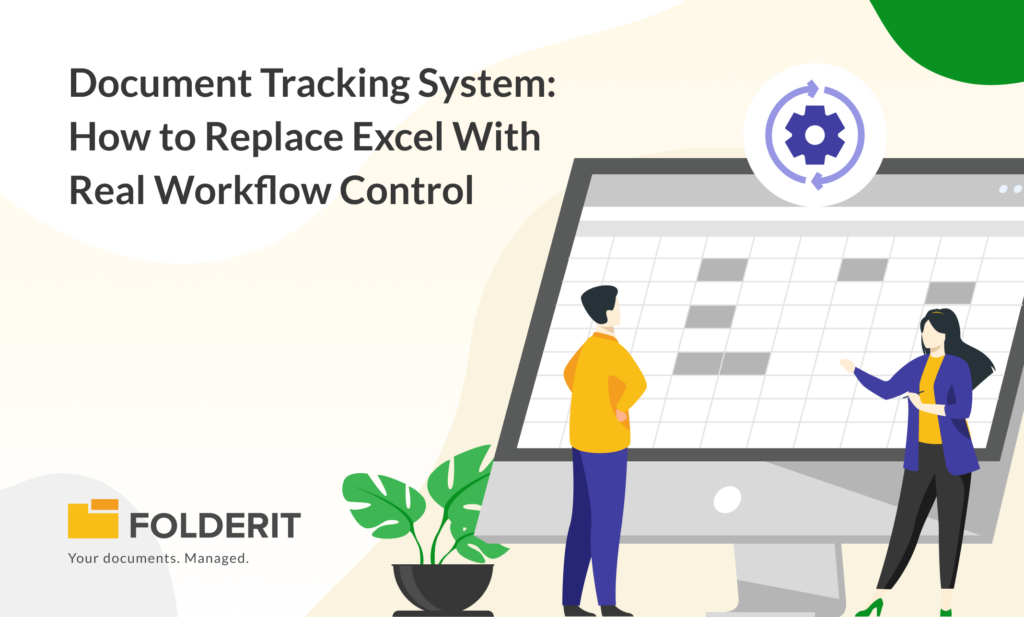
Many companies start tracking documents in Excel because it feels simple. A spreadsheet is quick to create, easy to share, and familiar to almost everyone. For a small team with a limited number of documents, it may even work for a while.
The problems usually appear later. Someone forgets to update the sheet. A document is approved by email, but the status in Excel still says “pending”. A file is renamed, moved, replaced, or duplicated, and suddenly the register no longer matches reality. When an auditor, customer, manager, or project owner asks what happened, the spreadsheet can show what someone typed into it, but it cannot prove the full story.
That is where a document tracking system becomes useful. It does not just list documents. It controls how documents move through review, approval, signing, acknowledgement, revision, expiry, and retention. Instead of using Excel as a manual control layer on top of your documents, the tracking becomes part of the document management process itself.
What Is a Document Tracking System?
A document tracking system is software that helps organizations monitor documents throughout their lifecycle. It keeps track of where a document is stored, who can access it, which version is current, what status it has, who approved it, when it was changed, and what actions are still pending.
In a basic setup, document tracking may mean knowing whether a file is draft, reviewed, approved, rejected, expired, or archived. In a more advanced setup, it may include approval workflows, acknowledgement requests, eSignatures, version control, audit trails, retention rules, reminders, document numbering, and metadata-based reporting.
The key difference between a document tracking system and a spreadsheet is trust. Excel depends on people manually updating separate data about the document. A proper system records the activity around the document automatically and keeps the file, metadata, workflow status, and audit history connected.
Why Excel Becomes a Problem for Document Tracking
Excel is not the enemy. It is excellent for analysis, reporting, and structured data. The problem begins when Excel becomes the main control tool for active documents.
A typical Excel document register may include columns such as document name, document number, owner, department, revision, due date, approval status, and comments. That looks organized on the surface, but it creates a second version of reality. The actual document lives somewhere else, often in a shared drive, email inbox, SharePoint folder, or cloud storage account. The spreadsheet only describes it.
This separation creates several risks. A document may be updated without the register being updated. A status may be changed in Excel without the right person actually approving the file. A deadline may pass without anyone receiving a reminder. A user may download or share a sensitive file without that action being visible in the register. When there are multiple copies of the spreadsheet, nobody is completely sure which one is correct.
For regulated industries, quality management, HR, construction, manufacturing, engineering, legal work, and supplier management, that is not just inconvenient. It can become a compliance and accountability issue.
The Real Cost of Manual Document Tracking
Manual tracking usually looks cheap because the tool is already available. But the hidden cost is the time spent checking, chasing, correcting, and proving.
Someone has to ask whether the latest version has been approved. Someone has to search email threads for comments. Someone has to remind reviewers. Someone has to compare file names and dates. Someone has to prepare reports for management or audits. Someone has to explain why the document status in Excel does not match the file activity.
The more documents you have, the more this work grows. At some point, the spreadsheet becomes less of a productivity tool and more of a permanent administrative burden.
A document tracking system reduces this burden by turning many of those manual follow-ups into system-driven actions. The system can show pending workflows, completed approvals, version history, access activity, due dates, retention alerts, and document metadata without requiring someone to maintain a separate tracker by hand.
What Real Workflow Control Means
Real workflow control means that document status is not just typed into a cell. It is the result of a controlled process.
For example, if a policy document needs approval from HR, Legal, and Management, the system should route it to the correct people. It should show who has approved, who has not responded, and whether anyone rejected or requested clarification. Once the workflow is complete, the document status should reflect the real outcome.
The same applies to acknowledgements. If employees need to confirm that they have read a new safety policy, the system should not rely on someone manually updating an Excel column. It should send the request, collect confirmations, show pending users, and keep a record of who acknowledged the document and when.
For signing, the same principle applies again. A document tracking system should make it clear which version was signed, by whom, and when. This is especially important when signed documents may later need to be verified, exported, audited, or used as evidence.
Version Control: The Part Excel Cannot Truly Handle
Version control is one of the biggest reasons companies outgrow Excel-based tracking.
In a spreadsheet, a revision number is just text. Someone can type “v2”, “Rev B”, or “Approved version”, but the spreadsheet itself does not control the file. It cannot reliably prevent someone from using an old copy. It cannot automatically connect every approval to the exact version that was reviewed. It cannot show a full history of what changed unless people document that manually.
A document tracking system keeps version history connected to the document itself. Users can see the current version, access previous versions when allowed, and understand how the document has evolved over time. This matters in almost every serious document process, from ISO documentation and contracts to technical drawings, employee records, controlled forms, and supplier documents.
Audit Trails Make Document Tracking Defensible
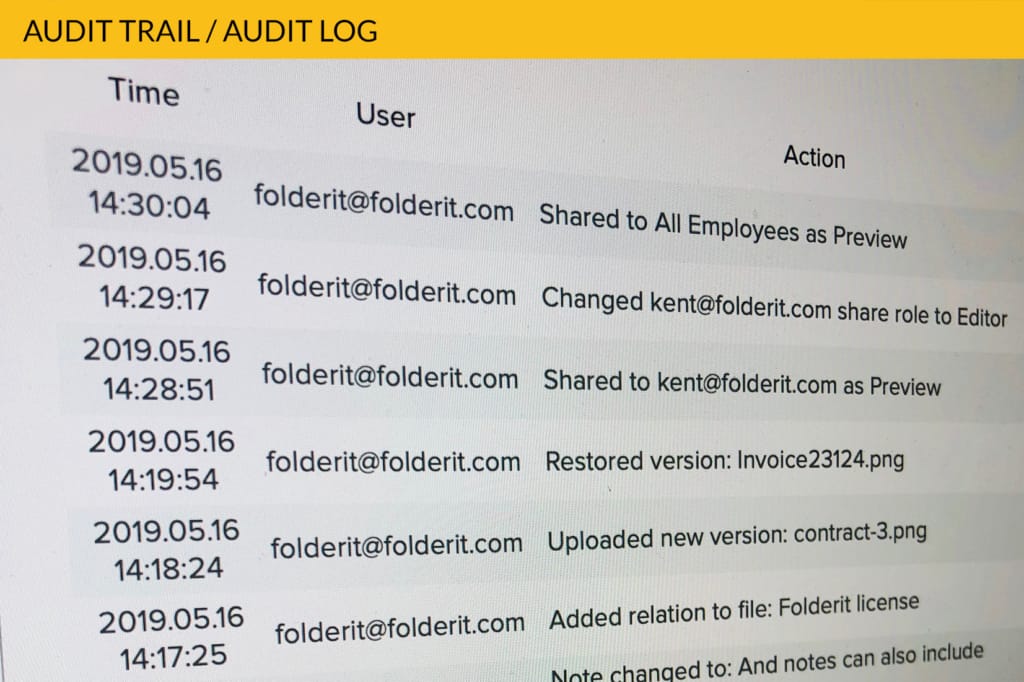
A spreadsheet can show a current status, but an audit trail can show what happened.
That distinction is important. During an audit or dispute, it may not be enough to say that a document was approved. You may need to show who approved it, when they approved it, which version they approved, whether anyone downloaded it, whether permissions changed, and whether the file was later modified.
A proper document tracking system records user and system activity automatically. This gives organizations a defensible history instead of relying on memory, email searches, or manual notes.
For companies working with ISO standards, data protection requirements, customer audits, internal compliance, or project documentation, this can save a lot of stress. It also reduces the risk of accidental or intentional status changes that cannot be explained later.
Metadata Makes Tracking More Useful Than Folder Names
Many teams try to organize documents by folder structure alone. This usually works until a document belongs to more than one category.
For example, an HR document may relate to a specific employee, department, contract type, country, date, and status. A supplier document may relate to a supplier, certificate type, expiry date, risk level, and approval stage. A project document may relate to a project, discipline, document type, revision, client, and deliverable package.
Trying to represent all of that in folder names quickly becomes messy. Metadata solves the problem by adding structured information to the document. Instead of hiding meaning inside filenames or folder paths, users can filter, search, and report based on defined fields.
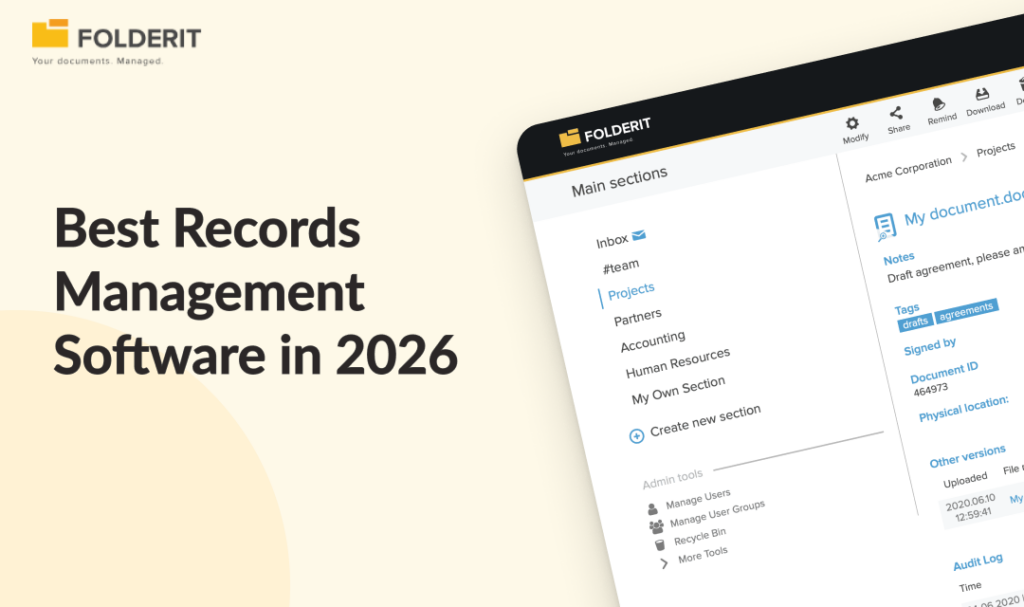
This is where a document tracking system becomes much more powerful than Excel. Metadata fields can appear in folder views, support advanced search, and feed reports. Users can find documents by status, date, owner, document type, department, supplier, project, confidentiality level, or any other relevant field.
Replacing Excel Does Not Mean Losing Excel Reports
One common concern is that teams still need spreadsheets for reporting. That is completely reasonable. Excel is still useful when you want to analyze, share, or archive a structured report.
The difference is that Excel should be the output, not the control system.
In a better setup, the document tracking system holds the live truth. Users manage documents, workflows, metadata, versions, and access in the system. When a report is needed, search results or document lists can be exported to Excel, CSV, PDF, or another format. This gives people the reporting flexibility they like without making the spreadsheet responsible for controlling the process.
A Practical Example: Policy Approval Without Excel
Imagine a company that manages internal policies in Excel. The spreadsheet includes policy name, owner, department, review date, approval status, and acknowledgement status. The actual documents are stored in folders.
When a policy changes, the owner uploads a new file and emails managers for approval. Someone updates the spreadsheet. After approval, employees are asked to confirm that they have read the policy. The confirmations arrive by email or chat, and someone updates the spreadsheet again.
Now compare that with a document tracking system. The policy is uploaded into the correct folder with metadata such as department, document type, owner, and review date. An approval workflow is started. The system tracks each decision. Once approved, an acknowledgement workflow is sent to employees or groups. The system records who acknowledged it and when. The document keeps its version history, audit trail, permissions, and due dates in one place.
The result is not just cleaner. It is more reliable.
Structured Records: When the Process Should Not Start as a Document
Not every tracked item should begin as a Word file or PDF. Some records are better captured as structured forms from the start.
Examples include incident reports, access requests, inspection notes, asset entries, supplier reviews, visitor logs, and internal requests. If these are created as Word documents or spreadsheets, users often leave fields empty, use inconsistent formats, or attach evidence separately.
A modern document tracking system can use structured forms for these cases. A form can require specific fields, store the submitted data as metadata, allow attachments, and make the record searchable and filterable. This gives the organization cleaner data from the beginning, while still allowing the record to behave like a managed item with permissions, workflows, reminders, retention, and audit history.
This is especially useful when the main business need is not to create a traditional document, but to track a controlled record through a process.
Key Features to Look For in a Document Tracking System
A good document tracking system should do more than store files. It should support the way documents are actually reviewed, approved, used, and retired.
Version history helps keep the current version clear while preserving earlier versions. Metadata allows teams to classify, filter, and report on documents properly. Advanced search makes it easier to find documents by content, metadata, dates, owners, status, or other fields. Granular permissions help control who can view, upload, edit, download, share, or manage documents.
Audit trails show what happened, when, and by whom. Approval, review, acknowledgement, and signing workflows replace manual status tracking. Reminders and due dates reduce manual chasing. Retention rules support archiving and deletion according to internal policy. Document numbering helps maintain consistent identification and controlled registers. Exportable reports allow teams to continue using Excel where it still makes sense.
For many organizations, permissions are especially important. It should be possible to control who can view, upload, edit, download, share, or administer documents. Sensitive records should not depend on folder naming discipline or informal team rules.
Workflow flexibility also matters. Some documents need simple approval. Others need parallel approval, serial approval, review, acknowledgement, signing, or a combination of these steps. A system that supports different workflow types can replace many manual status columns in Excel.
How to Move From Excel to a Document Tracking System
Replacing Excel does not have to mean rebuilding everything at once. The best approach is usually to start with one document process that causes visible pain.
Good candidates include controlled policies, HR employee documents, supplier certificates, contracts, quality documents, project documentation, or documents requiring regular approval. These are areas where version control, ownership, due dates, and audit history matter.
Review Your Existing Spreadsheet
Start by reviewing the existing spreadsheet. Identify which columns are truly needed as metadata, which statuses should become workflow outcomes, which dates should become reminders or retention rules, and which fields are only there because the current process is manual.
Design a Cleaner Metadata Structure
Then design a clean folder and metadata structure. Avoid copying every spreadsheet column blindly. Some fields may be unnecessary once the system automatically tracks versions, approvals, users, timestamps, and audit events.
Move Documents in Stages
After that, move documents in stages. Import or upload the files, apply metadata, set permissions, and configure workflows for the most important document types. Once users see that the system gives them better visibility than the spreadsheet, adoption becomes much easier.
Common Mistakes to Avoid
The biggest mistake is treating the new system like a shared drive with extra fields. If documents are still approved by email, tracked manually in Excel, and renamed by hand, the organization will not get the full benefit.
Another mistake is overcomplicating the setup. Too many metadata fields, too many folders, and too many workflow steps can slow users down. The goal is not to model every possible exception from day one. The goal is to create a controlled process that people can actually follow.
A third mistake is ignoring permissions. A document tracking system is most valuable when people trust that sensitive documents are visible only to the right users. This should be planned carefully, especially for HR, legal, finance, management, and regulated content.
Finally, do not remove Excel from every part of the process. Keep it for exports and analysis where it makes sense. Just stop using it as the live source of truth for active document control.
When Excel Is Still Enough
There are cases where Excel is still fine. If you track a small number of low-risk documents, no approvals are needed, there are no compliance requirements, and nobody needs a reliable audit history, a spreadsheet may be acceptable.
But once documents require approvals, acknowledgements, version control, deadlines, access restrictions, retention, customer audits, or proof of activity, Excel starts to show its limits.
The question is not whether Excel can list documents. It can. The better question is whether Excel can control the process around those documents. In most growing organizations, the answer is no.
Final Thoughts
A document tracking system replaces Excel not because spreadsheets are bad, but because document control needs more than a table.
Organizations need to know which version is current, who has access, what has been approved, what is still pending, when documents expire, how records are retained, and what happened over time. Those details should not depend on manual updates in a separate spreadsheet.
Excel can still be useful for exported reports. But the live tracking of documents, workflows, versions, metadata, permissions, and audit trails belongs in a proper document management system.
When that shift happens, document tracking becomes less about chasing updates and more about having real control.