
If you’re searching for a document workflow builder, you’re probably already dealing with what it replaces: approvals in email, “final-final” filenames, and documents that end up in the wrong place after someone says “approved”.
A visual workflow designer fixes this by turning the process into something you can see and control. Instead of hoping people remember the steps, you define them once, and the system runs them the same way every time.
Folderit’s Workflow Designer is a document workflow builder built directly into the DMS. That matters because the workflow doesn’t sit “next to” your documents. It runs where your documents already live, with the same permissions, audit trail, and governance.
What this article covers
- What a document workflow builder is (in plain language)
- The simple model that makes workflows predictable
- How Folderit’s Workflow Designer supports routing and downstream approvals/signing
What is a document workflow builder?
A document workflow builder is a tool that lets you design repeatable document processes—usually on a visual canvas—so documents move through the right steps without relying on memory, spreadsheets, or long email chains.
Most teams start with “just approvals.” Then they realize the real time loss isn’t only the approval itself. It’s everything around it: routing the document to the correct place, involving the right people when something changes, and being able to prove later what happened and when.
That’s what a workflow designer is for. It makes document control reliable, not heroic.
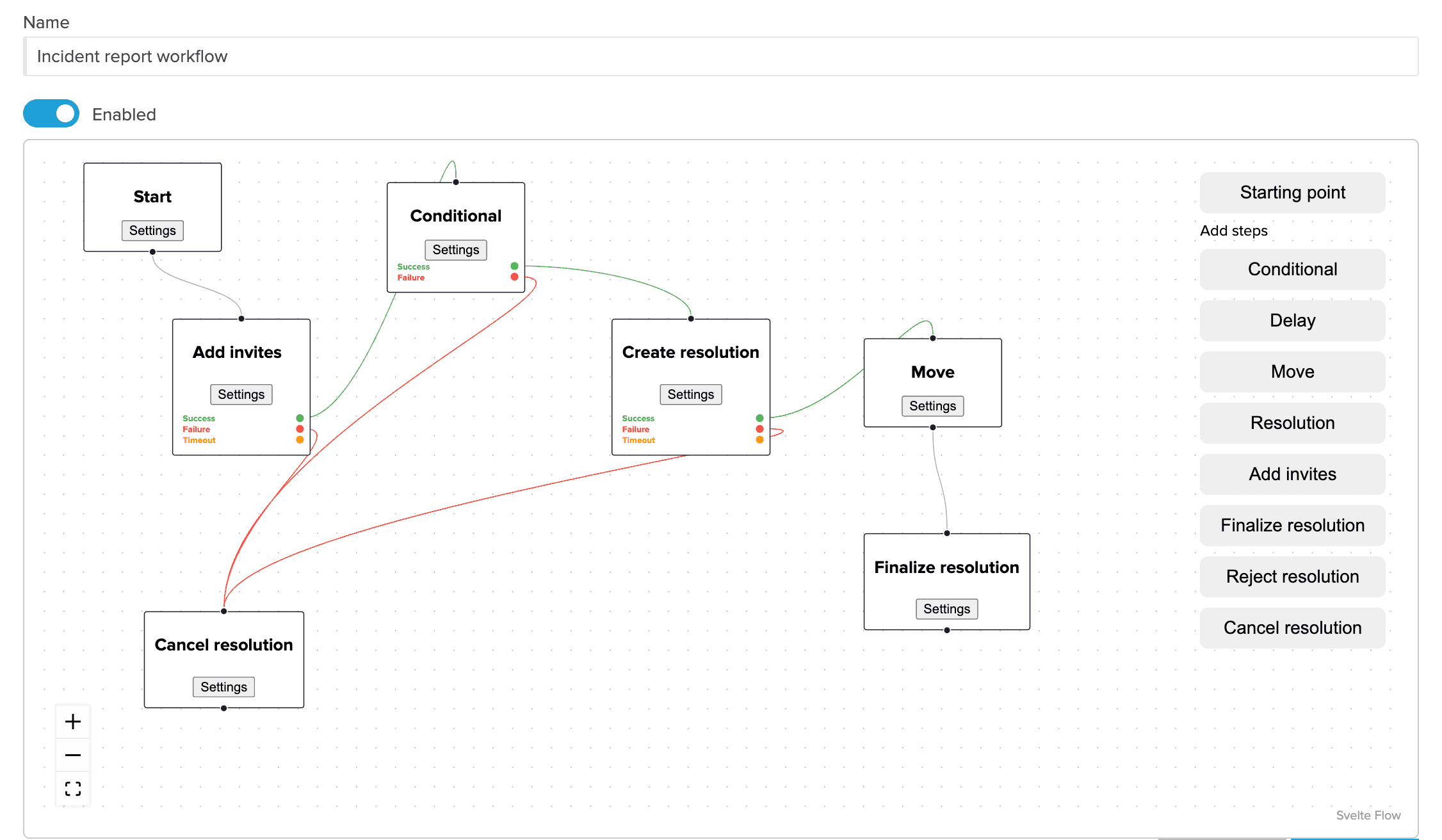
The model that makes workflows easy to design
Even the best workflow designer should feel simple once you understand the backbone:
Trigger → Conditions → Steps → Outcomes
Trigger means “what starts the workflow.” For example: a new file version is uploaded, a document is moved, a tag changes, or an external share is created.
Conditions are the filters that prevent noise. You don’t want everything to trigger everything. You want “only this folder tree,” or “only documents with a certain name pattern,” or “only events that came from a resolution.”
Steps are the actions: delay, move, or start a formal resolution such as Approval, Review, Acknowledgement, Folderit eSign, DocuSign, or eID.
Outcomes are what happens next depending on what the system observes. Sometimes it’s a simple “yes/no” branch. Sometimes it’s a follow-up workflow after a resolution finishes.
Once you design workflows this way, a document workflow builder stops feeling like “automation software” and starts feeling like drawing the process you already have—just without the weak links.
Why teams adopt a document workflow builder
Teams don’t adopt workflow software because they love workflows. They adopt it because email-based processes don’t scale.
These are the patterns that keep showing up in growing organizations:
Version confusion
Someone approves a document, but it turns out they reviewed an older version. Or they approved the right version, but the wrong file gets sent anyway.
Routing gaps
A document is “approved,” yet still sits in Drafts. Or it gets saved to someone’s personal area. Or it ends up in the wrong project folder and disappears.
Invisible sharing
A link gets shared externally, and nobody notices until it becomes a compliance problem.
Missing proof
During audits, you can’t confidently answer: who touched this, who approved it, when did it happen, and which version was it?
A workflow designer helps because it makes the process visible, consistent, and traceable. Speed is a bonus. Control is the real win.
How Folderit’s Workflow Designer works as a document workflow builder
Folderit’s Workflow Designer focuses on actions document teams actually need inside a DMS: event-based triggers, practical conditions, routing, and formal workflow actions.
It can trigger from real system events
In Folderit, workflows can start from events that reflect what people do every day—like uploading a new version, moving an item, changing metadata, adding a tag, or creating a share.
That means you can build processes that react to reality instead of relying on someone to remember to click “start workflow.”
Conditions prevent noisy workflows
Most workflow failures happen because the workflow triggers too often.
Folderit’s condition filters help you target exactly the right scope—for example, a specific folder tree (including subfolders), a certain entity type (file, folder, link), or a resolution context.
If you’ve ever had a rule that was technically correct but practically unusable, you already understand why this matters.
Routing is often the backbone: move documents through lifecycle folders
For many teams, the simplest form of document control is also the most effective: lifecycle folders.
Draft → Review → Approved → Archived
When routing is automatic, the folder structure becomes a live status board. People instantly see where something stands, without needing a separate spreadsheet or a “status” field that nobody updates.
Approvals and signing belong after the document exists
A document workflow builder should help you create the document state you need (for example “ready for approval”), then run the downstream steps: review, approval, acknowledgement, and signing.
Folderit supports those downstream steps using resolutions (Approval, Review, Acknowledgement, Folderit eSign, DocuSign, eID).
Two practical document workflow builder examples
You don’t need 20 workflows. Most teams get real value from one or two high-friction flows first.
Example 1: Contract approval with clean lifecycle routing
Let’s say contracts live under a Contracts folder, and you want a predictable lifecycle where every new version triggers a review.
A practical pattern looks like this:
Workflow A: when a new contract version is uploaded, start an Approval resolution for the right people (legal, finance, management—whatever fits your process).
Workflow B: when the resolution finishes (or when someone responds), route the contract based on the outcome—move it to Approved, Rework, or Escalation.
This stays maintainable. It also keeps routing tied to the outcome, which is exactly where teams tend to lose control when they rely on manual filing.
Example 2: Review external shares in confidential areas
External sharing isn’t always bad. It just needs visibility.
A common approach is to watch for “share added” events in a confidential folder tree. When that happens, you route the item into a review state and start a review or approval step for the security or compliance team.
Instead of finding out later that something sensitive was shared, you build a lightweight control that triggers at the moment it matters.
Common mistakes when using a document workflow builder
Making workflows too broad
If a workflow triggers too often, people stop trusting it. Start with narrow scope: the right folder tree, the right entity type, and only the events you truly need.
Trying to make one workflow do everything
It’s often cleaner to split “start the resolution” and “route after the outcome” into separate workflows. That keeps the logic readable and easier to update.
Skipping the routing model
Approvals are important, but routing is what keeps your repository usable. If “approved” still looks like “draft in the wrong place,” people won’t feel the process working.
FAQ: document workflow builder
Is a document workflow builder only for approvals?
No. Approvals are a common use case, but routing, lifecycle control, and controlled reactions to changes (metadata, tags, shares, outcomes) are often where the biggest day-to-day time savings come from.
Do we need to be technical to use a workflow designer?
Not usually. The hardest part is agreeing on the process you want. Once that’s clear, a visual workflow designer is typically easier than trying to “train everyone to do it the same way.”
Where should we start?
Pick one workflow that currently causes delays or errors: contract approvals, policy acknowledgements, routing after approval, or external share review. Build that first, then expand.
Next steps
If you want the detailed, UI-accurate reference of triggers, conditions, and steps, use the knowledge base guide: https://www.folderit.com/knowledge-base/workflow-designer/
If you want the broader overview of workflows in Folderit (approval, review, acknowledgement, signing), see: https://www.folderit.com/document-workflows/
If you’re evaluating whether a document workflow builder is worth it for your team, here’s the simplest test: choose one process you currently run in email, and rewrite it using this model—Trigger → Conditions → Steps → Outcomes. If it becomes clearer on paper, it will become easier in your system too.