If you’ve ever asked “Where is that laptop now?” or “Do we still have the warranty document?” you already know the real problem with asset registers. It’s not that you don’t have a list. It’s that the list doesn’t behave like a living system.
Most asset registers start in Excel. That’s not a crime. It’s quick, familiar, and it feels “good enough” right up until the moment you have multiple locations, staff changes, service schedules, audits, or you simply need to trust the data. Then you get versions. Copies. Half-updated rows. Attachments in random folders. And that painful feeling that the spreadsheet is always slightly behind reality.
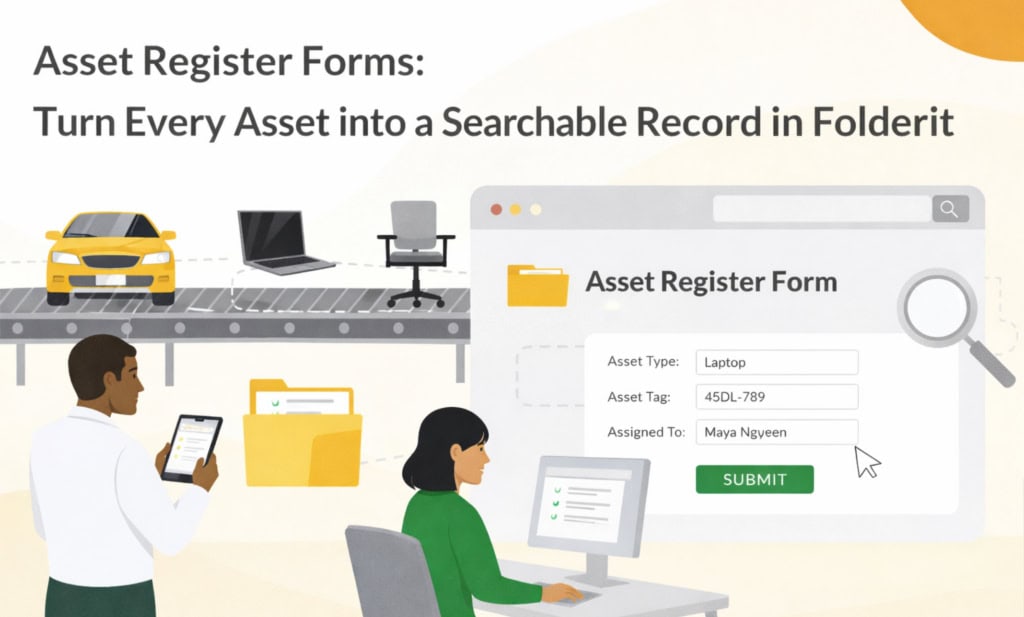
An asset register form solves this by turning every asset into its own record, with its own data, its own attachments, and its own history. In Folderit, that’s exactly what eForms are for: structured records created directly inside your DMS, without forcing you to upload a file first.
What “asset register form” means in Folderit
In Folderit, eForms are managed under Admin tools → Form templates. An admin defines a reusable form structure, and each time someone fills it in, Folderit creates a record item in the folder.
This is the key difference from a spreadsheet: you’re not updating one giant table. You’re creating a clean “asset card” per item. Each card can hold structured fields (like asset ID, location, owner, warranty expiry), can include attachments (manuals, invoices, photos), and can be searched and filtered like metadata.
And importantly, it still behaves like a normal item in Folderit: permissions apply, you can set reminders and retention rules, run workflows, and rely on the audit log for traceability.
How to build an asset register form in Folderit
You don’t need to overthink the first version. The best asset register form is the one your team will actually use on a busy day.
Start by creating a new form template:
Go to Admin tools → Form templates, click +Template, and name it something obvious like “Asset register entry”. That form name is what users will see later under the Upload dropdown when they add a new asset record.
Now comes the part that makes the register feel tidy: the record name pattern.
Folderit lets you define a “Record name pattern” (Identifier) that builds the record title automatically using placeholders like {asset-id} and {asset-name} (based on your field slugs).
A practical pattern is:
{asset-id} – {asset-name}
So instead of “New item” or “Laptop”, you get folder listings that look like real inventory:
AS-1001 – Laptop Dell 7420
AS-2030 – Projector Optoma UHD42
That small detail is what makes people trust the register, because it’s readable at a glance and consistent without anyone policing naming rules.
Choosing the right fields (without making the form annoying)
Here’s the trap many teams fall into: they try to capture everything up front, and the form becomes so long that people skip it, guess values, or stop using it entirely.
A simple first version usually works well with fields like: Asset ID, Asset name, category, location, responsible person, purchase date, warranty expiry, status, and notes. If you want to support real-life asset management, add a file field for documents like invoices, manuals, or photos of the asset label.
Folderit supports common field types you’d expect for this kind of form, including Text, Number, Select (dropdown), Checkbox, Date, File, User, Relation, and even Table for repeated rows when needed.
Two small suggestions that make the register much easier to use later:
Use dropdowns for things like category, location, and status. Free text turns “Warehouse A”, “warehouse a”, and “WH-A” into three different “truths”.
Make only the truly essential fields required. You can always tighten validation later once people adopt the habit.
How people add assets day to day
Once the template exists, using it is intentionally simple.
A user navigates to the folder where you keep assets, clicks the arrow next to Upload, and chooses the form from the list shown under the dashed line.
They fill in the asset register form, submit, and Folderit creates a record in that folder. The system validates required fields, evaluates your record name pattern, stores the field values as metadata, and stores any attachments from File fields as part of the item.
That record then appears in the folder list like any other item, with its generated name.
In real life, this is what makes adoption easier: users don’t feel like they’re “updating a system.” They’re just adding an item to a folder, the same way they already add documents.
Turning a folder into a real asset register
This is where Folderit starts to feel like “asset register software” rather than “a place where we store files”.
Every form field can be shown as a column in the folder view, so your Assets folder becomes a proper register view: you can see location, owner, status, warranty expiry, service date, right next to the asset name.
And because the fields are integrated into filtering and advanced search, you can actually use the register like a register. Date fields behave like date fields. Number fields behave like numbers. Filters and operators depend on field type, so you can do things like “warranty expiry is before next month” or “purchase date is between these dates”.
That’s the moment many teams realise they can stop maintaining a separate spreadsheet “just for reporting”.
Keeping the asset register accurate over time
An asset register only stays useful if it reflects reality after the first entry.
Folderit records can be opened and edited (for users with permission). When someone changes location, assigns a new responsible person, or extends warranty coverage, they modify the same asset record, not some copy of a spreadsheet. Folderit keeps the record inside the same folder structure, under the same access rules, and the audit log provides traceability for changes and views.
This is especially important for shared assets (projectors, laptops, tools, measuring equipment) where responsibility shifts frequently and “who has it now?” is a weekly question.
A practical example: service due, without chasing anyone
If you add one date field for “Next service date” (or “Inspection due”), your asset register form starts paying you back quickly.
You can create a simple filtered view for assets with service due soon, or filter by location to see what needs attention at a specific site. If you also add a responsible person field, it becomes obvious who should be nudged. From there, reminders and workflows can support follow-up, without building a separate maintenance system.
The point isn’t to replace specialised maintenance software. It’s to stop losing the basics: which assets you own, where they are, what documents belong to them, and what is due next.
Security, access control, and audits (the part spreadsheets can’t do well)
Asset registers often contain information you don’t want publicly visible internally: device allocations, purchase values, supplier details, serial numbers, sometimes even employee associations.
Because asset records are normal Folderit items, they inherit folder permissions and item-level sharing rules. That means you can keep one register for IT assets visible only to IT and leadership, another for facilities equipment visible to site managers, and so on.
And when someone asks “Who changed this?” you’re not guessing. The audit log exists because the asset record lives inside the DMS rather than floating around as a file attachment.
FAQ
What’s the difference between an asset register form and an asset register spreadsheet?
A spreadsheet is a single document that tries to represent everything. An asset register form creates one record per asset, with structured fields, attachments, permissions, and audit trail inside the DMS.
Can we attach manuals, invoices, or photos to an asset record?
Yes. Folderit forms support a File field, so supporting documents can live on the asset record itself rather than in a separate folder structure.
Where do users find the form when adding a new asset?
In a folder, users click the arrow next to Upload. Standard actions appear first, and the available form templates appear under the dashed line by their form name.
Start simple, then improve based on real use
If you’re currently on an Excel register, don’t try to migrate everything perfectly on day one. Create the asset register form, start using it for new assets, and migrate the old list gradually (often category by category). After a few weeks, you’ll know which fields matter, which ones annoy people, and what should become mandatory!