Document management forms make it easy to capture structured information directly in your DMS. Yet most document management systems are still built around files only: you upload a Word document, a PDF, or a spreadsheet and then end up forcing all your processes into those static documents instead of using flexible, data-driven forms.
But a huge amount of everyday work does not start with a file at all:
- Incident reports
- Asset and equipment registers
- Visitor logs
- HR change requests
- Access and approval requests
These usually end up in Excel registers, random Word templates on a shared drive, or, worst of all, email threads.
Folderit changes this with document management forms – our eForms and form templates feature. It lets you create structured, metadata-only records directly in your document management system, without uploading a file. And with dynamic naming, these records can automatically name themselves based on the data users enter.
This article explains what Folderit eForms are, how they work, and how you can replace messy spreadsheets and templates with clean, searchable records in your DMS.
What are eForms and form templates in a DMS?
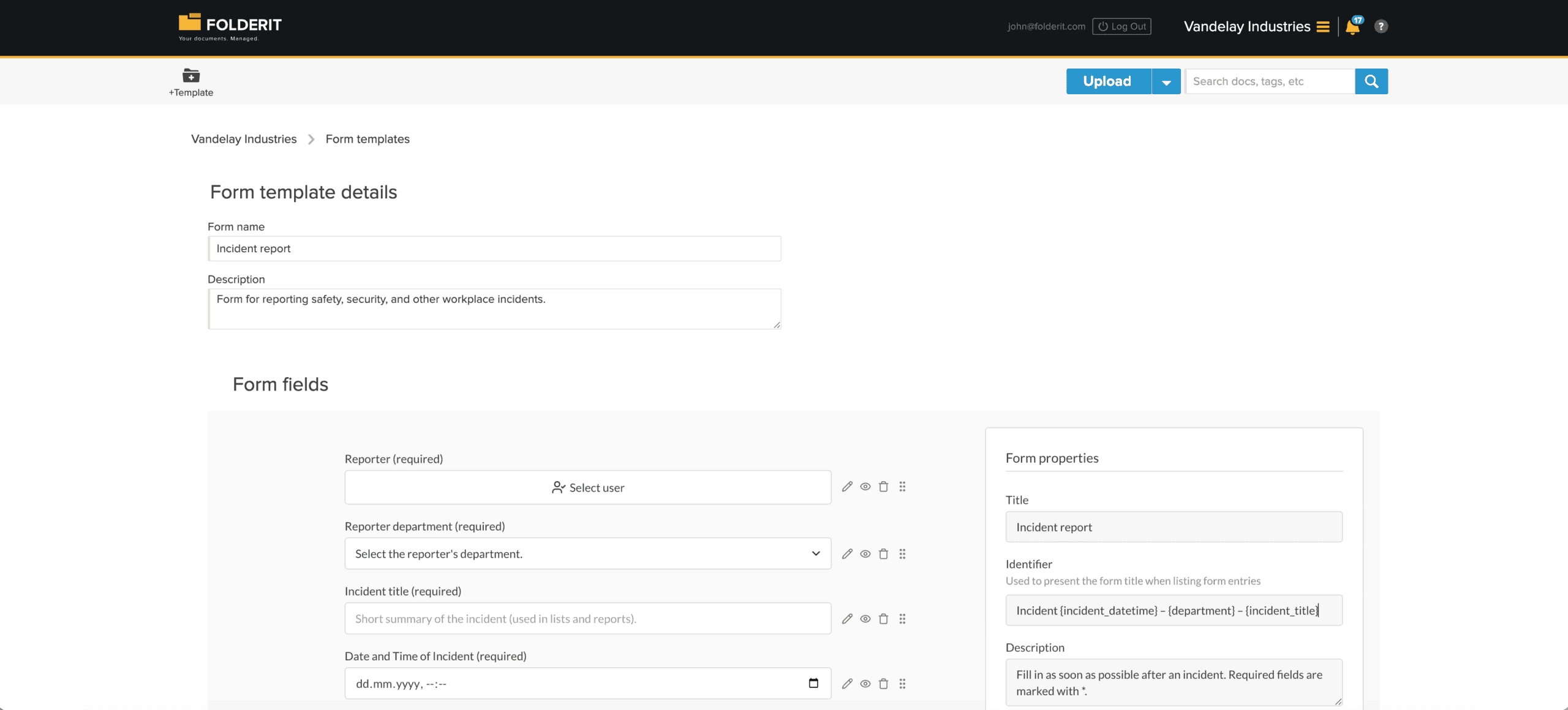
In Folderit, document management forms are built using Form templates.
Admins can find them under:
Admin tools → Form templates
A form template is a reusable eForm that defines:
- The name of the form (for example: Incident report, Asset register entry, HR change request)
- Which fields it has (dates, people, departments, descriptions, IDs, etc.)
- How each record created from this form will be named in the folder (using an Identifier pattern)
Once a form template is created, users can fill it like any other form. The result is a metadata-only record – a structured entry with fields and values, stored in a folder, without any file attached.
You can open it, see the values, edit it (with permissions), add reminders, apply retention rules and see the audit log, just like with a normal document in a document management system.
How to create document management forms in Folderit
Creating a document management form in Folderit is simple:
- Go to Admin tools → Form templates.
- Click “+Template” to create a new form template.
- Set a form name, for example: “Incident report” or “Asset register entry”.
- Add the fields you need: text, date, user, select lists, tables, numbers, files and more.
- Configure the Identifier pattern so records can name themselves automatically.
- Save the template.
That form template is now available in any folder, ready to be used as the basis for new records.
Using eForms in any folder (no files needed)
Once your form template is ready, any authorised user can create a new record from it right inside the DMS:
- Navigate to the folder where you want to store the record.
- Click the downward arrow next to “Upload”.
- Under the dashed line, you will see all available form names (for example “Incident report”, “Asset register entry”).
- Choose a form, fill out the document management form, and click Submit.
Folderit then creates a record in that folder. It has a name, it appears in the list like a document, and when you open it, you see the eForm fields and values instead of a file.
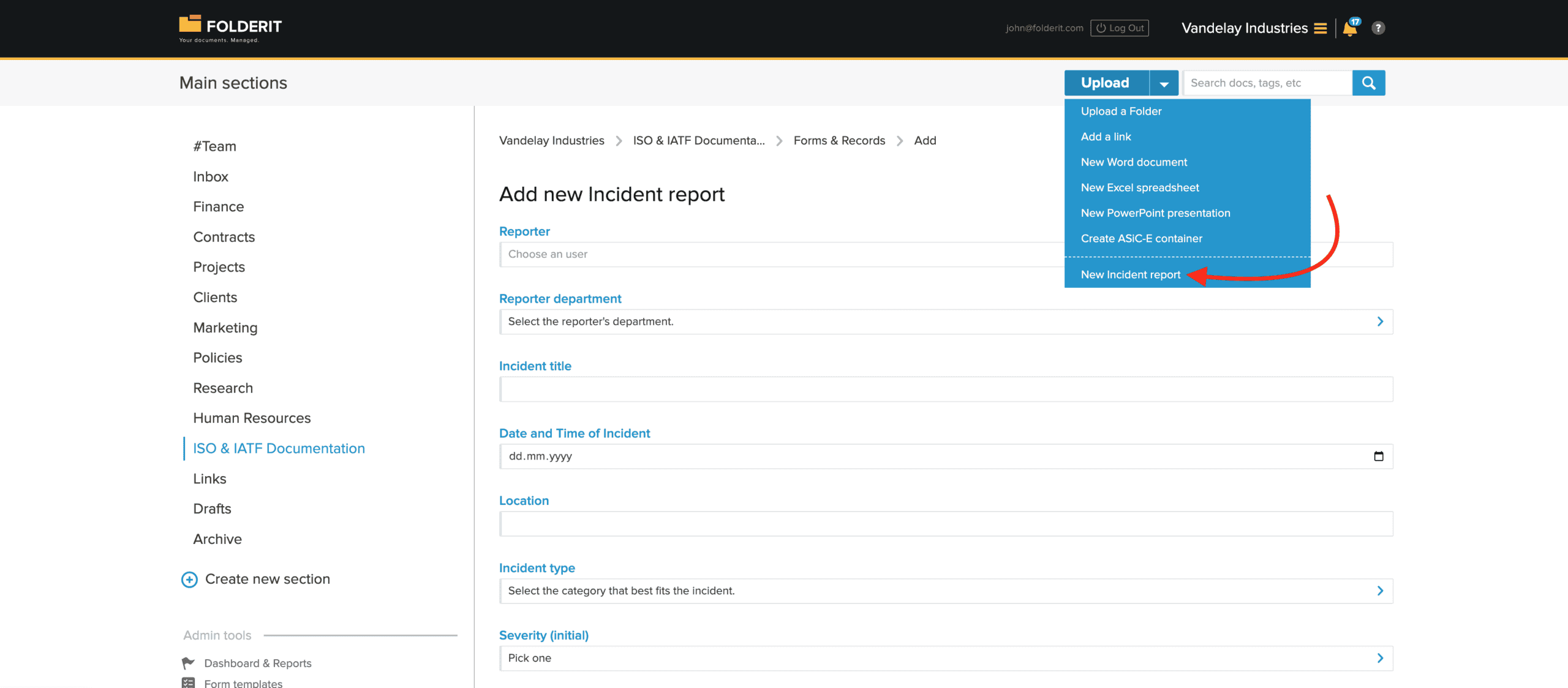
This is a clean way to bring “list-like” business data into your document management system without juggling Excel sheets or Word templates.
Dynamic record names: Identifier patterns
One of the most powerful parts of Folderit eForms is the Identifier. This defines how each record name is built when it appears in folder listings and search results.
The Identifier is essentially a name pattern for records created from a form template. It can combine:
- Static text that you type
- Dynamic placeholders that pull values from form fields
Placeholders use the field’s slug (a simple technical name) inside curly braces.
Example:
- Field label: Incident ID
- Field slug: incident-id
Identifier pattern: Incident {incident-id}
When a user fills in “IN12345” as the Incident ID, the record name in the document management system becomes: “Incident IN12345”
You can also combine multiple fields. If you have a Department field with slug department, you might use:
Incident {incident-id} – {department}
If Department is “Sales”, the record appears as: “Incident IN12345 – Sales”
You can even make the title fully user-driven. For example:
- Field label: Form name
- Field slug: formname
Identifier pattern: {formname}
Now the record’s name in the folder is exactly what the user typed as the Form name, while all other data stays in structured form fields.
This dynamic naming is perfect for organisations that need consistent naming conventions in their document management system, but don’t want to rely on users remembering exact formats.
Example 1: Incident report eForm in a DMS
Many companies want an incident reporting system inside their document management system. With Folderit eForms you can build this as a document management form:
Fields might include:
- Form name (formname) – short title
- Incident ID (incident-id)
- Date (date)
- Reported by (reported-by, user field)
- Department (department, select field)
- Description (textarea)
- File (file, optional attachment)
Identifier pattern: {incident-id} – {formname}
In practice:
- Incident ID: IN2025-004
- Form name: Forklift near-miss in loading bay
Record name in the folder:
IN2025-004 – Forklift near-miss in loading bay
You now have a proper incident record in your DMS, not an email or an Excel row. You can add reminders, keep an audit trail, and link it to workflows, all inside Folderit.
Example 2: Replace Excel registers with asset register forms
Asset registers are a classic use case where companies use Excel even though they already have a document management system.
With Folderit you can create an asset register form template with fields like:
- Asset name (asset-name)
- Asset ID (asset-id)
- Category (category)
- Location (location)
- Responsible person (user field)
- Purchase date
- Warranty expiry
- Notes
Identifier pattern: {asset-id} – {asset-name}
Record names might look like:
- AS-1001 – Laptop Dell 7420
- AS-2030 – Projector Optoma UHD…
Instead of a single spreadsheet, every asset becomes its own record in your DMS, with its own permissions, reminders and history. You still have structured data, but now it lives where it belongs – in your document management system.
Example 3: HR change request forms in your DMS
HR departments handle many small changes: title updates, department moves, cost centre changes. These often live in emails or informal spreadsheets.
With Folderit document management forms you can create an HR change request form:
- Form name (formname) – short description
- Employee (employee, user field)
- Current department
- New department
- Effective date
- Manager approval (checkbox)
- Notes
Identifier pattern: {formname} – {employee}
Examples of record names:
- Change of department – John Smith
- Cost centre update – Maria Anders
Each change request becomes a record in your DMS with a clear name, searchable fields and an audit log.
Example 4: Visitor log forms for offices and sites
Visitor logs are another area where document management forms are ideal.
Fields:
- Visitor name (visitor-name)
- Company (company)
- Host (user field)
- Visit date (visit-date)
- Visit type (Meeting / Maintenance / Audit / Other)
- Notes
Identifier pattern: {visit-date} – {visitor-name} ({company})
Folder listing might show:
- 2025-03-11 – Anna Taylor (Acme Ltd)
- 2025-03-11 – Service Technician (LiftCo)
No more paper logs or scattered spreadsheets. Your visitor records live in the same DMS as your other documents, under proper access control.
Why document management forms in Folderit are a real eye-opener
When you combine eForms, form templates, metadata-only records and dynamic Identifier patterns, you transform how a document management system can be used:
- Shared Excel registers become hundreds or thousands of individual, structured records in your DMS.
- Word templates and email-based processes turn into repeatable document management forms with proper permissions.
- Naming conventions are enforced by the system, not by memory.
- Records are searchable by both title and fields, making audits and reporting much easier.
Quality and HSE can build non-conformity, CAPA and safety observation forms.
Finance can build small expense approval, supplier data and internal request forms.
IT can build access request, change request and allocation forms.
Facilities can build maintenance, inspection and key handover forms.
All of these run as document management forms inside Folderit, with no extra system needed.
Getting started with document management forms in Folderit
To try Folderit eForms in the simplest possible way:
- Open Admin tools → Form templates and create a template called “Incident report”.
- Add a few fields: Form name, Incident ID, Date, Department, Description, File.
- Set the Identifier to: {incident-id} – {formname} (using your actual slugs).
- Save the template.
- Open any folder, click the arrow next to Upload, choose “Incident report”, and submit a test record.
You will see a record appear with an automatically generated name, powered by your Identifier pattern. Open it, edit it, add reminders and share it – exactly like any other item in your document management system.
That is the power of document management forms in Folderit: eForms and form templates that turn your DMS into a place for real business data and records, not just files.