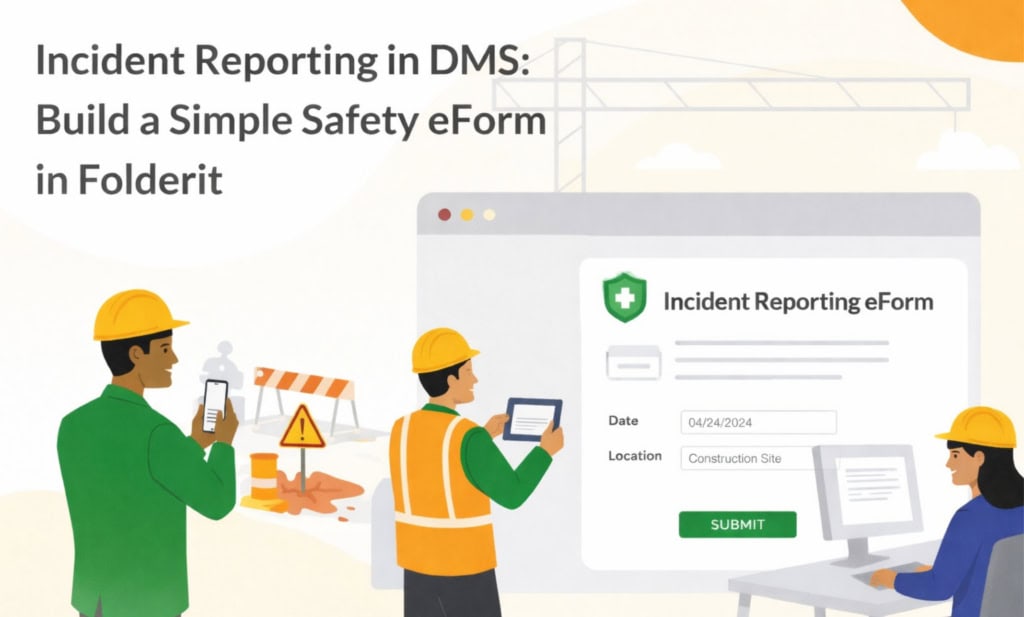
The moment an incident happens (or almost happens), everyone’s busy. A supervisor is trying to keep work moving. Someone’s checking whether anyone is hurt. Another person is thinking: “We need to report this, but where’s the form?” That’s why a simple incident reporting eForm inside your DMS can make such a difference—people can capture the essentials immediately, in the right place, without hunting for templates or rebuilding the story later.
That’s exactly why incident reporting breaks down in so many organisations. Not because people don’t care: because the process lives in the wrong place. If your incident report is a Word template on a shared drive, or a row in a spreadsheet, or an email chain that ends with “please file this somewhere,” you’ll get gaps. Missing details. Inconsistent naming. Attachments saved in random locations. And later, when you need a clear story for an internal review or an audit, you’re piecing together fragments.
A better approach is to make incident reporting part of your document management system—so incidents become real, searchable records, stored where they belong, with a consistent structure from day one. Folderit does this with document management forms: eForms and form templates that create metadata-only records directly in the DMS, without needing an uploaded file to start.
This article is deliberately focused on one practical outcome: building a simple incident reporting eForm in Folderit, and setting it up so people actually use it.
Why incident reporting belongs inside your DMS
In most workplaces, an incident report isn’t just a document. It’s the start of a process: capturing what happened, adding evidence if needed, assigning follow-ups, and keeping a reliable history.
If you treat incident reporting as “just another file,” you end up forcing the process into static documents (Word/PDF/spreadsheets) even though the work itself is structured data: dates, locations, people, categories, descriptions, and attachments. Folderit’s document management forms exist specifically to bring that structured information into the DMS as a clean record—so you’re not juggling Excel registers or hunting for the latest template.
And because the result is a record stored in a folder, it behaves like a proper DMS item: it appears in listings, has a name, can be edited with permissions, and can carry reminders and an audit log.
What makes an incident reporting eForm “actually usable”
You can build the most detailed form in the world and still get poor reporting if it’s slow or confusing. A usable incident reporting eForm usually gets four things right:
First, it’s easy to start. People can create an incident record right inside the correct folder, without switching tools. In Folderit, once the template exists, a user goes to the right folder, clicks the downward arrow next to Upload, chooses the form, fills it out, and submits. Folderit creates a record in that folder that looks like a document entry, but opens as form fields and values.
Second, it’s consistent. Everyone reports the same basic details, in the same places. You’re not reading ten different writing styles and trying to guess what’s missing.
Third, it’s findable. Incident records should be easy to scan in a folder view and easy to locate later in search.
Finally, it supports follow-up. An incident report isn’t “done” when submitted. You often want to add reminders, keep an audit trail, and link to workflows in the same system.
The good news: Folderit’s eForms were built with these exact needs in mind.
Build the incident reporting eForm in Folderit
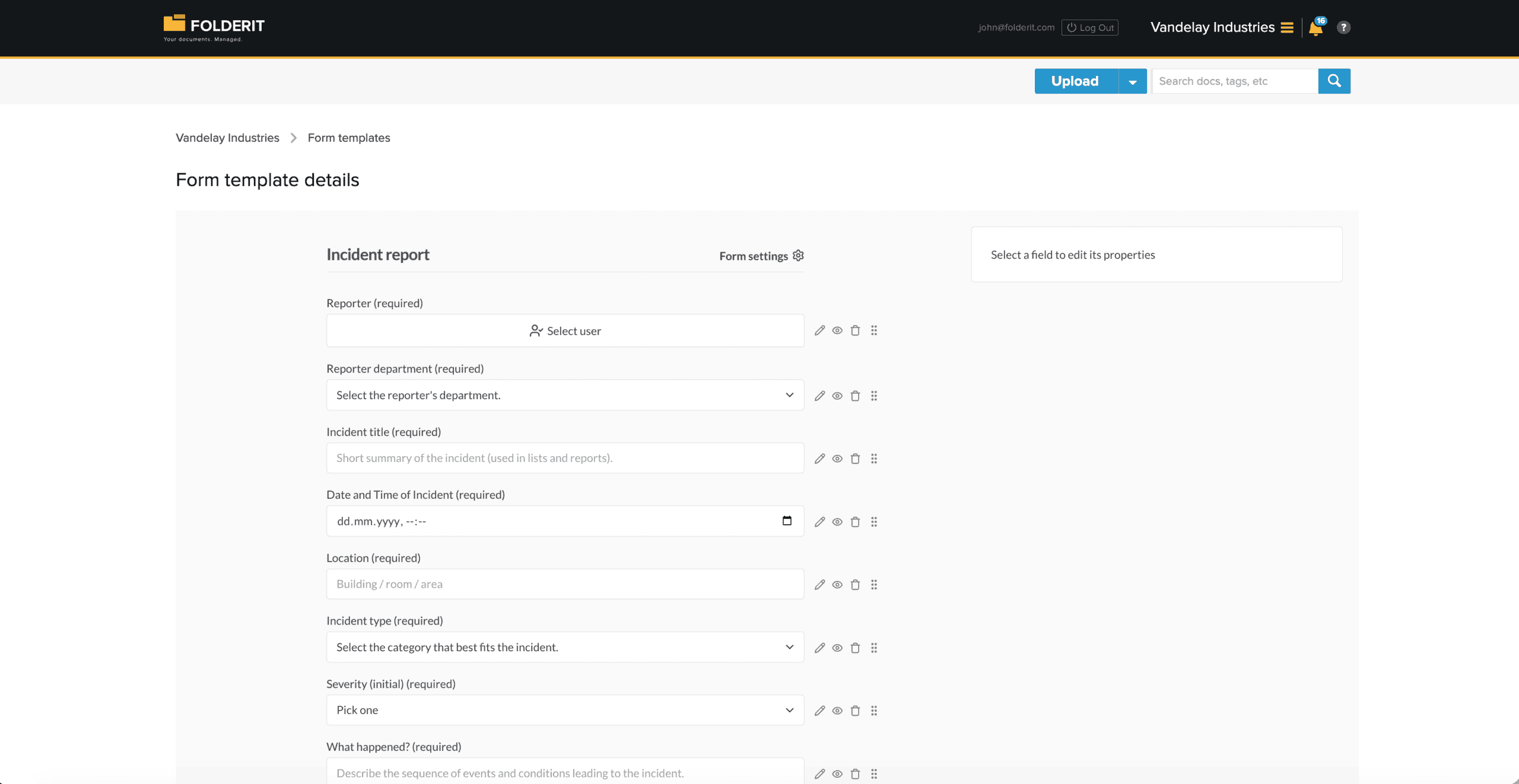
Folderit incident reporting starts with a Form template. Admins create these under Admin tools → Form templates.
The basic build flow is straightforward: go to Form templates, click +Template, name it (for example “Incident report”), add the fields you need, configure the form naming pattern, and save.
Choosing the right fields for a “simple but solid” incident report
For a practical incident reporting eForm (the kind people will actually fill in during a busy day), a strong starting set is:
Form name (a short title), Incident ID, Date, Reported by, Department, Description, and an optional File attachment.
Folderit supports a broad set of field types (text, date, user, select lists, tables, numbers, files, and more), so you can keep the form minimal at first and extend it later if you learn you need more structure.
A practical tip: keep “Description” open enough to tell the story, but don’t rely on it for everything. The whole point of an incident reporting eForm is that key details are captured as fields, not buried in paragraphs.
Make records name themselves automatically (so lists stay clean)
This is the detail that quietly makes incident reporting work long-term: record naming.
Folderit uses an naming pattern to name each record created from a form template. It can combine static text and dynamic placeholders that pull values from form fields. The placeholders use the field’s slug inside curly braces.
If your incident ID field has the slug incident-id, you can generate names like “Incident IN12345” using Incident {incident-id}.
For incident reporting, one of the cleanest naming patterns is:
{incident-id} – {formname}
So if someone submits:
- Incident ID: IN2025-004
- Form name: Forklift near-miss in loading bay
…the record name becomes IN2025-004 – Forklift near-miss in loading bay automatically.
This is more than a nice detail. It’s what keeps an incident folder usable after 200 reports. People can scan the list and immediately understand what they’re looking at, without opening every item.
How users submit an incident report (no training session required)
Once the template is saved, it becomes available in any folder.
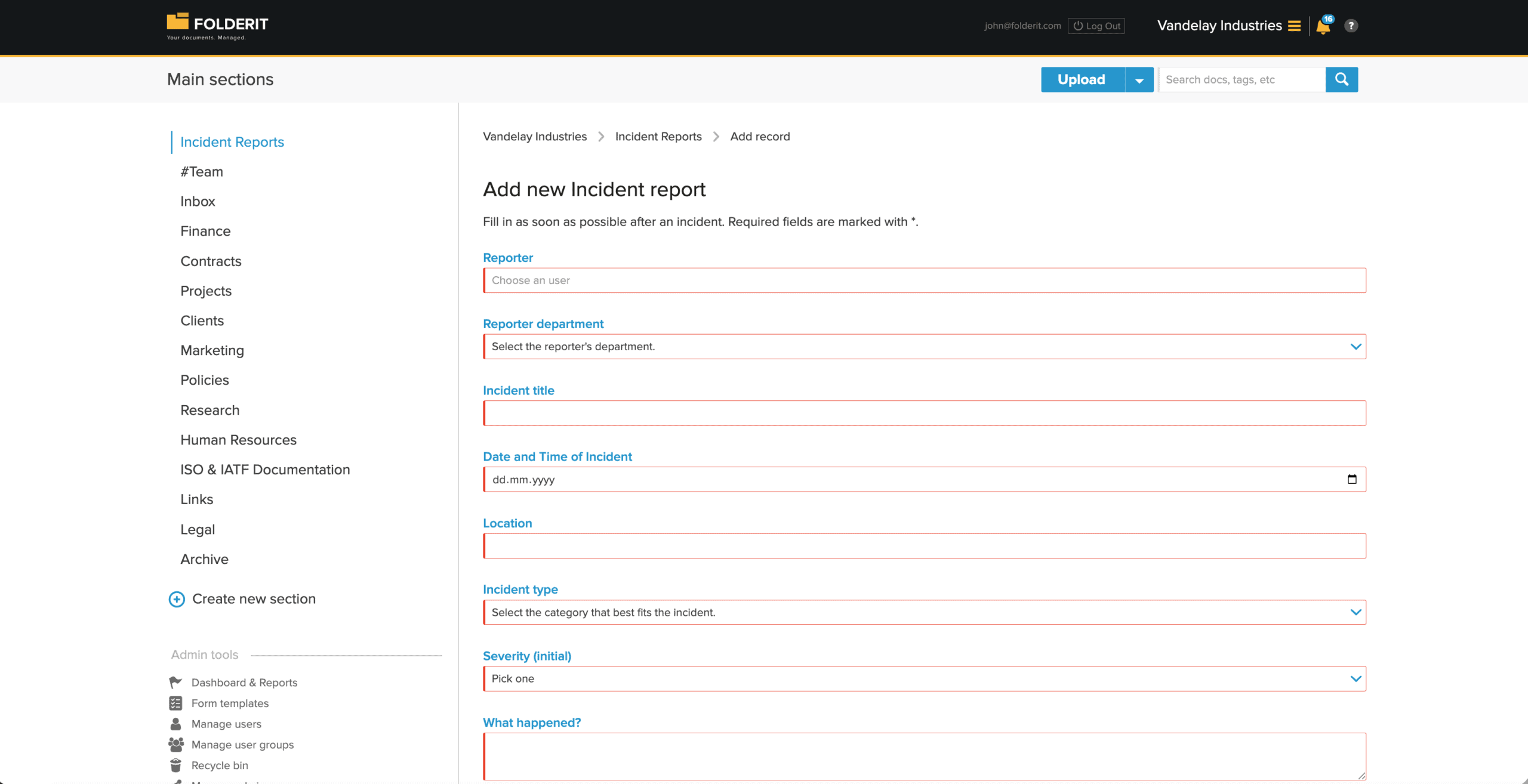
From a user’s point of view, the flow is simple: open the folder where you want the incident recorded, click the arrow next to Upload, choose the “Incident report” form from the list, complete it, and click Submit. Folderit creates a record in that folder that appears like a document entry; when opened, it shows the eForm fields and values instead of a file.
That last part matters: it turns incident reporting into a natural DMS habit. You’re not sending people out to a separate tool or asking them to remember where the latest template lives.
What happens after submission: follow-up, audit trail, and “closing the loop”
Incident reporting is valuable when it leads to action. You typically want to assign someone to review, set due dates for corrective actions, and keep a clear history of what changed and when.
Folderit supports this “after the report” phase inside the same item: you can add reminders, keep an audit trail, and link the record to workflows.
That means the incident report isn’t just filed—it’s managed.
A simple folder structure that avoids chaos
To keep this article from overlapping your broader eForms overview, I’ll keep this practical and incident-specific: decide where incident records should live before you launch.
Many teams use one of these patterns:
- One central “HSE / Safety / Incident Reports” area, with year-based subfolders
- Or per-site/per-department incident folders, if reporting is distributed
The important part isn’t which structure you choose—it’s consistency. Folderit’s template-based creation makes it easy to keep records standard even if different sites or departments are reporting.
FAQ: incident reporting eForm in Folderit
Can an incident report exist without an attached file?
Yes. The core idea is a metadata-only record stored in a folder, without needing a file upload to start. Attachments can be optional.
How do we make sure incident record names are consistent?
Use the form naming pattern on the form template. It builds the record name automatically using field slugs in curly braces.
How do users find the incident reporting form?
After the template is created, users can start it inside any folder via the arrow next to Upload, where available form names are listed.
Can we include “Reported by” as a person field rather than plain text?
Yes—Folderit form templates support user fields, and the incident example explicitly includes “Reported by” as a user field.
Can we drive follow-up actions from the incident record?
Yes. You can add reminders, keep an audit trail, and link the incident record to workflows.
Suggested internal links (to avoid cannibalization)
- Link to your broader article about document management forms (eForms + templates) as the “overview” piece.
- Link from this article to a workflows-focused article/page (position it as “closing the loop after reporting”).