WordPress Document Management Plugin
Use WordPress as a document portal while Folderit handles the document management behind the scenes.
Folderit for WordPress is a WordPress document management plugin that helps you show Folderit files on your website in a structured and user-friendly way. Instead of relying only on the WordPress media library, you can create a cleaner WordPress document repository or document library using a Gutenberg block or shortcode, while Folderit handles the file source, authentication, and download flow behind the scenes.
Turn WordPress into a smarter document portal
If you are looking for a WordPress document management plugin, you probably need more than basic file uploads. You need a better way to publish, organize, and share documents without exposing direct file links or forcing everything into the WordPress media library.
Folderit for WordPress helps you create a cleaner, more professional document experience. The plugin is designed to be easy for non-technical users, while also supporting secure server-side configuration for production websites.
What the plugin does
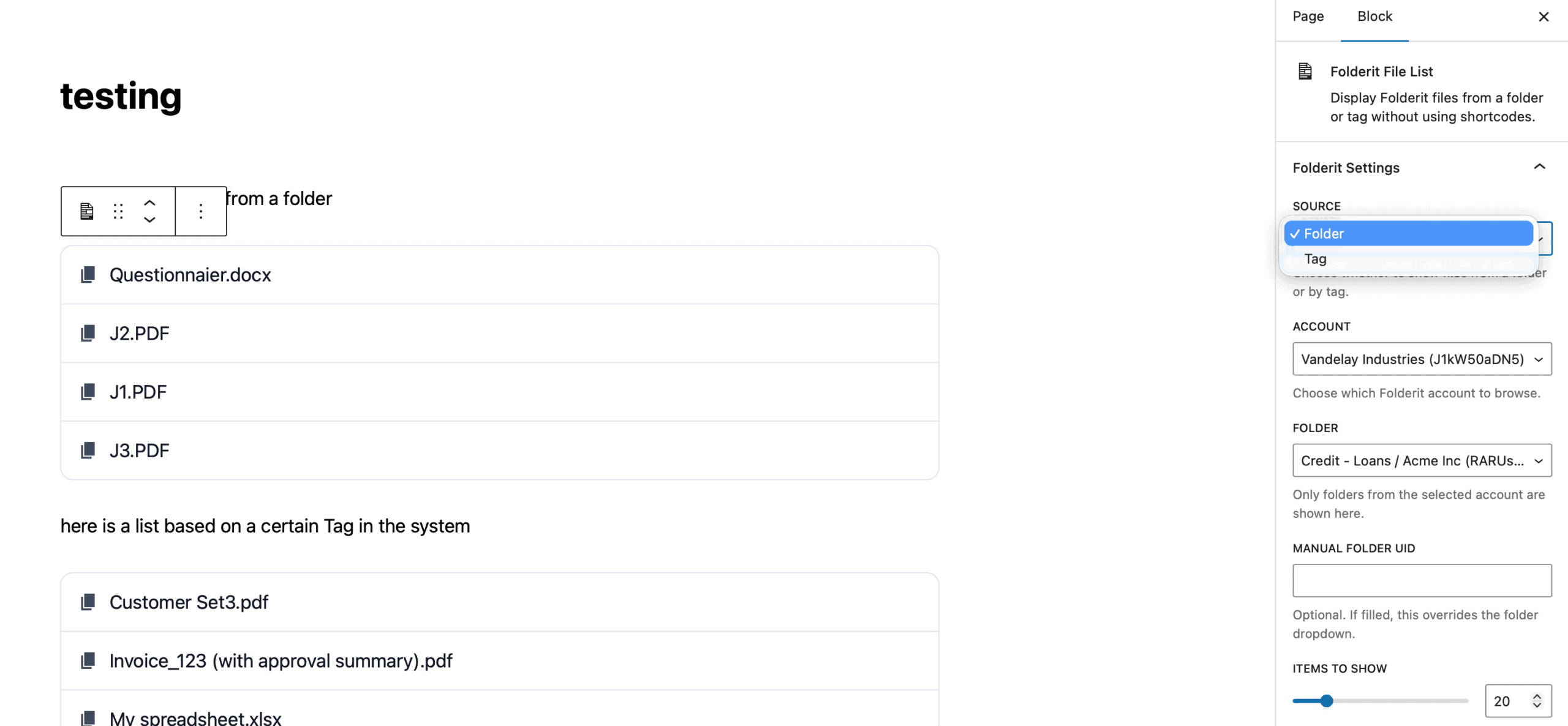
Folderit for WordPress allows you to publish files from Folderit on your WordPress site in two main ways:
- Show files from one specific Folderit folder
- Show files connected to one specific Folderit tag
You can add the file list with the Folderit File List Gutenberg block or by using a shortcode for older pages and classic editor setups.
Why use Folderit for WordPress document management
A typical WordPress file plugin may help you list downloads, but businesses often need more structure and better control around the source documents.
Folderit for WordPress is a strong fit when you want to:
- create a WordPress document repository
- build a document library for clients, staff, or partners
- publish files by folder or tag
- keep document access more controlled
- avoid exposing permanent direct download URLs
- use a simple WordPress editor experience while relying on Folderit as the document source
The plugin uses Folderit OAuth2 client-credentials authentication, stores access tokens temporarily, and creates signed, time-limited WordPress download links for safer file access. Visitors never see the actual Folderit secret.
A better way to publish Folderit files in WordPress
Folderit for WordPress is built around a simple idea: let WordPress present files nicely, while Folderit remains the controlled document source.
That gives you a better foundation for a WordPress document management setup because:
- the plugin is connected to Folderit, not limited to WordPress uploads alone
- admins can browse accounts, folders, and tags from inside WordPress
- files can be shown from a folder or a tag
- manual Folder UID and Tag UID fields are available when needed
- signed, time-limited links add an extra layer of download protection
This makes the plugin useful for public document areas, customer resource pages, partner portals, product file sections, and other structured file publishing needs.
Built for easy WordPress use
The main recommended way to use the plugin is the Folderit File List block in the WordPress editor. Shortcodes are also supported for older pages or classic editor use. Admins can set up the connection, test credentials, browse folders, browse tags, and choose a default folder from inside WordPress.
Key plugin features
- Gutenberg block: Folderit File List
- guided setup screen inside WordPress
- connection test for Folderit credentials
- folder browser for selecting a default folder
- account-aware folder and tag selection
- manual Folder UID and Tag UID override fields
- shortcode support
- signed, time-limited download links
- admin-only setup and browsing tools
- support for secure credentials in wp-config.php or environment variables
Security
The plugin follows a solid server-side approach:
- credentials can be stored in wp-config.php or server environment variables
- the plugin uses OAuth2 client-credentials authentication
- access tokens are stored temporarily
- the Folderit secret is never exposed to site visitors
- downloads use signed, time-limited WordPress links
- setup and Folderit browsing tools are intended for admins
For the safest setup, credentials should be stored outside the WordPress database.
Flexible ways to show files
The plugin supports two core source modes.
Show files from a folder
Choose the account, choose the folder, or manually paste a Folder UID. This is useful when you want a structured document list from one defined location.
Show files by tag
Choose the account, choose the tag, or manually paste a Tag UID. This is useful when you want to show documents grouped by topic, category, or another tagging structure. Custom tag names are supported if they exist in Folderit and the selected account can access them.
Good fit for real business use cases
Folderit for WordPress works well for organizations that need a document library or repository on a website, but want the files to come from a more controlled source.
Common use cases include:
- client download areas
- customer resource libraries
- partner or reseller document portals
- product documentation pages
- internal WordPress knowledge pages
- policies, manuals, and shared document sections
Because the plugin can show files from folders or tags and uses signed temporary links for downloads, it suits websites where structured publishing and safer access matter.
Easy setup inside WordPress
Setup is designed to be straightforward:
- Install and activate the plugin
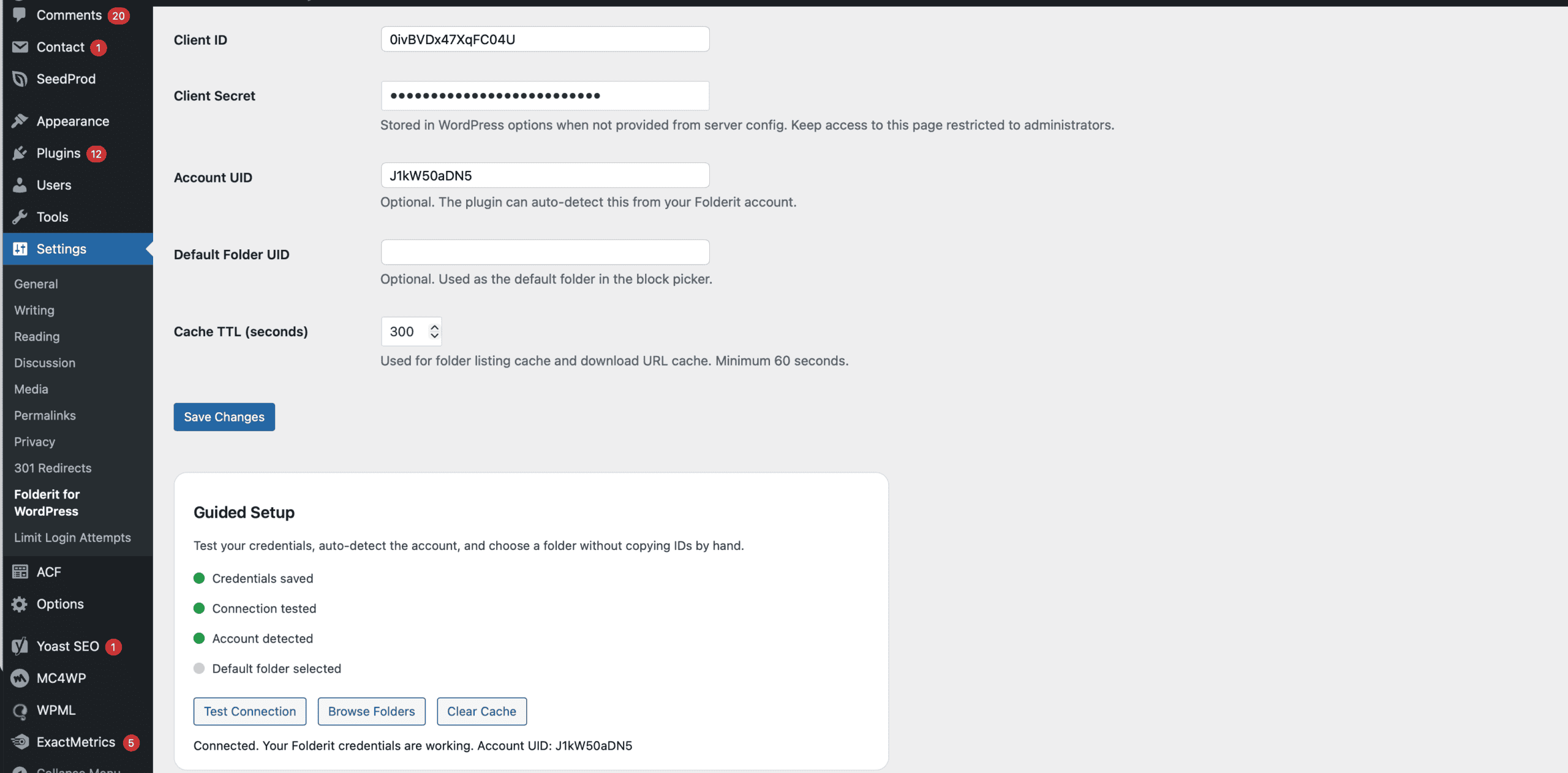
- Open Settings > Folderit for WordPress
- Enter your Client ID and Client Secret
- Test the connection
- Open page or post editor, add the block Folderit file list, and choose what should be displayed to your visitors to download
The setup checklist shows whether credentials are saved, the connection was tested, the account was detected, and a default folder was selected.
WordPress document repository without exposing permanent file links
When a visitor clicks a file, WordPress verifies the signed link, requests a fresh Folderit download URL, and redirects the visitor to the file. This is safer than exposing permanent direct links. If a link expires, refreshing the page and clicking again generates a new valid path through the normal process.
Works for modern editors and older pages
You can use the Gutenberg block on modern WordPress pages and posts, or use shortcode support for older pages and classic editor setups. Supported attributes include source, folder UID, tag UID, account UID, and limit.
Why businesses choose Folderit for WordPress
Folderit for WordPress is a practical choice when you want a WordPress document management plugin experience that is simple for editors and cleaner to manage.
Instead of building document publishing around static uploads alone, you can use Folderit as the source and WordPress as the front-end experience.
That means:
- easier document presentation in WordPress
- folder-based or tag-based publishing
- admin-controlled setup tools
- better download handling
- support for both modern and older WordPress workflows
Frequently asked questions
Can I use this plugin without shortcodes?
Yes. The main recommended method is the Folderit File List block in the WordPress editor. Shortcodes are still available for older pages or classic editor use.
Can I show files by tag?
Yes. Set the source to Tag, then choose the account and tag.
Can I manually paste a Folder UID or Tag UID?
Yes. The block supports manual Folder UID and manual Tag UID fields, and those override the dropdown selection.
Is the plugin secure?
The plugin is designed with a security-conscious approach, including server-side authentication, temporary access tokens, signed download links, and admin-only setup tools. For the strongest setup, credentials can be stored in wp-config.php or server environment variables rather than in standard WordPress settings.
Why might the plugin show no files found?
Possible reasons include an empty folder, wrong selected account, missing access, no matching files for the chosen tag, or stale cache. Clearing cache, testing the connection again, and checking the selected account, folder, or tag can help.