eForms (Form templates)
Form templates let you create metadata-only records in Folderit – structured entries with fields, but no uploaded file.
Typical uses:
- Incident / accident reports
- Asset or equipment registers
- Visitor / access logs
- Simple request forms (IT request, access request, etc.)
- Case records (for example customer cases, support tickets)
- Project cards (for construction or other project-based work)
Each time someone fills in a form, Folderit creates a record that lives in a folder, can be searched, approved, secured and edited – just like a document, but it’s all structured data.
Who can create and manage form templates?
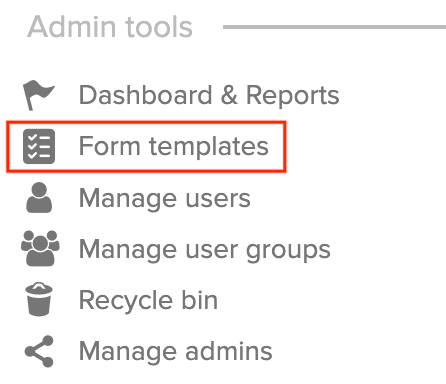
Form templates are managed from Admin tools, so you need access to the Admin tools panel for the account.
Admin tools → Form templates
Here you’ll see the list “Manage form templates”.
Creating a new form template
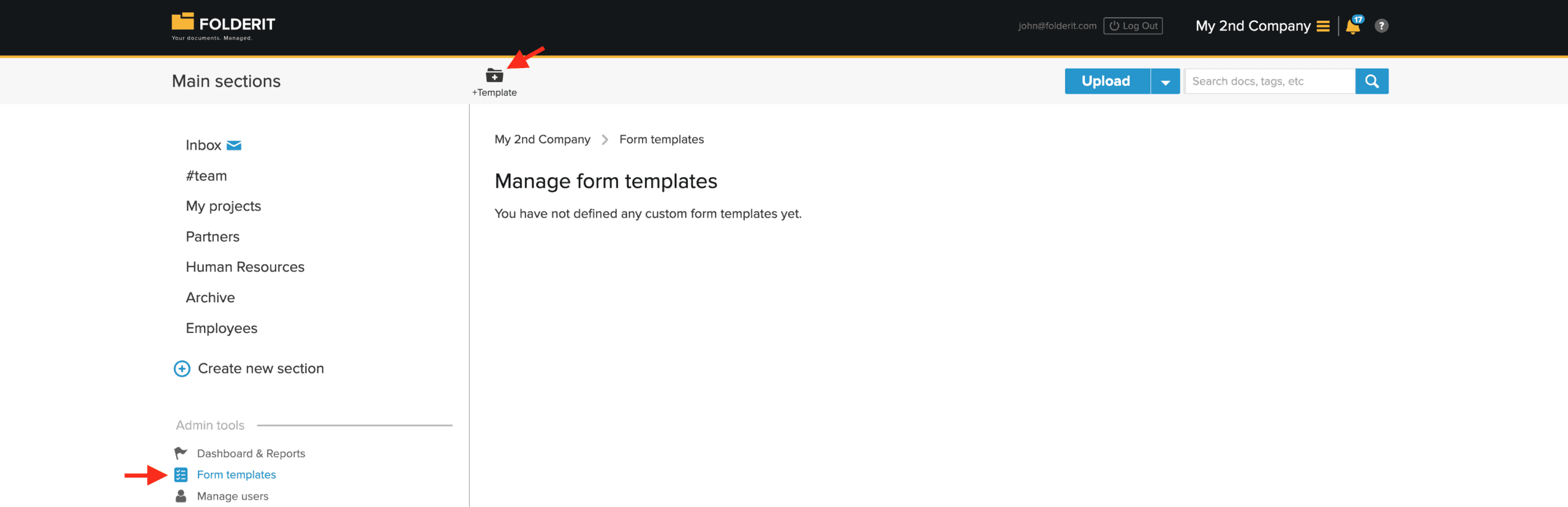
- Go to Admin tools → Form templates.
- Click +Template in the top bar.
- Fill in the Form template details:
- Form name
- This is the human-friendly name (e.g. “Incident report”, “Asset register entry”).
- This name appears under the Upload dropdown when users create a new record.
- Description (optional)
- Briefly explain when and how this form should be used.
- Form name
- Configure Form settings (right side):
- Title
- Shown at the top of the form when a user is filling it in.
- You can usually keep it the same as the Form name.
- Record name pattern
- Defines how the record name is shown in folder listings. You can combine normal text with placeholders that pull values from form fields. Placeholders use the field’s slug in curly braces, for example:
Incident {incident-id} – {department}
When the form is submitted, Folderit replaces these placeholders with the actual values and uses the result as the item name.
- Defines how the record name is shown in folder listings. You can combine normal text with placeholders that pull values from form fields. Placeholders use the field’s slug in curly braces, for example:
- Description
- Text shown to users under the form title, explaining what the form does.
- Submit button text
- Label for the submission button (default: “Submit”).
- Title
Adding fields to a form
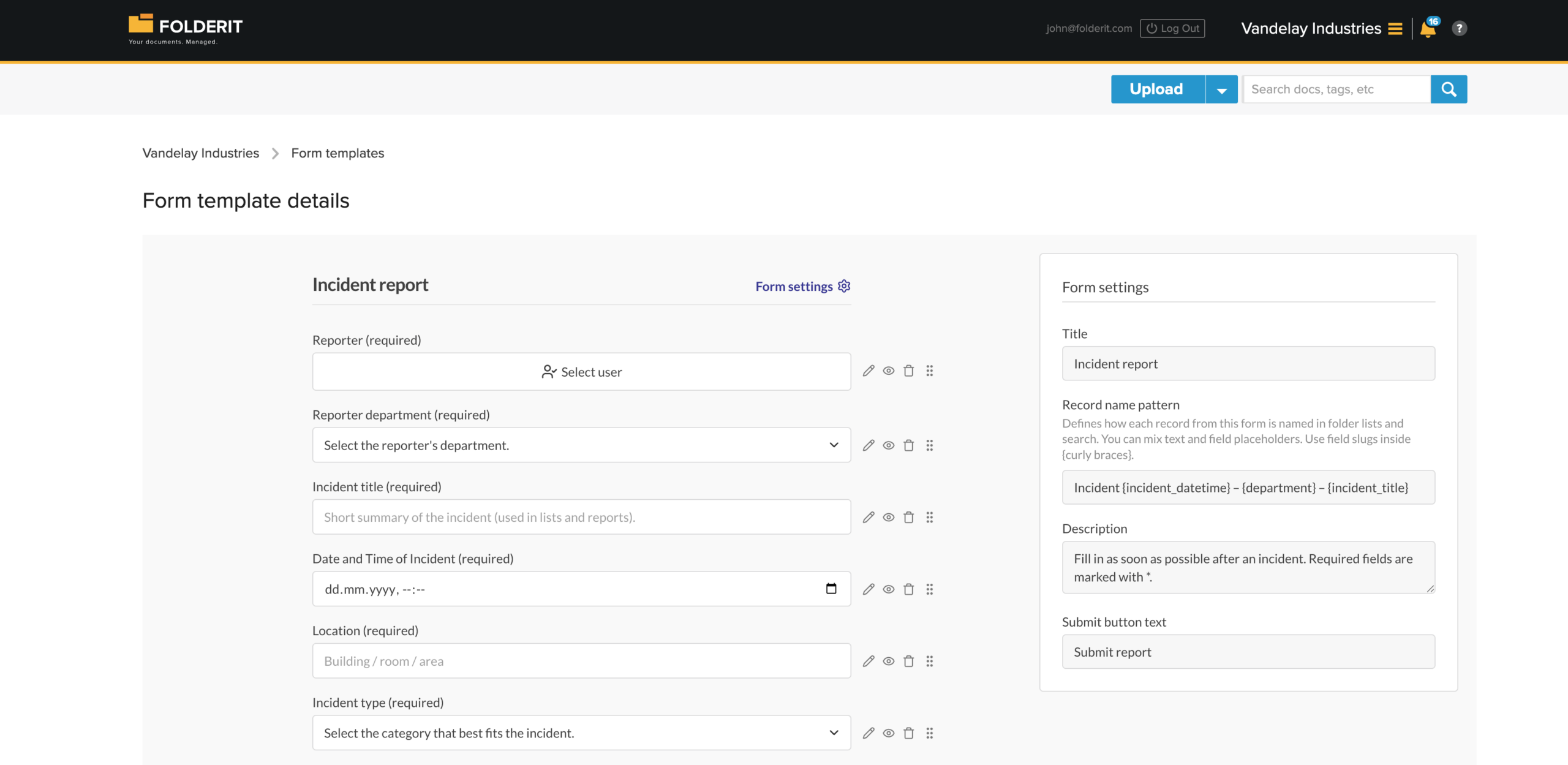
Under Form fields you define what information users must fill in.
- Click Add your first field (or Add field).
- Choose a field type:
- Text – short free text (titles, names, etc.)
- Textarea – longer text (descriptions, comments)
- Email – email address field
- Number – numeric values
- Select – dropdown list with predefined options
- Checkbox – yes/no
- Date – date picker
- File – attach a file to this record
- User – select a Folderit user
- Relation – link to another record/item
- Table – add rows of structured data (e.g. line items)
- Configure Field properties on the right:
- Field label – what users see (e.g. “Incident date”, “Department”).
- Field-specific settings (options for Select, columns for Table, etc.).
- Required – tick if this field must be filled in.
- Add as many fields as needed and drag them to reorder.
- Click Save when the template is ready.
Using a form template in a folder
Once a form template is saved, any user with rights in a folder can create records from it.
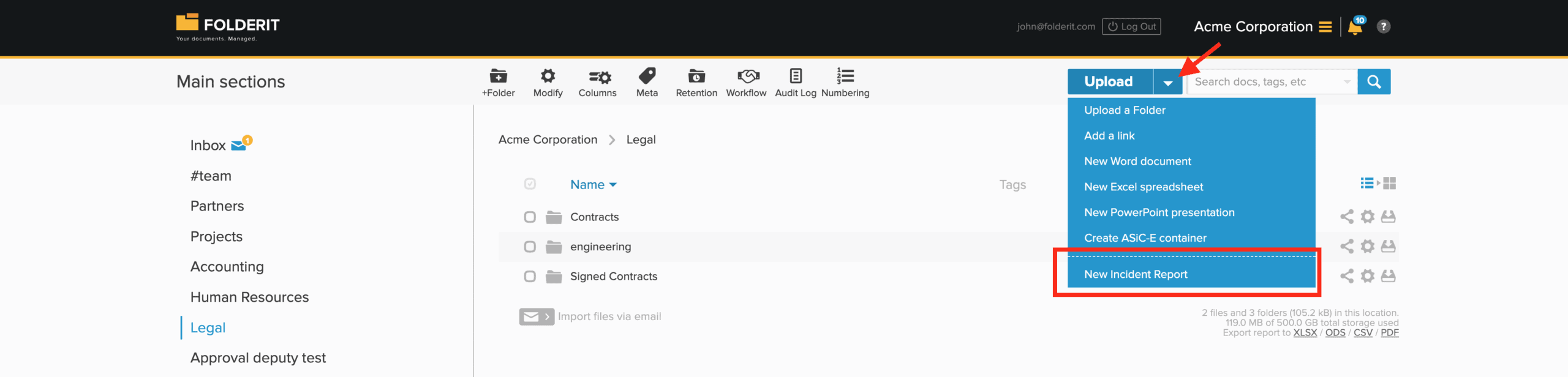
- Navigate to the folder where you want the record to be stored.
- In the top bar, click the downward arrow next to Upload.
- In the dropdown:
- The normal options (Upload a Folder, Add a link, New Word document, etc.) are shown first.
- Below the dashed line, you’ll see your form names (e.g. “Incident report”, “Asset register entry”).
- Click the form name you want to use.
- The form opens:
- Fill in the fields.
- Click the Submit button (or your custom button label).
- The new record is saved in the folder you were in when you opened the form.
There is no separate file uploaded – the record itself contains the data you entered.
Form fields don’t just live inside the record. You can add any field from a form template as a column in a folder view, so each record shows its key values (such as Incident date, Department, Status) directly in the list next to the item name.
Form fields also work like any other metadata in search. When building a search filter, you can select a specific form field, choose a condition that matches its data type (equals, contains, greater than, between, etc.), and then enter the value you are looking for. This makes it easy to find exactly the records that match your criteria.
Viewing and editing form records
- Each submitted form appears in the folder as its own record (like your example: IN12345).
- When you open the record, you see:
- All form fields and their values (Incident ID, Date, Reported by, Department, etc.).
- Any attached files.
- The normal right-side tools (Reminders, Shared to, Retention, Audit log).
To edit a record created from a form:
- Open the record.
- Click Modify in the toolbar at the top.
- The form editor opens with the existing values.
- Make your changes and Save.
Only users with the EDITOR permissions on that item/folder will see and be able to use the Modify button.
Behavior, limitations & troubleshooting
Data validation & special characters
Folderit applies a few automatic adjustments to certain special characters to prevent saving errors. If something prevents saving, the form will show an error message in the UI so you can correct the value and submit again.
Record name pattern placeholders
Most placeholders use the field slug format in curly braces, for example {incident-id}.
There are two special identifiers:
- {number}
- {type}
All other placeholders come from your form field slugs. If you include an unsupported placeholder, it will simply not be replaced when the record is created (it won’t prevent saving the template).
Slug uniqueness
Field slugs only need to be unique within the same form template. They do not need to be globally unique across your account.
Drafts and autosave
Draft mode is not supported at this time. Forms do not autosave — a record is created only when the user clicks the Submit button.
Folder restrictions (planned)
Form templates are currently available for use in any folder where the user has sufficient permissions. Limiting a template to a specific folder (or a list of allowed folders) is not supported yet, but it’s a planned feature.
Cookies, cache, and browser behavior
The form builder does not rely on any special cookies. Form submission is handled like a standard Folderit form submission.
If a form doesn’t submit
If a submission fails, the error should be shown in the UI. Review the highlighted fields and the message shown, correct the values, and submit again.