
Someone asks for the approved minutes. You find a file marked “final”, a later correction in email and an action list that has changed twice. The useful answer is an exact document version, the decision approving it and a separate record of what happened to the actions.
A meeting-minutes approval process should confirm that a particular version accurately records the meeting. Keep that record stable, track follow-up work separately and send a corrected version for its own approval when necessary. In Folderit, an approval already in progress stays attached to the version originally submitted, even after a newer file is uploaded.
Agree what the approval confirms
For an internal project or operations meeting, ask the chair to confirm the decisions, responsibilities and dates recorded in the minutes. Make that purpose explicit in the approval instruction. “These minutes accurately record the meeting” is a different decision from authorising a purchase or accepting completed work.
Decide who prepares the minutes, who checks their accuracy and who updates the actions. One person may perform several roles, but the responsibilities should remain clear. University of Manchester guidance on minutes and actions offers a useful model: record decisions and relevant reasoning, identify action responsibilities and timescales, and maintain a separate action log. Its committee procedures are examples to learn from, rather than rules for every business meeting.
One meeting, two follow-up records
The following example is fictional. It is a documentation-based Folderit setup, not a reported customer deployment or an end-to-end product test.
Nora prepares the minutes of a North site review held on 17 November 2026. Amir chairs the meeting and will approve the accuracy of the record. Use a shared meeting reference, NORTH-2026-11-17, on the minutes and the action records.
| Decision recorded in the minutes | Separate action record | Owner and due date |
|---|---|---|
| D01: Request two revised installation quotes for the North site. No order is authorised by this decision. | A01: Obtain the two quotes and attach the responses for review. | Lena; 24 November 2026. |
| D02: The South site remains outside the pilot scope. | A02: Tell the South site lead which work is excluded. | Nora; 20 November 2026. |
The minutes preserve what the meeting decided. A01 can later move from open to waiting for a supplier, then completed, without rewriting that decision. A02 needs evidence of the message being sent; an “approved” minutes file alone does not show that the site lead was told.
Approve a version, then handle a correction
Store the minutes file in the relevant project or team folder. Give it a recognisable title such as “North site review — 17 November 2026” and retain the meeting reference.
- Nora checks the draft against the meeting notes, including D01, D02, the owners and the intended dates. Resolve factual questions before requesting approval where possible.
- Upload the file and open its detail view. Note the actual version being submitted, rather than relying on a filename containing “final”.
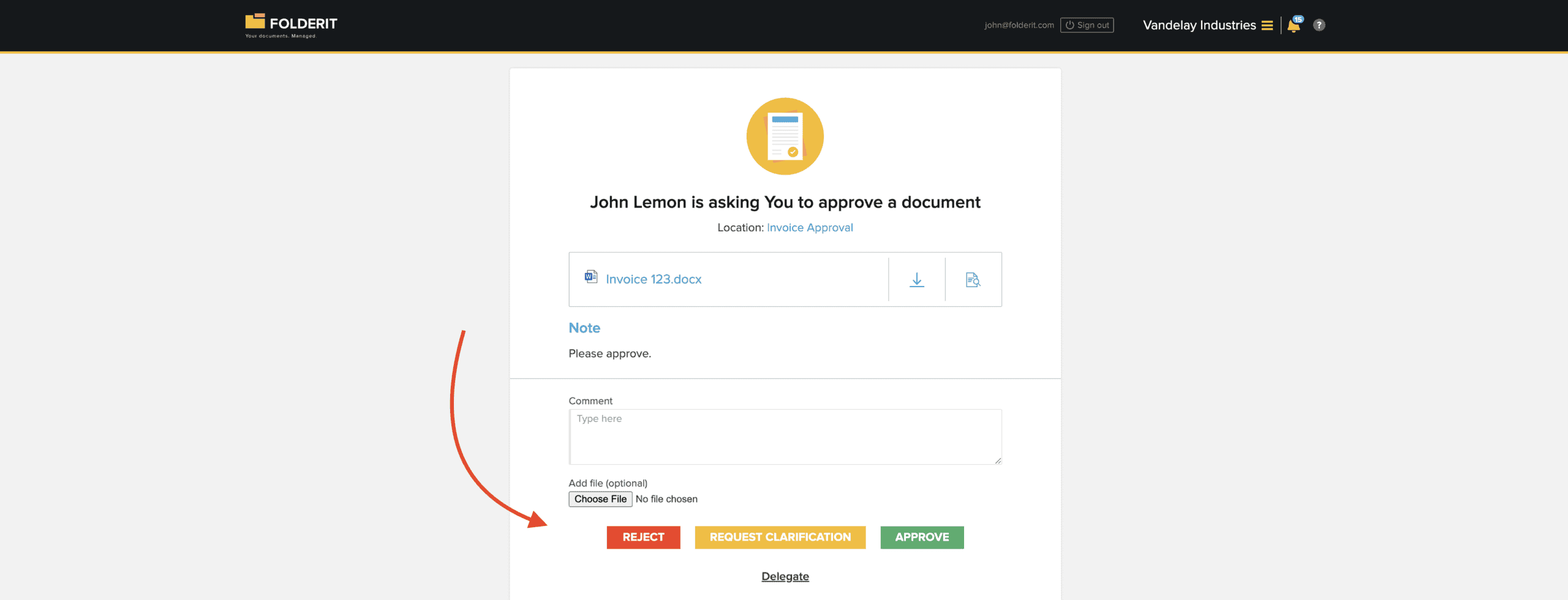
- From Workflow, choose Start approval workflow. Select Amir and give a clear instruction: “Please confirm that this version accurately records the North site review of 17 November.”
- Check the workflow order. New regular and folder workflows default to Serial; choose the intended order explicitly when there is more than one approver. Review which metadata and related items the participants may see.
- After the response, inspect the item’s Workflows section for the result, participant, comments and timestamps. Distribute the file as agreed minutes only when the required workflow for that exact version has an Approved result. If it is rejected or clarification is still needed, resolve the issue and obtain the required approval; do not treat a submitted request as acceptance. Record the approved version before completing an action’s source reference.
Folderit’s approval-workflow instructions explain the setup and recorded responses. Where a consolidated summary is available, it can help retain the decision evidence; available download formats depend on the item type.
What happens when the deadline is wrong?
Suppose version 1 says that Lena’s quotes are due on 20 November. While its approval is active, Nora discovers that the meeting actually agreed 24 November and uploads version 2.
Folderit’s version-history documentation makes the important behaviour explicit: the active approval stays with the earlier version. The corrected current version can have an independent approval. Uploading version 2 does not move the version 1 request or turn its result into approval of version 2.
Nora records the correction and tells Amir that the version 1 request still concerns the inaccurate deadline. Amir rejects that version with a comment explaining the error. Once that request is resolved, Nora submits version 2 for independent approval. If version 1 had already been approved, keep that decision as version 1’s history and record the reason for the new revision. In either case, Nora releases version 2 as agreed minutes only after confirming an Approved result for version 2 itself, then updates A01’s source reference and correct due date.
A later change of decision is different. If the team subsequently moves the deadline to 27 November, record that new decision and its date, link its supporting record and update the live action log. Keep the earlier minutes as the record of what was agreed at that earlier meeting. Check and, where necessary, reschedule any separately configured reminder when the deadline changes.
Give the actions a life of their own
Use a Folderit form for each action if your account includes eForms. The full form-record example needs Tailor; simple approvals start with Medium. Confirm the functions available in your current plan before configuring it.
A practical action form can contain the following fields. These are proposed labels, not a built-in meeting template:
- Meeting reference — Text, for example NORTH-2026-11-17.
- Action reference — Text, such as A01; retain the decision reference D01 in the description.
- Action and completion evidence — Long text describing the result required and the evidence to record.
- Owner — User, selecting the responsible colleague.
- Due date — Date.
- Status — Select, for example Open, Waiting, Completed or Cancelled.
- Minutes version reference — Text identifying the file, approved version and approval date.
Nora needs sufficient permission to upload and manage the minutes and create the action records. An action owner who will modify a form record needs Editor permission on that record. Selecting a colleague in an Owner field records responsibility; grant the necessary access separately. Check the form’s creation restrictions and destination folder as well.
Link to the file you actually mean
Nora manually enters A01 and A02 as separate action records. For A01, specify that completion means the two revised quotes are available and referenced in the record. For A02, record when the scope message was sent and where its evidence is kept. Keep the same meeting reference on both records so they can be found together.
To link an action record to an uploaded minutes file, use general Related Items: open Modify, find Related Items, choose Browse, select the minutes and save. Alternatively, enter the minutes’ Document ID or full Folderit URL, choose Add item, then save. Open the saved link to confirm that it leads to the intended item. Check with an action owner’s account that they can open both the action record and the relevant minutes version.
An eForms Relation field serves a different purpose: it selects records from a configured form template. Use it if the meeting itself is a form record; do not describe it as a selector for an arbitrary uploaded minutes PDF. General item links also do not establish which file version was approved. Enter that version and approval date in the action’s source reference.
Choose a real reminder recipient
If Lena should receive a reminder for A01, configure the reminder with an actual date, time, recipient and message, then confirm it. For example, remind Lena before 24 November to obtain the missing quotes. The recipient initially shown may be the account holder’s email: check it rather than assuming the Owner field supplied it. A due-date field by itself is not this reminder setup.
At the next meeting
At the next review, open the approved minutes version and the current action records. Check who owns each open action, whether the due date still reflects the latest authorised decision, and what evidence supports completion. An owner who is waiting for a supplier should record that fact and the next follow-up, rather than marking the task completed to clear a list.
The meeting record and the live action log now answer different useful questions: What did we agree then? and What has happened since? Keep the version reference, approval evidence and linked records clear enough that the next person can answer both without reconstructing an email thread.